Home
Home
How to Choose and Install a Top-Rated Mod Menu for Cyberpunk 2077
For Cyberpunk 2077 Patch 2.13, the most reliable modding experience begins with
Cyber Engine Tweaks (CET)
. Once CET is installed,
Simple Menu
stands out as a top choice for general gameplay tweaks, while
MenuMod
offers exceptionally strong utility for character progression and economy. Always perform a manual installation to the
bin\x64\plugins
directory to ensure stability and avoid common deployment errors found in automated managers.
Modding Night City has evolved significantly since the game's initial release. With the arrival of Patch 2.13, the technical landscape has shifted, requiring players to be more diligent about version compatibility and framework dependencies. A mod menu is not just a collection of cheats; it is a sophisticated interface that allows you to manipulate game variables, adjust character aesthetics, and bypass repetitive mechanics in real-time.
Whether you are looking to fix a broken quest, experiment with high-end Cyberware without the grind, or simply capture the perfect screenshot using advanced camera tools, choosing the right menu is essential. In this guide, we will break down the leading options available today and provide a diagnostic workflow to ensure your mod stack remains functional through future updates.
Which Cyberpunk 2077 Mod Menu Should You Choose?
The "best" menu depends entirely on your specific needs. Some players want a lightweight tool for hotkeys, while others require a comprehensive suite of "God Mode" features. Based on community feedback and technical stability in the current patch environment, four primary options dominate the scene.
Simple Menu
Widely considered one of the most stable options, Simple Menu provides a clean UI for spawning items, adjusting player stats, and managing money. It is highly recommended for those who want functionality without clutter.
MenuMod
MenuMod ranks among the top choices for power users. It includes unique features like a "God Vendor," 10k Cyberware capacity, and a robust NoClip/Fly mode that few alternatives match.
RED Cheat Menu 2
If your goal is combat dominance, RED Cheat Menu 2 is a strong contender. It specializes in combat-heavy cheats like Infinite RAM and Massive Damage multipliers.
Appearance Menu Mod
Commonly known as AMM, this mod is a popular choice for roleplayers. It focuses on world-building, allowing you to swap NPC outfits, spawn vehicles, and decorate your apartments.
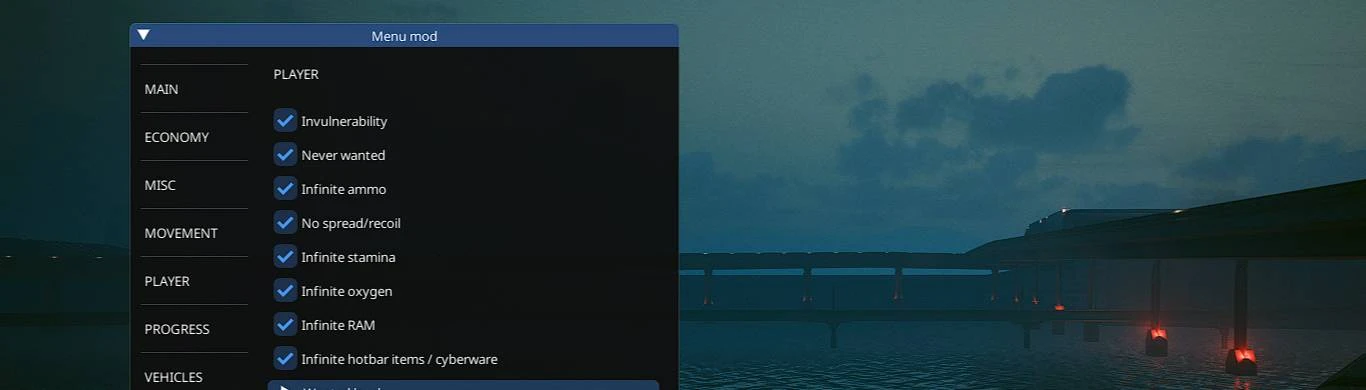
Image source: Nexus Mods
Feature Comparison Matrix
| Feature | Simple Menu | MenuMod | RED Cheat Menu | AMM |
|---|---|---|---|---|
| Item Spawning | Yes | Yes | Limited | Vehicles Only |
| God Mode | Yes | Yes | Yes | No |
| NoClip / Fly | No | Yes | No | No |
| NPC Swapping | No | No | No | Yes |
| Complexity | Low | Medium | Low | High |
The Essential Foundation: How to Install Cyber Engine Tweaks
Before you can use any mod menu, you must install Cyber Engine Tweaks (CET) . CET is not just a mod; it is a scripting framework that allows other mods to hook into the REDengine. Without it, your menus will simply not load. According to expert modders, CET is the single most important prerequisite for any PC modding endeavor in Night City.
As of Patch 2.13, ensuring you have the correct version of CET is critical. Game updates often break the memory offsets that CET relies on, so always check the "Posts" tab on Nexus Mods to confirm the current build is functional. You can find a detailed video guide for Patch 2.13 installation to visualize the process.
- Download CET: Visit the Cyber Engine Tweaks page on Nexus Mods and download the latest version manually.
-
Locate Game Folder:
Navigate to your Cyberpunk 2077 installation directory (e.g.,
SteamLibrary\steamapps\common\Cyberpunk 2077). -
Extract Files:
Open the downloaded ZIP and drag the
binfolder into your main Cyberpunk 2077 folder. It should merge with the existingbindirectory. -
The First Launch:
Launch the game. A window will appear asking you to "Bind Key." This is the key you will use to open the CET overlay. Choose a key that doesn't conflict with game controls (like
F6or~).
Step-by-Step Guide to Installing Your First Mod Menu
Once CET is active, installing a menu like Simple Menu or MenuMod is a straightforward process of placing
.lua
scripts into the correct sub-folder. While many users prefer Vortex for its ease of use, manual installation remains the gold standard for troubleshooting because it eliminates issues related to symlinks and deployment paths.
Manual Installation Workflow
Most mod menus consist of a folder containing a
init.lua
file. This folder must be placed within the CET plugins directory. Follow this exact path to ensure the game recognizes the mod:
For example, if you are installing Simple Menu, your final path should look like this:
...mods\SimpleMenu\init.lua
. If you place the files directly into the
mods
folder without their parent folder, the menu will fail to load.
Image source: Nexus Mods
Vortex Deployment Nuances
If you choose to use the Vortex Mod Manager, there is a critical rule: The Mod Staging Folder must be on the same drive as the game. If they are on different drives, Vortex cannot create the "Hardlink Deployment" necessary for the game to see the files. After installing a mod in Vortex, always remember to click the "Deploy Mods" button in the top toolbar. Many users find that their mods don't appear simply because they forgot this final step.
Why Is My Mod Menu Not Showing Up?
The most common pain point for players is a menu that simply refuses to appear in-game. This usually indicates a break in the "Mod Stack" hierarchy. To identify the culprit, we recommend a diagnostic hierarchy known as the "No Intro Videos" test.
The Diagnostic Hierarchy
- The Framework Test: Install a simple mod like "No Intro Videos." If the intro videos are skipped, your base engine (Redscript/CET) is working. If the videos still play, the issue is with your framework installation, not the mod menu itself.
- Version Mismatch: Patch 2.13 introduced changes that required updates for most scripting tools. If you are using a version of CET from Patch 2.12, it will not function. Always verify your version numbers against the latest game update.
- Overlay Conflicts: If you can't open the CET console, try disabling other overlays. Third-party software like RivaTuner, MSI Afterburner, or even the Windows Game Bar can sometimes prevent the CET window from capturing keyboard input.
-
Log File Analysis:
Navigate to
bin\x64\plugins\cyber_engine_tweaksand opencyber_engine_tweaks.log. Look for lines that say "Failed to load plugin." This will tell you exactly which file is causing the crash.
In recent months, many users have reported that the "Bind Key" prompt disappears and never returns. If this happens, you can reset your keybinds by deleting the
bindings.json
file located in the
cyber_engine_tweaks
folder. The game will prompt you to choose a new key on the next launch.
Advanced Tips for Managing Your Mod Stack
As you add more mods, the complexity of your installation increases. Understanding the "Mod Stack" hierarchy is vital for maintaining a stable game. Most modern Cyberpunk mods follow this dependency chain: CET → Redscript → TweakXL → Mod Menu . If any link in this chain is outdated, the entire stack may collapse.
Using Native Settings UI
To keep your screen clean, many developers are moving away from floating CET windows and toward the "Native Settings UI" framework. This allows mod menus to appear directly within the game's standard "Settings" or "Journal" menus, providing a much more immersive experience. If a mod offers a "Native UI" version, it is generally a top-tier choice for long-term play.
Version Rollback Strategy
If a major game update breaks your favorite mod and the developer hasn't updated it yet, you can use the Steam Console to roll back your game version to Patch 2.12. This is a common strategy among the modding community to maintain stability during the weeks following a new patch release. However, keep in mind that this will prevent you from accessing any new features or bug fixes introduced in Patch 2.13.
Frequently Asked Questions
- Can I use a mod menu on PS5 or Xbox Series X?
- No, mod menus for Cyberpunk 2077 are currently exclusive to the PC platform (Steam, GOG, and Epic Games Store). Consoles do not support the scripting frameworks like Cyber Engine Tweaks required to run these menus.
- Will using a mod menu get me banned from the game?
- No. Cyberpunk 2077 is a strictly single-player experience. There are no anti-cheat systems like Valve Anti-Cheat (VAC) or Easy Anti-Cheat (EAC) that would result in a ban for using mods or cheats in your own game.
- How do I open the mod menu once I'm in the game?
- Most menus are accessed through the Cyber Engine Tweaks (CET) overlay. You must first press the "Bind Key" you chose during installation (usually F6 or ~). Once the CET console is open, the mod menu window should appear automatically or be selectable from a list.
- Does Simple Menu work with the Phantom Liberty DLC?
- Yes, Simple Menu and most other leading mod menus have been updated to support the Phantom Liberty expansion. You can spawn DLC-specific items and vehicles just like base-game content.
- What should I do if my game crashes on startup after installing a menu?
-
The first step is to remove the most recently added mod folder from the
plugins\cyber_engine_tweaks\modsdirectory. If the game still crashes, the issue is likely an outdated version of Cyber Engine Tweaks itself. Reinstall the latest version of CET to fix this. - Is there a mod menu that allows for infinite Cyberware capacity?
- Yes, MenuMod is highly impactful for this specific purpose. It includes a toggle for "10k Cyberware Capacity," allowing you to equip every piece of legendary Cyberware simultaneously without hitting the game's standard limits.
Key Takeaways for Modding Success
- Install Cyber Engine Tweaks first as it is the mandatory framework for all modern mod menus.
-
Prioritize manual installation
to the
bin\x64\pluginsfolder to avoid common Vortex deployment errors. - Use the "No Intro Videos" test to quickly diagnose whether a failure is in the base engine or a specific mod.
- Check Nexus Mods "Posts" tabs for Patch 2.13 compatibility updates before installing any new tool.
- Maintain the Mod Stack hierarchy by keeping Redscript, TweakXL, and CET updated in unison.
-
Reset keybinds
by deleting
bindings.jsonif you can no longer open your mod menus in-game.
Start by installing the latest version of Cyber Engine Tweaks and binding your overlay key to ensure your foundation is solid before adding complex menus.