Home
How to Save Your Progress in Stardew Valley on Every Platform
Stardew Valley is a game built on the rhythm of the seasons and the cycle of the day. Unlike many modern titles that feature frequent auto-saves or "save anywhere" buttons, this farming simulator uses a deliberate, end-of-day saving mechanic. This design choice encourages players to commit to their daily decisions, but it can be frustrating if you need to step away from the screen unexpectedly.
Whether you are playing on a high-end PC, a handheld Nintendo Switch, or an Android phone, understanding the nuances of the save system is vital for protecting your hard-earned progress. This guide explores every method available to secure your farm data, including hidden mobile features and advanced file recovery techniques.
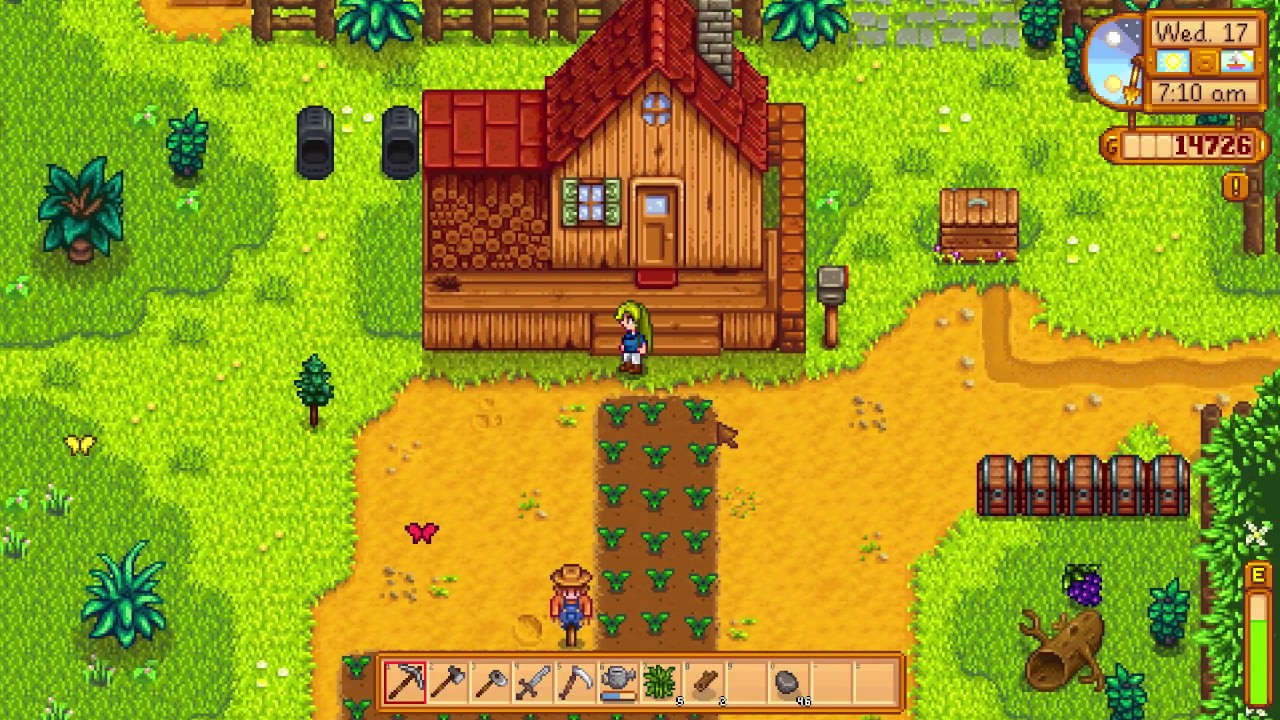
Image source: YouTube
Understanding the End-of-Day Save Mechanic
The core philosophy of Stardew Valley's save system is tied to the passage of time. According to the official Stardew Valley Wiki , the game state is only written to the disk when the current day concludes. There are three primary ways this happens:
- Voluntary Sleep: Walking to your bed and interacting with it before 2:00 AM.
- Exhaustion: If your energy bar hits zero and you continue to use tools, you will eventually collapse, ending the day.
- The 2:00 AM Limit: If your character is still awake when the clock strikes 2:00 AM, they will pass out wherever they are standing.
In all three scenarios, the game will transition to a summary screen showing your shipping earnings. Once you click through this screen, the text "Saving..." appears in the bottom-left corner. Only after this text disappears is your progress officially recorded for the next day.
How to Save on PC, Mac, and Linux Systems
For desktop players, the save system is exceptionally robust but strictly follows the "sleep to save" rule. On Windows, macOS, and Linux, the game creates a folder for each character that contains the world data and a separate file for the load screen information.
Finding Your Save File Location
Knowing where your files live is essential for manual backups. You can find them at these paths:
-
Windows:
%appdata%\StardewValley\Saves -
macOS:
~/.config/StardewValley/Saves -
Linux:
~/.config/StardewValley/Saves
Each save folder is named after your character and a random string of numbers (e.g.,
FarmerName_123456789
). Inside, you will find the
SaveGameInfo
file and the main save file. It is a top-tier practice to copy this folder to a cloud drive or USB stick before installing mods or making major changes to your game.
Steam Cloud Integration
If you play via Steam, the platform automatically syncs these files to the cloud. This allows you to start a farm on your desktop and continue it on a laptop or Steam Deck. However, be cautious: if Steam detects a conflict between local and cloud files, always choose the version with the most recent "Date Modified" timestamp to avoid losing hours of work.
Saving on Nintendo Switch, PlayStation, and Xbox Consoles
Console versions of Stardew Valley are identical to the PC version regarding save triggers. You must reach the end of the day to record progress. However, consoles offer a unique "Rest Mode" or "Sleep Mode" that acts as a functional workaround for the lack of mid-day saving.
The Rest Mode Workaround
If you need to stop playing at 10:00 AM in-game, do not quit to the title menu. Instead:
- Press the Home button on your controller to suspend the game.
- Put your console into Sleep Mode (Switch) or Rest Mode (PS5/Xbox).
- The game remains "frozen" in the system's memory. When you wake the console, you can resume exactly where you left off.
Warning: This is not a permanent save. If your console loses power, performs an automatic system update, or if you launch a different game, your progress for that unsaved day will be permanently deleted.
How to Save Mid-Day on Mobile Devices
The mobile version of Stardew Valley (iOS and Android) stands out as a top choice for players who need flexibility. It is the only version of the game that includes a native "Save Backup" feature, allowing you to record your progress at any moment during the day.
Using the Save Backup Feature
- Open the in-game menu (tap the backpack icon).
- Tap the Controller Icon to open the Options tab.
- Scroll down until you see the "Save Backup" button.
- Tap it, and the game will create a temporary save point.
When you next launch the game, it will ask: "Restore from where you left off?" Selecting "Yes" will put you back at the exact time and location where you hit the backup button. This feature is notably innovative for a game that was originally designed around a rigid save structure.
Android 11 and Scoped Storage Changes
For Android users, finding save files has become more complex due to Google's "Scoped Storage" updates. In older versions, saves were in a simple
/StardewValley
folder. Now, they are typically located in:
Android/data/com.chucklefish.stardewvalley/files/saves
.
Accessing this folder often requires a specialized file manager like ZArchiver, as the default Android file explorer frequently hides the
data
directory for security reasons.

Image source: GameRant
Comparing Save Features Across All Platforms
While the core experience remains consistent, the technical capabilities of the save system vary significantly between devices. The following table highlights these differences:
| Feature | PC / Steam Deck | Consoles (Switch/PS/Xbox) | Mobile (iOS/Android) |
|---|---|---|---|
| Primary Save Trigger | Sleeping in Bed | Sleeping in Bed | Sleeping in Bed |
| Mid-Day Saving | No (Requires Mods) | No (Use Rest Mode) | Yes (Native Feature) |
| Manual File Access | Easy | Locked / Encrypted | Moderate (Android 11+) |
| Cloud Syncing | Steam / GOG Cloud | PS Plus / NSO / Xbox Live | iCloud / Google Drive |
| Rollback Support | Yes (via _old files) | No | Yes (via _old files) |
Using Mods to Save Anywhere on PC
If you find the vanilla save system too restrictive, the PC modding community has developed a significant advancement: the Save Anywhere mod. This tool, available on Nexus Mods , allows you to trigger a save at any time by pressing a hotkey (usually 'K').
While this mod is exceptionally strong for busy players, it comes with risks. Saving during a cutscene, a festival, or while a script is running can occasionally break the game's logic. If you choose to use this mod, it is widely considered one of the best practices to keep a backup of your original save folder in case a mid-day save becomes corrupted.
How to Recover a Lost Day or Undo a Mistake
We have all had those days: you accidentally delete a rare item, or you realize you missed a villager's birthday. On PC and Android, you can perform a "One-Day Rollback" to undo the previous day's save.
The One-Day Rollback Procedure
Stardew Valley automatically keeps a backup of the *previous* day. If you just woke up on Tuesday and realized you messed up Monday, follow these steps:
- Navigate to your Saves folder.
-
Locate the files named
FarmerName_123456789andSaveGameInfo. -
You will see two other files with
_oldappended to them. -
Move the current files (without
_old) to a different folder as a backup. -
Rename the
_oldfiles by removing the_oldsuffix. - Launch the game. You will now be back at the start of the previous day.
The Steam Cloud Air Gap Strategy
A common issue when performing a rollback is Steam Cloud immediately overwriting your "old" files with the "new" ones from the cloud. To prevent this, use the "Air Gap" strategy:
- Disconnect your computer from the internet.
- Perform the file renaming steps mentioned above.
- Launch Stardew Valley and play through one full day, sleeping to trigger a new save.
- Close the game and reconnect to the internet.
- When Steam asks which file to use, select the Local File . This forces the cloud to sync with your corrected timeline.
Troubleshooting Common Saving Problems
Even a system as stable as Stardew Valley's can encounter errors. Here are the most frequent issues and how to resolve them:
The Naming Bug
A rare but devastating bug occurs if a player uses special characters—specifically slashes (/)—in their character's name. Because the game uses the character name to create folder paths, a slash can confuse the operating system. This often leads to a crash when the game tries to save after a player dies in the mines. To fix this, you must manually edit the save file's XML code to change the character's name to a standard alphanumeric string.
Version Mismatches
As of 2026, the PC version (1.6+) and the Mobile version (1.5) often exist on different update cycles. If you try to move a save file from a PC running 1.6 to a mobile device running 1.5, the game will fail to load. The newer version contains items and data structures that the older version cannot interpret. Always ensure both platforms are on the same version number before attempting a transfer.
Disk Space and Permissions
If the game fails to save, check your available disk space. Stardew Valley save files are small (usually under 1MB), but the game requires a small amount of "buffer" space to write the temporary file during the transition. Additionally, ensure your antivirus software isn't blocking the game from writing to the
%appdata%
folder, which is a common issue with Windows Defender's "Controlled Folder Access" feature.
Frequently Asked Questions About Stardew Saving
No. If you exit to the title screen or close the application mid-day, all progress made since you last woke up will be lost. You must sleep to save.
No. Festivals take place during the day, and there is no way to save during the event. Once the festival ends, you are usually transported back to your farm late at night, where you must then go to bed to save.
In multiplayer, the game only saves when all players have gone to bed and clicked through the end-of-day summary. If one player stays awake, the game will wait indefinitely. Only the host holds the actual save file; farmhands do not have local copies of the world progress.
There is no hard-coded limit in the game. You are only limited by the storage space on your device. Each character you create will have its own independent save slot.
This is often due to the "Farm Migration" process required by newer Android versions. Check the
Android/data/com.chucklefish.stardewvalley/files/saves
folder. If it is empty, your files might still be in the old root
/StardewValley
folder and need to be moved manually.
Final Thoughts on Saving Your Farm
While Stardew Valley's save system may feel rigid compared to other modern games, it is exceptionally reliable when understood. By following the "Sleep to Save" rule and utilizing the mobile-specific backup features, you can ensure your progress remains secure. For those on PC, the ability to manipulate
_old
files provides a safety net that few other games offer natively.
Key Takeaways:
- Always finish your day by sleeping to trigger the save process.
- Use the "Save Backup" feature on Mobile for mid-day flexibility.
-
Keep manual backups of your
%appdata%folder on PC. - Be wary of version mismatches when transferring saves between devices.
-
If a mistake happens, use the
_oldfile rename trick to roll back 24 hours.
By mastering these techniques, you can focus on what really matters: building the most productive farm in the valley without the fear of losing your data.