Home
How to Fix Stardew Valley Stuck on the Connecting to Online Services Screen
If you are stuck on the "Connecting to Online Services" screen in 2026, the issue is typically caused by Steam Deck OS 3.7.1 library conflicts , Linux glibc version mismatches , or NAT Type restrictions on consoles. For PC users, toggling your Steam status to "Invisible" and back to "Online" often forces a successful handshake. Steam Deck users should consider forcing Proton 9.0-4 in the game properties to bypass OS-level hangs.
Stardew Valley remains a beloved staple of the cozy gaming genre, but its multiplayer component can occasionally be temperamental. One of the most frustrating hurdles players face is the "Connecting to Online Services" hang. This state occurs when the game client attempts to authenticate with the platform's backend—be it Steam, GOG, or Nintendo Switch Online—and fails to receive a response. Instead of proceeding to the Host or Join menus, the game remains indefinitely stuck on the loading screen.
As of late 2026, this error has seen a resurgence, particularly among Steam Deck and Linux users following recent system updates. While the 1.6 update brought significant advancements to multiplayer stability and expanded player counts, it also introduced new dependencies that can conflict with specific operating system configurations. This guide provides a detailed roadmap to resolving these connection issues across all major platforms.
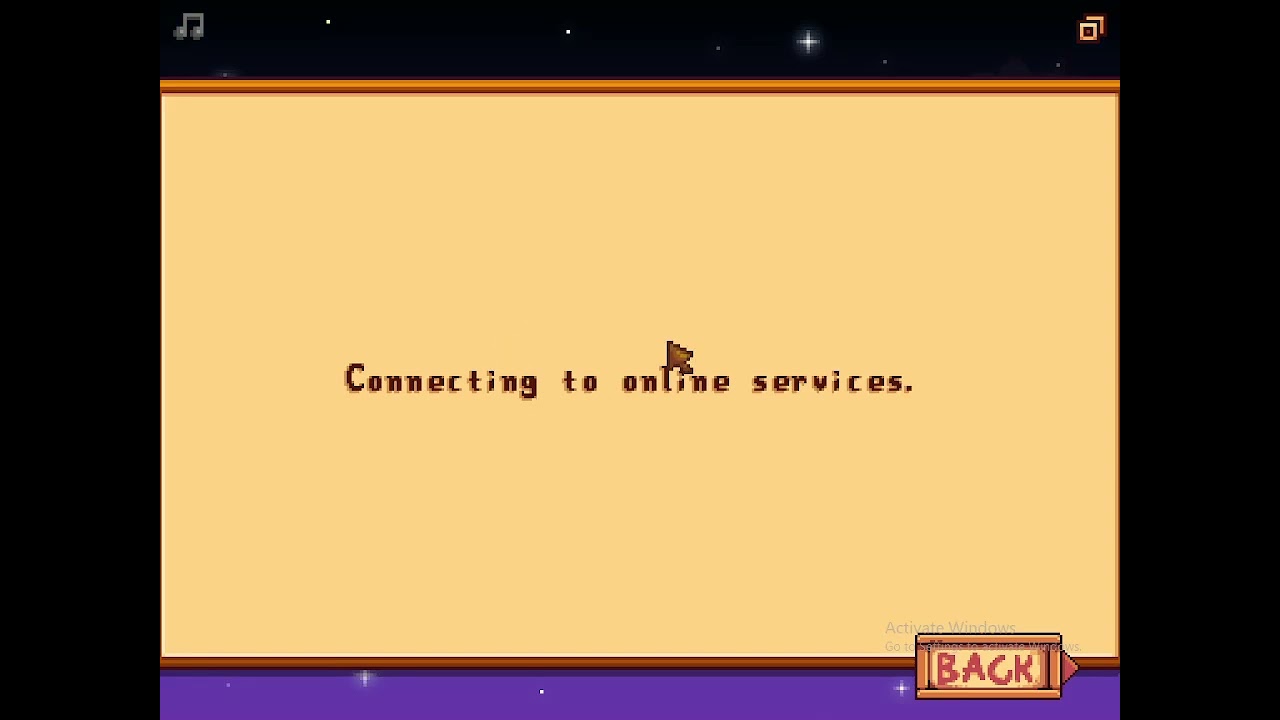
Image source: YouTube
Quick Steps to Fix Your Connection Immediately
Before diving into complex OS rollbacks or terminal commands, it is essential to rule out basic connectivity hurdles. Many multiplayer issues are resolved by simple status refreshes or version checks.
Check the Official Server Status
Stardew Valley relies on the underlying platform's infrastructure for matchmaking. If Steam, GOG Galaxy, or Nintendo Switch Online is experiencing an outage, the game will be unable to connect. You can verify the status of these services via sites like SteamStat.us or the official Nintendo Service Status page. If the servers are down, the only solution is to wait for the platform provider to restore service.
The "Invisible Status" Trick
A widely reported fix, often recommended by the community and acknowledged by developers, involves manipulating your Steam profile status. If the game fails to authenticate, try the following:
- Open your Steam Friends List.
- Click the dropdown arrow next to your username.
- Change your status to Invisible .
- Wait 10 seconds, then change it back to Online .
- Relaunch Stardew Valley and attempt to enter the Co-op menu.
This action forces the Steam API to re-initialize the handshake between your client and the multiplayer backend, which often clears the "Connecting..." hang.
Verify Game Version Parity
Multiplayer in Stardew Valley requires all participants to be running the exact same version of the game. Even a minor sub-version difference (e.g., 1.6.14 vs 1.6.15) can prevent the "Join" menu from populating or cause connection failures. To check your version, click the "?" icon on the bottom-right of the title screen. Ensure every player in your group matches this number exactly.
How to Fix the Steam Deck OS Connection Bug
The Steam Deck has become a top choice for Stardew Valley players, but recent updates to SteamOS (specifically version 3.7.1 and newer) have introduced a bug that prevents the game from reaching online services. This is often due to changes in how the OS handles network libraries.
Identifying the OS Conflict
If your Steam Deck was working perfectly and suddenly stopped connecting to multiplayer after a system update, you are likely facing an OS-level conflict. The game’s native Linux build may struggle with updated `glibc` libraries or network manager changes in the latest SteamOS branches. Many users find that the game hangs indefinitely on the "Connecting" screen while the background music continues to play.
Forcing Proton Compatibility
The most effective way to bypass SteamOS bugs without rolling back your entire operating system is to force the game to use a specific version of Proton. This switches the game from the native Linux version to the Windows version, which often has more stable network hooks on the Deck.
- Select Stardew Valley in your Steam Library.
- Select the Settings (Gear) icon > Properties .
- Navigate to the Compatibility tab.
- Check the box: "Force the use of a specific Steam Play compatibility tool."
- Select Proton 9.0-4 or Proton 7.0-6 from the dropdown menu.
After a small download, the game should launch and connect to online services successfully. Note that this may affect your ability to use Linux-native mods (see the SMAPI section below).
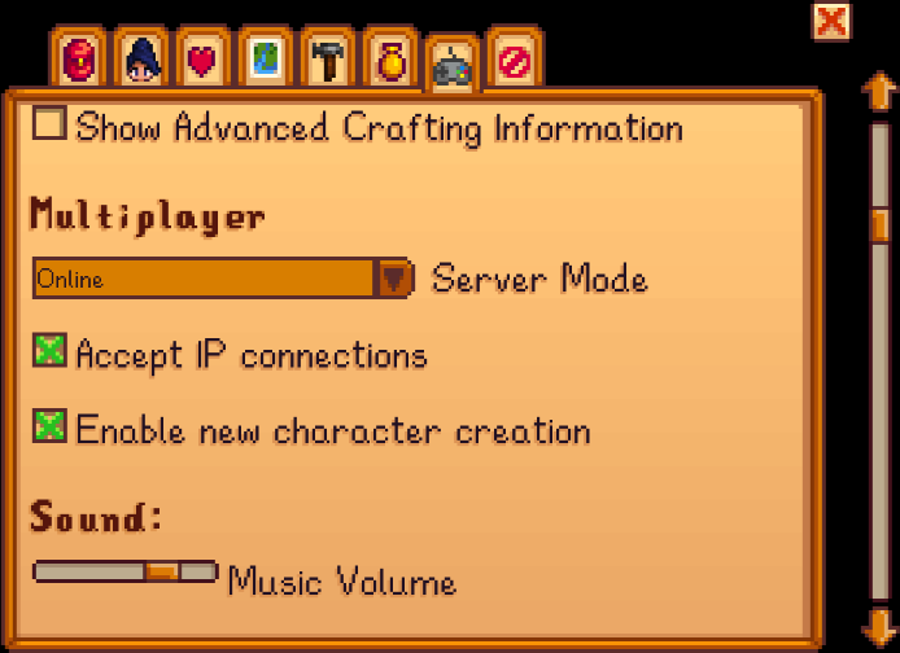
Image source: Stardew Valley
Resolving Linux glibc and Library Loading Errors
For players on desktop Linux distributions like Arch, Manjaro, or Fedora, the "Connecting to Online Services" error is frequently tied to the `GalaxyCSharpGlue.dll` or similar library dependencies failing to load due to `glibc` updates.
The GalaxyCSharpGlue Issue
When you attempt to enter the Co-op menu, Stardew Valley tries to load the GOG Galaxy libraries (even on Steam) to handle cross-play and networking. On modern Linux systems, the security headers in these older libraries can conflict with newer kernel protections. This results in a silent failure where the game waits forever for a library that will never initialize.
The Terminal Fix for Advanced Users
If you prefer to keep using the native Linux version of the game (which is recommended for performance and modding), you can use the `execstack` utility to clear the executable's stack requirements. This is a common fix on the Stardew Valley Forums .
sudo pacman -S execstack
# Navigate to your game folder and run:
execstack -s StardewValley
This command modifies the binary to allow it to run correctly with modern memory management, often resolving the connection hang immediately.
The Trade-off Between Proton Compatibility and SMAPI Mods
Choosing how to fix your connection often involves a trade-off, especially for players who use the Stardew Modding API (SMAPI). Because SMAPI has separate versions for Windows and Linux, changing your compatibility settings can break your mod list.
| User Type | Recommended Fix | Pros | Cons |
|---|---|---|---|
| Casual Player | Proton 9.0-4 | Easiest to implement; very stable. | Breaks Linux-native SMAPI. |
| Hardcore Modder | Terminal / execstack | Preserves mod compatibility. | Requires technical knowledge. |
| Steam Deck User | OS Rollback | Fixes system-wide issues. | Risk of data loss; temporary fix. |
If you are a modder on Linux or Steam Deck and you force Proton, you must also install the Windows version of SMAPI through Proton to keep your mods working. This is a significantly more complex setup but is a popular choice for those who want both a stable connection and a modded experience.
Optimizing NAT Types for Switch and Console Multiplayer
On consoles like the Nintendo Switch, PlayStation, and Xbox, the "Connecting to Online Services" error is rarely an OS bug. Instead, it is almost always a result of Network Address Translation (NAT) settings in your router.
Understanding NAT Requirements
NAT determines how easily your console can communicate with other players over the internet. For hosting a farm, Stardew Valley requires a relatively open connection. If your NAT Type is "Strict" (Xbox), "Type C/D" (Switch), or "Type 3" (PlayStation), your console will likely fail to reach the online services required to host a session.
Nintendo Switch and Switch 2 Specifics
The original Nintendo Switch is limited to 4-player online play. However, with the release of the Switch 2 , the game now supports up to 8 players in a single session, matching the PC version's capabilities. To ensure you can connect on either device:
- Go to System Settings > Internet > Test Connection .
- Look for your NAT Type .
- If it is Type C or D, you must log into your router and enable UPnP (Universal Plug and Play).
- Alternatively, assign a static IP to your Switch and place it in the DMZ (Demilitarized Zone) of your router.
Image source: Stardew Valley Forums
Advanced Network Configuration and Port Forwarding
If software fixes fail, the issue may lie with your network hardware. Firewalls and routers can block the specific packets Stardew Valley uses for its multiplayer handshakes.
Configuring Your Firewall
On Windows, ensure that `StardewValley.exe` is allowed through the Windows Defender Firewall. Sometimes, an update to the game causes the firewall to treat it as a new, untrusted application. You should also check third-party antivirus software like Bitdefender or Norton, as their "Game Mode" features can sometimes over-zealously block outgoing connection attempts to online services.
Manual Port Forwarding
For the most stable connection, you can manually open the ports used by the game. Stardew Valley primarily uses UDP port 24642 for PC multiplayer. By forwarding this port to your PC's local IP address in your router's admin panel, you bypass many of the automated security checks that cause the "Connecting..." hang.
LAN and IP Connections
If you are playing with someone in the same house, you can bypass the "Online Services" screen entirely. Instead of using the Co-op menu's matchmaking, the host can provide their local IP address. The joining player then selects "Join LAN Game" and enters the IP. This method is exceptionally strong because it does not rely on Steam or GOG's servers to facilitate the connection.
What to Do When the Invite Code Button Disappears
A specific variation of the connection error is when you can enter the Host menu, but the "Show Invite Code" button is missing. This is a clear indicator that the game has launched, but the Steam or GOG overlay has failed to authenticate your session.
Fixing the Steam Overlay
The invite code system is tied directly to the Steam Overlay. If you have disabled the overlay to improve performance, you will not be able to generate invite codes. Ensure it is enabled by going to Steam Settings > In-Game > Enable the Steam Overlay while in-game . Additionally, ensure your Steam client is not in "Offline Mode."
Cabin Requirements for Multiplayer
It is a common mistake to assume the connection error is technical when it is actually a gameplay requirement. You cannot host other players unless you have cabins available on your farm. If you are starting a new farm, you must select the number of starting cabins in the advanced options. For existing farms, you must visit Robin the Carpenter and have her build a cabin (Stone, Plank, or Log) for each additional player you wish to host.
Key Takeaways for Fixing Connection Issues
- Toggle Steam Status: Switching to "Invisible" and back to "Online" is a top-rated quick fix for authentication hangs.
- Check Version Parity: Ensure all players are on the same version (e.g., 1.6.15) by checking the "?" icon on the title screen.
- Steam Deck Compatibility: Forcing Proton 9.0-4 is a highly effective way to bypass SteamOS 3.7.1 connection bugs.
-
Linux Terminal Fix:
Use
execstack -son the game binary to resolveglibcconflicts without breaking SMAPI. - NAT Type Optimization: Consoles require NAT Type A or B; enable UPnP or DMZ in your router settings to achieve this.
- Port Forwarding: Manually open UDP port 24642 to ensure your router doesn't block multiplayer traffic.
- Verify Cabins: You must have one cabin built for every friend you intend to host in your session.
If these steps do not resolve the issue, a clean re-installation of the game—ensuring you manually delete the
%appdata%/StardewValley
folder—ranks among the most successful final resorts recommended by the community.
Frequently Asked Questions
- Are Stardew Valley online services currently down?
- Stardew Valley does not have its own dedicated servers; it uses Steam, GOG, or console networks. If you cannot connect, check the status of your specific platform (e.g., SteamStat.us). If the platform is green, the issue is likely local to your device or router configuration.
- Why can't I see my friend's farm in the join list?
- This is usually due to a version mismatch or the host not having enough cabins. Ensure both players have updated to the latest patch. If the farm still doesn't appear, use an Invite Code or join directly through the Steam Friends list by right-clicking the host's name.
- Does Stardew Valley 1.6 support cross-platform play?
- As of 2026, Stardew Valley supports cross-play between PC (Steam/GOG) and Mac/Linux. However, cross-platform play between PC and consoles (Switch, Xbox, PlayStation) is still not supported. All players must be on the same family of devices to play together.
- How do I fix the "Connecting to Online Services" error on Mac?
- On macOS, this is often caused by the internal firewall. Go to System Settings > Network > Firewall and ensure Stardew Valley is allowed to accept incoming connections. Also, ensure the Steam client is updated, as the Mac version relies heavily on the latest Steam API hooks.
- Can I play multiplayer with mods if my friend doesn't have them?
- It depends on the mod. Visual-only mods (like texture packs) usually work fine. However, any mod that adds new items, scripts, or farm layouts must be installed by both the host and all joining players to prevent immediate disconnection or save file corruption.