Home
Why Your Stardew Valley Mods Are Not Working and How to Fix Them
If your mods aren't loading, the issue is typically one of these five factors. Check these first to save time:
- Update SMAPI: The 1.6 update requires SMAPI 4.0 or higher. Older versions will not launch the game.
-
Unzip Your Files:
Mods must be extracted from their .zip or .rar folders into the
/Modsdirectory. -
Check Launch Options:
If launching through Steam, ensure your "Launch Options" path is correctly formatted with
%command%. - Verify Dependencies: Many mods require "Content Patcher." If the framework mod is missing, the visual mod won't load.
-
Avoid Nested Folders:
Ensure the
manifest.jsonfile is only one folder deep inside the/Modsdirectory.
Modding Stardew Valley transforms the experience, adding everything from new crops to massive expansions like Stardew Valley Expanded. However, technical hurdles are common, especially following major game updates. When mods stop working, it is rarely a sign of a "broken" game; rather, it is usually a communication breakdown between the game engine and the Stardew Modding API (SMAPI). According to the Official Stardew Valley Wiki , SMAPI is the essential foundation for nearly all modern mods, and maintaining it is the first step in any troubleshooting journey.
How to Use the SMAPI Log Parser to Find the Problem Fast
The most efficient way to diagnose why your mods are failing is to use the SMAPI Log Parser. Instead of guessing which mod is causing a crash, the log file records every action the game takes during startup. This tool is widely considered a top-tier diagnostic resource by the community.
Finding Your Log File
Before you can fix the error, you need to locate the log. The location varies depending on your operating system:
-
Windows:
Press
Windows + R, type%appdata%\StardewValley\ErrorLogs, and look forSMAPI-latest.txt. -
macOS:
Open Finder, select "Go to Folder," and enter
~/.config/StardewValley/ErrorLogs. -
Linux:
Navigate to
~/.config/StardewValley/ErrorLogs.
Using the Parser Tool
Once you have the file, do not try to read the raw text yourself—it can be overwhelming. Instead, visit smapi.io/log . Upload your text file or paste the contents into the box. The parser will generate a clean, color-coded report that highlights exactly which mods are outdated, which are missing dependencies, and which have critical code errors. This method is a highly recommended starting point for any user experiencing "red text" in their console.
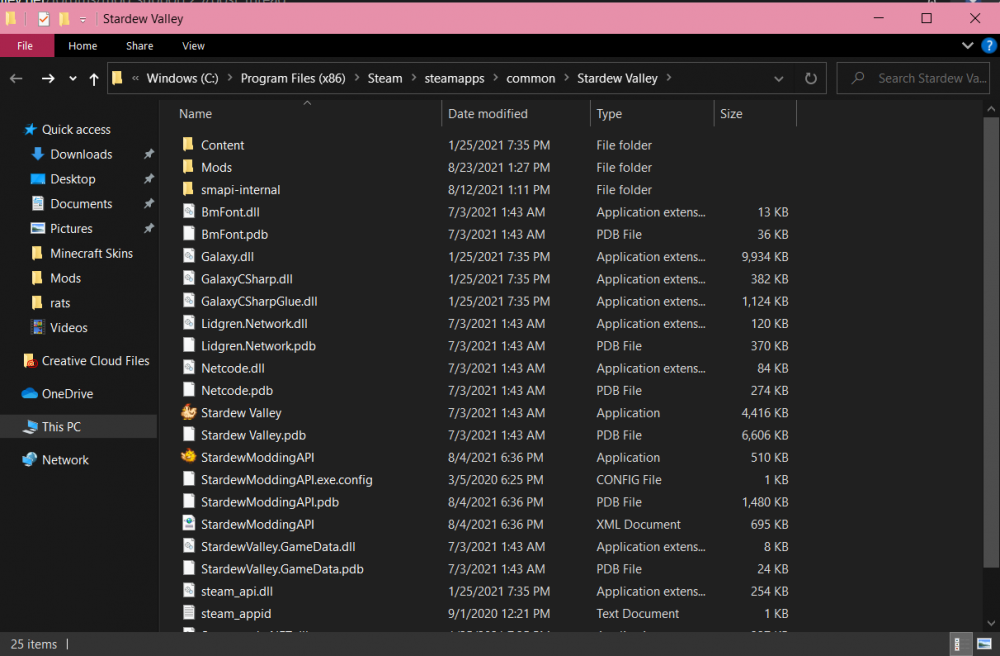
Image source: Stardew Valley Forums
Why the 1.6 Update Might Be Breaking Your Mod List
The release of Stardew Valley 1.6 was a significant advancement for the game, but it also introduced fundamental changes to how the game handles data. This update moved the game to a newer version of .NET, which meant that every single mod written for version 1.5.6 or earlier became instantly incompatible.
The 1.6.15+ Threshold
As of late 2026, the game has stabilized, but you must ensure you are running the latest version of SMAPI (typically version 4.1.0 or higher for 1.6 compatibility). If you are using an older version of SMAPI, the game may simply launch the "vanilla" version without any mods, or it may fail to open entirely. Many users find that simply downloading the newest installer from the official site resolves 90% of their issues.
The 32-bit Compatibility Branch Warning
Some players on older computers use the "32-bit compatibility" branch on Steam to keep the game running. However, modern SMAPI and most new mods are designed for the 64-bit version of the game. If you are on the compatibility branch, you will likely find that mods are not working because the modding tools no longer support that legacy architecture. If your hardware allows it, switching back to the main branch is a necessary step for modding.
What the Different Colors in Your SMAPI Console Actually Mean
When you launch the modded game, a second window (the console) opens. The colors in this window are not random; they are a visual diagnostic guide designed to help you identify the severity of issues.
| Console Color | Meaning | Required Action |
|---|---|---|
| White / Grey | Standard Loading | None. The mod is loading successfully. |
| Purple | Update Available | Non-critical. The mod works, but a newer version exists. |
| Dark Red / Grey | Mod Skipped | Check for missing dependencies or version mismatches. |
| Bright Red | Critical Error | The mod has crashed. Remove it or check the Log Parser immediately. |
According to reports on the Stardew Valley Forums , bright red text usually indicates a "Manifest Error" or a "DllNotFoundException." These are often caused by incorrect installation or trying to run a mod that hasn't been updated for the current game version.
How to Fix the Common "Nested Folder" Installation Error
One of the most frequent mistakes new modders make involves how they extract their files. SMAPI is designed to look exactly one folder deep into the
/Mods
directory. If a mod is buried deeper than that, the API will "skip" it, and it will not appear in your game.
The ZIP Extraction Trap
When you download a mod from Nexus Mods, it comes in a compressed .zip file. If you right-click and select "Extract to [Mod Name]," your computer often creates a folder with the mod's name, and
inside
that folder is the actual mod folder. This results in a path like:
Stardew Valley/Mods/TractorMod_1.2/TractorMod/manifest.json
. Because the
manifest.json
is two folders deep, SMAPI cannot see it. To fix this, move the inner folder directly into
/Mods
.
Case Study: Stardew Valley Expanded (SVE)
Stardew Valley Expanded is a notably innovative mod, but its installation is complex. SVE is not a single mod; it is a collection of 5 to 7 separate components. A common error is placing all these components into one folder named "SVE." For the mod to work, each component folder (e.g., "SVE Code," "SVE Content," "SVE Maps") must sit side-by-side in the main
/Mods
folder. This "flat" structure is a top choice for ensuring all dependencies link correctly.
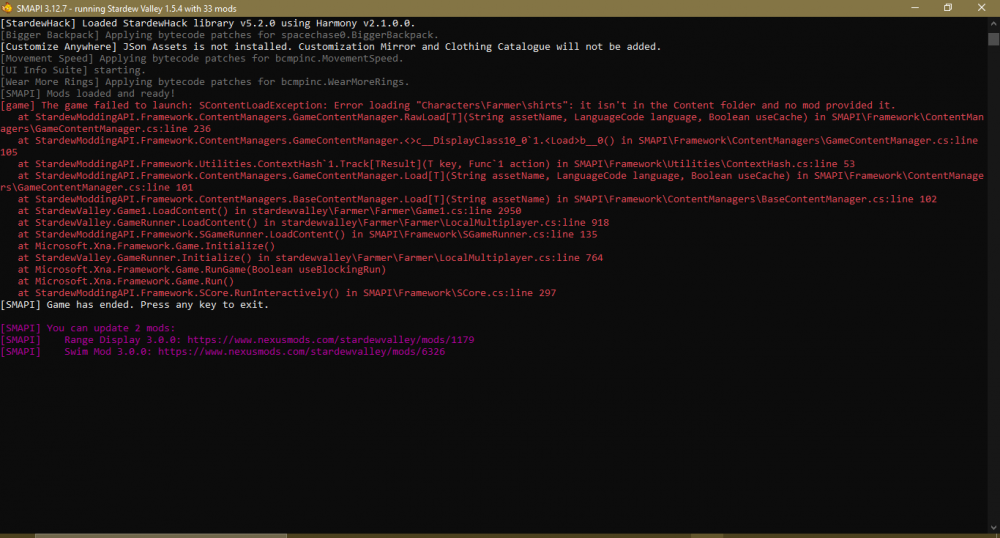
Image source: Stardew Valley Forums
How to Link SMAPI to Steam for Achievement Tracking
If you launch Stardew Valley through Steam and notice your mods aren't working—or they are working, but your play time and achievements aren't tracking—you likely haven't linked SMAPI to the Steam client. By default, Steam launches the original
Stardew Valley.exe
, ignoring the modding API.
Setting Up Launch Options
To fix this, you must tell Steam to run the SMAPI executable instead. Follow these steps:
- Open your Steam Library and right-click Stardew Valley .
- Select Properties and stay on the General tab.
- Locate the Launch Options box at the bottom.
-
Find your game installation folder and copy the path to
StardewModdingAPI.exe. -
Paste the path into the box, surrounded by quotes, followed by a space and
%command%.
Example Syntax:
"C:\Program Files (x86)\Steam\steamapps\common\Stardew Valley\StardewModdingAPI.exe" %command%
Failure to include the
%command%
at the end or forgetting the quotation marks are among the most common reasons this fix fails. Once correctly configured, Steam will launch the modded version of the game every time you hit the "Play" button, allowing you to earn achievements while using your favorite mods.
Why Your Game Says "Not Responding" During Startup
It is a common experience for players with large mod lists to see a "Not Responding" message from Windows shortly after launching the game. Many users assume the game has crashed and force-close it, but this is often a false positive.
The Injection Delay
When SMAPI starts, it has to "inject" code into the game's memory and load hundreds (or thousands) of custom assets. During this process, the game window may turn white or hang. This is especially true in version 1.6, which handles larger data loads. The "Wait it Out" rule is highly recommended: if you have more than 50 mods, give the game at least 2 to 5 minutes to load before assuming it has failed. Many users find that the game eventually stabilizes and runs perfectly if left alone during the initial handshake.
GPU Optimization
If the game consistently crashes during this phase, it may be an issue with your hardware allocation. Ensure your computer is using its dedicated GPU (Nvidia or AMD) rather than integrated graphics to run the game. You can set this in your Windows Graphics Settings by browsing for
StardewModdingAPI.exe
and setting it to "High Performance."
How to Get Mods Working on Mac and Android Devices
While Windows is the most common platform for modding, macOS and Android users have unique hurdles to overcome. The installation process for these platforms is notably different and requires specific workarounds.
The Mac "Executable Renaming" Trick
Steam on Mac sometimes struggles to recognize the SMAPI launch options. A popular choice among Mac users is to manually swap the executables. You can rename the original
StardewValley
file to
StardewValley-original
, and then rename the
StardewModdingAPI
file to
StardewValley
. This "tricks" Steam into launching the modded version automatically. However, be aware that you will need to redo this every time the game receives an official update.
Android SMAPI Status
Modding on Android is currently in a state of transition. Following the 1.6 update, the mobile version of SMAPI required a significant rewrite. As of late 2026, mobile modding is possible but often requires specific "legacy" versions of mods. If your mods are not working on Android, ensure you are using the version of SMAPI specifically built for the mobile 1.6 port, as the Windows versions are not cross-compatible.
Why You Should Stop Using XNB Mods Immediately
In the early days of Stardew modding, "XNB mods" were common. These involved manually replacing the game's original data files (like
Content/Characters/Abigail.xnb
) with modified versions. While this seemed simple, it is now considered a dangerous practice that can permanently break your game installation.
The Danger of 1.6
With the 1.6 update, the internal structure of XNB files changed. If you overwrite a 1.6 file with an old 1.5 XNB mod, the game will likely crash or display "invisible" items. Furthermore, XNB mods are difficult to uninstall; if you don't have a backup of the original file, you have to reinstall the entire game to fix a mistake.
The Content Patcher Alternative
Almost every popular XNB mod has been converted to a
Content Patcher
version. Content Patcher is a framework that "overlays" your changes onto the game without ever touching the original files. This is a much safer, more stable, and highly impactful way to mod. If you are still using XNB mods, it is strongly advised to delete your
Content
folder and use Steam's "Verify Integrity of Game Files" to reset to a clean state, then switch to Content Patcher equivalents.
Frequently Asked Questions
Why is my SMAPI console full of red text?
Red text in the SMAPI console indicates a critical error that prevented a mod from loading. This is usually caused by a missing dependency (like Content Patcher), an outdated mod version that isn't compatible with Stardew 1.6, or a syntax error in the mod's configuration files. To fix this, copy your log to smapi.io/log, which will translate the red text into specific instructions on which files to update or remove.
Can I use mods on the Xbox Game Pass version of Stardew Valley?
Yes, but the process is slightly different than Steam. In the Xbox App on PC, you must click the "..." button next to the game, select "Manage," and then click "Enable Mods." This will move the game files to a folder where SMAPI can access them. Once enabled, you can install SMAPI as usual, though you may need to manually point the installer to the new folder location created by the Xbox App.
Do mods work in multiplayer games?
Most visual mods (like recolors) only affect the person who has them installed. However, functional mods (like new items, farm layouts, or gameplay changes) generally require every player in the lobby to have the exact same mods and versions installed. If there is a mismatch, the game may crash or desync. It is a top choice for multiplayer groups to share a "Mod Pack" folder to ensure everyone is synchronized.
How do I update a mod correctly?
Do not simply "copy and paste" new mod files over old ones. This can leave behind old files that cause conflicts. The correct way to update is to delete the old mod folder from your
/Mods
directory entirely, then download the new version and extract it as a fresh folder. This ensures a clean installation and prevents "duplicate ID" errors in SMAPI.
Why did my mods disappear after a game update?
When Steam or GOG updates Stardew Valley, it sometimes resets the "Launch Options" or overwrites the modified executable. If your mods suddenly stop loading, first check if your Steam Launch Options are still there. If they are, you likely just need to download and run the SMAPI installer again. SMAPI needs to be "re-hooked" into the game after major official patches.
Key Takeaways for Fixing Your Mods
- Always start with the SMAPI Log Parser to identify the exact cause of failure without guessing.
- Verify your SMAPI version is compatible with the 1.6+ game engine (SMAPI 4.0+ is required).
-
Check for nested folders
by ensuring the
manifest.jsonis only one level deep in the Mods folder. - Update framework mods first , as Content Patcher and others are required for most visual mods to function.
-
Fix Steam Launch Options
by using the correct path syntax and the
%command%suffix. - Be patient during startup , as the "Not Responding" message is often just the game loading large mod lists.
- Avoid XNB mods and switch to Content Patcher versions to ensure long-term stability.
If you have followed these steps and your game still won't load, try removing all mods and adding them back one by one to isolate the specific file causing the conflict.