Home
How to Use a Mr. Mine Save Editor to Modify Your Game Progress Safely
To use a
Mr. Mine save editor
, you must export your game data as a text string from the in-game settings. This string is then pasted into a third-party tool like Knarcraft or SaveEditorAH, where you can modify values such as Money, Tickets, and Minerals. Once edited, the new string is imported back into the game via the arrow icon on the main menu.
Crucially
, if you add drill parts, you must toggle the
hasCraftedBlueprint
flag to prevent the game from soft-locking.
Mr. Mine is a popular incremental mining game that challenges players to dig deep into the earth, manage resources, and upgrade equipment. However, the progression can become exceptionally slow in the later stages of the game. Many players turn to a Mr. Mine save editor to bypass the grind or recover lost progress. While these tools are widely regarded as one of the most effective ways to customize your experience, they require a specific technical workflow to avoid corrupting your save file.
In this guide, we will explore the precise methods for locating your save data, using online modification tools, and implementing advanced browser console scripts for automation. We will also address the critical "Blueprint Bug" that often plagues inexperienced editors, ensuring your game remains stable after modification.
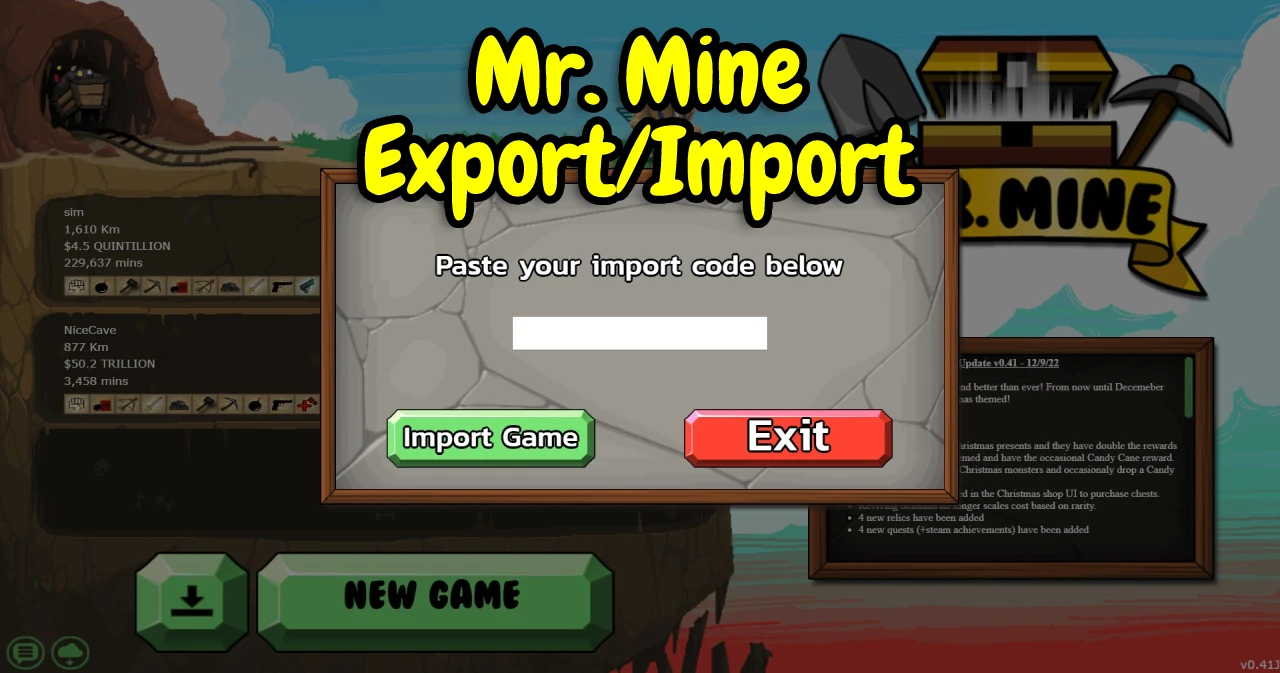
Image source: Mr. Mine Blog
Where to Find Your Mr. Mine Save File on PC and Browser
Before you can use an editor, you must first locate your raw save data. The game stores progress differently depending on whether you are playing via a web browser or the Steam client. Understanding the structure of this data is the first step toward successful modification.
Locating Steam Save Data
For players on the Steam version, the game creates a local backup file. You can typically find your save data in the following directory on Windows:
Steam users often struggle to find this file because the
AppData
folder is hidden by default in Windows Explorer. You may need to enable "Hidden Items" in your folder view settings to access it. This
SaveBackup.txt
file contains the same raw string found in the browser version, allowing for seamless cross-platform editing.
Exporting from the Browser Version
If you are playing on
mrmine.com
or other gaming portals, exporting your save is straightforward. Navigate to the
Settings
menu (the gear icon) and look for the
Export
button. Clicking this will generate a long string of text. According to technical analysis, this save string is a
Double-Base64 encoded, pipe-separated string
. This means the data is encoded twice for security and separated by vertical bars (
|
) to distinguish different sections of game progress, such as inventory, achievements, and scientist levels.
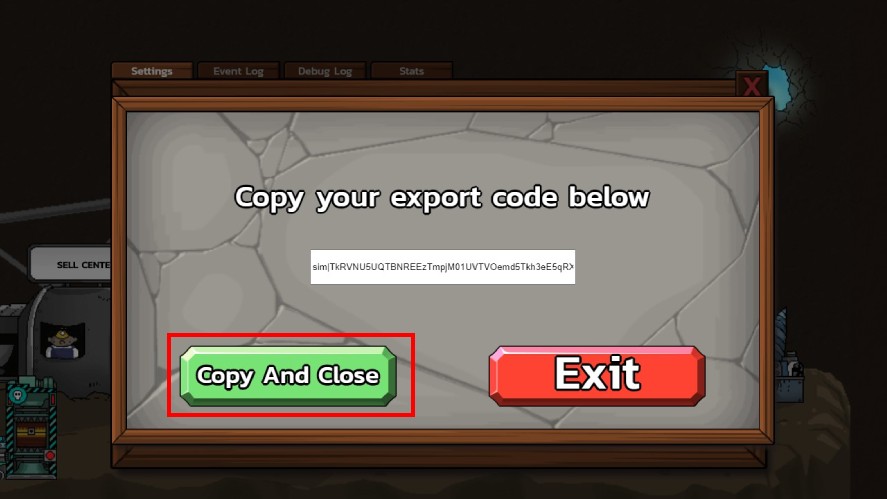
Image source: Mr. Mine Blog
How to Use an Online Mr. Mine Save Editor Step by Step
Once you have your save string, you can use a web-based tool to parse the data into a human-readable format. These tools rank among the top choices for players who prefer a visual interface over manual coding.
Selecting a Reliable Tool
Two of the most popular options are the Knarcraft Mr. Mine Editor and SaveEditorAH . These platforms decode the Base64 string and present you with editable fields for variables like:
- Money: Your primary currency for upgrades.
- Tickets: Used for premium chests and boosts.
- Ethereal Chests: High-value loot containers.
- Minerals: Quantities of coal, copper, gold, etc.
The Modification Process
- Copy your raw string: Use the export function in the game to get your current progress string.
- Paste into the editor: Open your chosen tool and paste the string into the input field. The editor should automatically populate the fields with your current stats.
-
Adjust variables:
Change the numbers to your desired values. For example, you might increase your money to
1e30or add 999 Ethereal Chests. - Generate the new string: Click the "Generate" or "Export" button on the tool to create a new, modified Base64 string.
- Import back to the game: Return to the Mr. Mine main menu. Look for the small arrow icon located next to the "New Game" button. Paste your modified string there and confirm.
As of 2026, most editors are optimized for game version v44 . If you are playing on a newer build like v46 , you may notice that some fields show "NaN" (Not a Number) or incorrect values. This occurs because game updates often shift the data indices within the save string. If this happens, manual editing via Base64 decoding is a more reliable alternative.
How to Avoid the Blueprint Bug and Other Common Save Editing Errors
One of the most significant advancements in save editing knowledge is the identification of the "Blueprint Bug." This technical pitfall has caused many players to lose access to their crafting menus entirely.
The "Crafted a Blueprint" Flag Requirement
When you use an editor to add advanced drill parts or equipment that you haven't naturally unlocked, the game's internal logic can become confused. Specifically, the game checks a progress flag called
hasCraftedBlueprint
. If you possess a drill part but this flag is set to "false," the game will often freeze or crash the moment you attempt to open the crafting menu.
"If editing drill parts, the 'Crafted a blueprint' flag in the progress section must be checked. Failure to do so causes the game to freeze when opening the crafting menu." — Technical findings from community research.
Symptoms of a Soft-Lock
If you have successfully imported a save but find that the game stops responding when you click the "Craft" button, you have likely encountered this bug. To fix it, you must re-import your save into the editor and ensure that the "Crafted Blueprint" checkbox is enabled in the "Progress" or "Flags" section of the tool.
How to Edit Your Mr. Mine Save Manually Using Base64 Decoding
For advanced users, manual editing offers a level of precision that online tools match only rarely. This method allows you to surgically change specific values without risking the corruption that automated tools sometimes introduce.
The Double-Base64 Decoding Process
Because the save string is encoded twice, you cannot simply read it in a text editor. You must follow these steps:
-
First Decode:
Use a standard Base64 decoder to process the raw save string. This will reveal a series of segments separated by the pipe character (
|). - Identify the Target Segment: Each segment represents a different part of the game state. The player resources and inventory are typically located in the second or third segment.
- Second Decode: Take the specific segment you wish to edit and decode it again. This will reveal a JSON-like structure or a simple list of values.
- Edit and Re-encode: Change the values, then reverse the process. Encode the segment back to Base64, re-insert it into the pipe-separated string, and then encode the entire string one final time.
How to Automate Mr. Mine Using Browser Console Scripts
Static save editing is excellent for resource boosts, but "Active Automation" allows you to progress while the game is running in the background. This is achieved using the browser's developer console (F12).
Automating Chest Opening
Instead of manually clicking every chest that appears, you can run a script to check for them automatically. According to scripts shared on GitHub , you can use the following command to check for chests every 10 minutes:
Instant Mineral Selling
To maximize your profit without constant management, you can automate the selling process. Using a
sellall()
script ensures your inventory never hits its limit, allowing your miners to work at peak efficiency. It is recommended to set a delay between 1,000ms and 5,000ms to prevent the game from lagging or triggering stability issues.
| Feature | Save Editor | Console Scripts |
|---|---|---|
| Resource Gain | Instant / Unlimited | Gradual / Automated |
| Risk of Corruption | Moderate (Blueprint Bug) | Low (Temporary) |
| Game Stability | High (if done correctly) | May cause lag if intervals are too short |
| Ease of Use | High (Visual Tools) | Moderate (Requires JS knowledge) |
How to Sync and Edit Mr. Mine Saves on Mobile Devices
Mobile players often feel left out of the editing community because there are no direct "Editor Apps" for iOS or Android. However, a "Mobile-to-PC Bridge" workflow allows you to modify your mobile progress with ease.
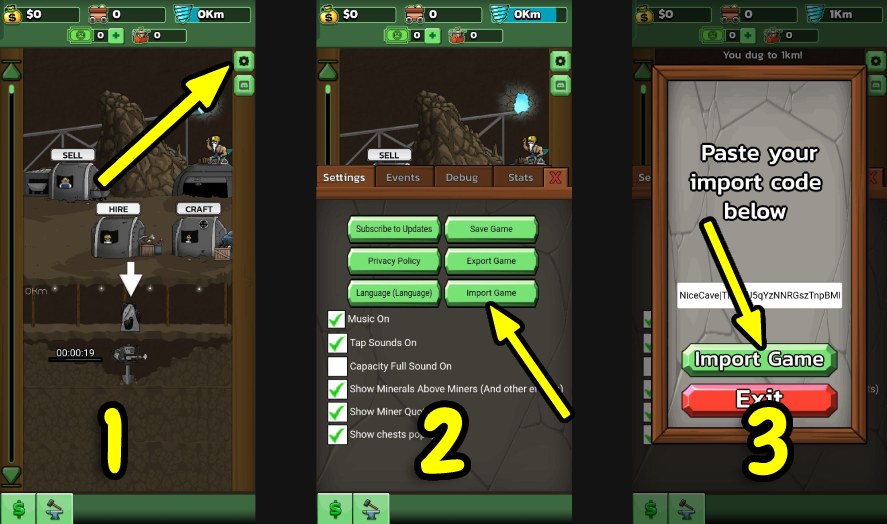
Image source: Mr. Mine Blog
The Sync Workflow
To edit a mobile save, follow these steps:
- Export from Mobile: Go to settings in the Mr. Mine app and export your save. Email the string to yourself or save it to a cloud note.
- Edit on PC: Open the string on a desktop computer and use one of the online editors mentioned earlier.
- Return to Mobile: Copy the modified string, send it back to your mobile device, and use the "Import" function in the app's main menu.
This method is highly recommended for mobile users who want to bypass the limitations of mobile hardware and access the full suite of editing tools available on the web.
Advanced Game Mechanics for Precise Save Editing
To edit your save like an expert, you should understand the underlying formulas that govern the game. This allows you to make changes that feel natural and don't break the game's internal logic.
Scientist Level Calculations
Scientist levels are not just arbitrary numbers; they are calculated based on the total time spent excavating. The formula is generally
(Minutes excavated / 360) + 1
. If you want to reach a specific scientist tier, you should edit your "Time Excavated" variable rather than the level itself. This ensures that the scientist's rewards and abilities scale correctly.
Chest Spawn Logic and Odds
Chests roll for a spawn every 30 seconds for every 10km of depth you have reached. According to
Steam community data
, there is a 1 in 158 chance for a spawned chest to be a Gold Chest. If you are editing your inventory for trade posts, remember that reward subtypes are categorized as
0
for wooden chests and
1
for gold chests.
Key Takeaways for Safe Save Editing
- Always backup your original save string in a separate text file before using any editor.
-
Check the Blueprint Flag
(
hasCraftedBlueprint) whenever you add drill parts to avoid soft-locking the crafting menu. - Verify your game version (e.g., v44 vs v46) to ensure the editor is compatible with your data structure.
- Use the Arrow Icon on the main menu to import saves, as the in-game settings menu is only for exporting.
- Consider Console Scripts for active automation if you prefer a more "legitimate" feeling progression boost.
- Manual Base64 decoding is a top-tier alternative if online tools fail to parse your save correctly.
By following these technical steps, you can safely customize your Mr. Mine experience and overcome the steepest progression hurdles in the game.
Frequently Asked Questions
Will using a save editor get me banned from Mr. Mine?
Why does my save string say "Invalid" when I try to import it?
Can I get unlimited Ethereal Chests with an editor?
Does the editor work on the Steam version of Mr. Mine?
SaveBackup.txt
file, edit it in a web-based tool, and then import it back into the Steam version using the arrow icon on the main menu. This cross-compatibility is one of the reasons these tools are so popular.
What is the maximum amount of money I can add?
1e308
, the game may become unstable or display "Infinity" if you exceed the engine's limits. For a smooth experience, it is recommended to stay within the range of
1e100
to
1e200
, which is more than enough to purchase all late-game upgrades.
All trademarks, copyrighted content, and quoted material referenced in this article belong to their respective owners. Brief excerpts are used under fair use (17 U.S.C. § 107) for purposes of commentary, criticism, and informational reporting. This article is not affiliated with or endorsed by Playsaurus.