Home
How to Add Mods to Stardew Valley on Steam and Keep Your Achievements
To add mods to Stardew Valley on Steam, you must first install
SMAPI
(Stardew Modding API). Once installed, you place your downloaded mods into the
/Mods
folder within your game directory. To ensure Steam continues to track your achievements, you must copy the launch path provided by the SMAPI installer and paste it into the
Launch Options
in your Steam Library settings.
Stardew Valley is widely regarded as one of the most mod-friendly games in the indie scene. While the base game offers hundreds of hours of content, the community has created thousands of additions—ranging from simple visual tweaks to massive expansions like Stardew Valley Expanded . However, unlike many other titles on the platform, adding mods to the Steam version requires a few manual steps outside of the Steam client itself.
Why Stardew Valley Does Not Use the Steam Workshop
Many players are surprised to find that the Stardew Valley Steam page lacks a "Workshop" tab. This is a deliberate choice by the developer, ConcernedApe, and the modding community. While the Steam Workshop is convenient for simple asset swaps, it is often too restrictive for the complex code injections required by advanced Stardew mods.
Instead, the game relies on SMAPI , a powerful modding API that acts as a bridge between the game's code and the mods themselves. According to community discussions on Reddit , the developer has historically supported modding by sharing source code with the creator of SMAPI, ensuring that the tool remains compatible even after major game updates like version 1.6.
By using SMAPI and external repositories like Nexus Mods, players gain access to a much deeper level of customization. This ecosystem allows for "framework" mods—tools that let other mods work together without crashing—which would be difficult to manage through the standard Workshop interface.
Essential Steps to Take Before Modding Your Game
Before you begin downloading files, there are three critical preparation steps you should follow to ensure a smooth experience and protect your progress.
-
Run the Game Once:
If you have just installed Stardew Valley, launch it at least once and reach the main menu. This forces the game to generate necessary configuration files and folders in your system's
%appdata%directory. - Create a Nexus Mods Account: While some mods are hosted elsewhere, Nexus Mods is the primary hub for the community. You will need a free account to download files larger than a few kilobytes.
-
Back Up Your Saves:
Modding is generally safe, but it is a top-tier practice to back up your save files. Navigate to
%appdata%\StardewValley\Saveson Windows and copy the folders to a safe location. This ensures that if a mod causes a conflict, your farm remains intact.
How to Install SMAPI on Windows Systems
SMAPI is the foundation of Stardew Valley modding. Without it, the game will simply ignore any mod files you add to its folders. It is a top choice for stability and is required for almost every modern mod.
.zip
file and select "Extract All." Do not try to run the installer from inside the zipped folder.
install on Windows.bat
. A command prompt window will open.
Image source: YouTube
How to Link SMAPI to Steam to Track Your Achievements
One of the most common complaints from new modders is that their Steam achievements stop tracking. This happens because SMAPI creates a new executable file (
StardewModdingAPI.exe
). If you launch the game through Steam normally, it launches the original game file, which doesn't have your mods. If you launch the modded file directly, Steam doesn't realize you are playing.
To fix this, you must tell Steam to launch the SMAPI version instead. Follow these steps:
- Open your Steam Library .
- Right-click Stardew Valley and select Properties .
- In the General tab, look for the Launch Options box at the bottom.
- Paste the exact string provided by the SMAPI installer. It should look something like this:
Once this is set, launching the game through Steam will open the SMAPI console, load your mods, and correctly track your playtime and achievements. This method is widely considered the standard way to maintain Steam integration while modding.
Finding and Downloading Mods from Nexus Mods
With SMAPI installed, you can now browse for content. Nexus Mods offers a highly organized repository. When looking for mods, pay close attention to the "Requirements" section. Many popular mods require "Content Patcher," a framework that allows mods to change game assets without replacing the original files.
In the current 2026 modding landscape, compatibility is key. Always check the "Last Updated" date. If a mod hasn't been updated since before the 1.6 patch, it may require a compatibility fix. The Stardew Valley Wiki maintains a list of mod compatibility that is updated by the community.
How to Manually Install Mods in the Stardew Valley Folder
While mod managers exist, manual installation is often more reliable for Stardew Valley because it prevents the "nested folder" error that breaks many setups. Each mod you download will typically come as a
.zip
file.
Locating Your Mods Folder
First, find where Steam has installed your game. In Steam, right-click Stardew Valley > Manage >
Browse local files
. This will open a folder containing a subfolder named
Mods
. This folder was created automatically when you installed SMAPI.
The Correct Extraction Method
Open your downloaded mod
.zip
. Inside, you should see a folder (e.g., "UIInfoSuite"). Drag that folder directly into the
Stardew Valley/Mods
directory.
Mods/UIInfoSuite/UIInfoSuite/manifest.json
. SMAPI will not see the mod if it is buried inside a second folder. The
manifest.json
file must be exactly one folder deep:
Mods/UIInfoSuite/manifest.json
.
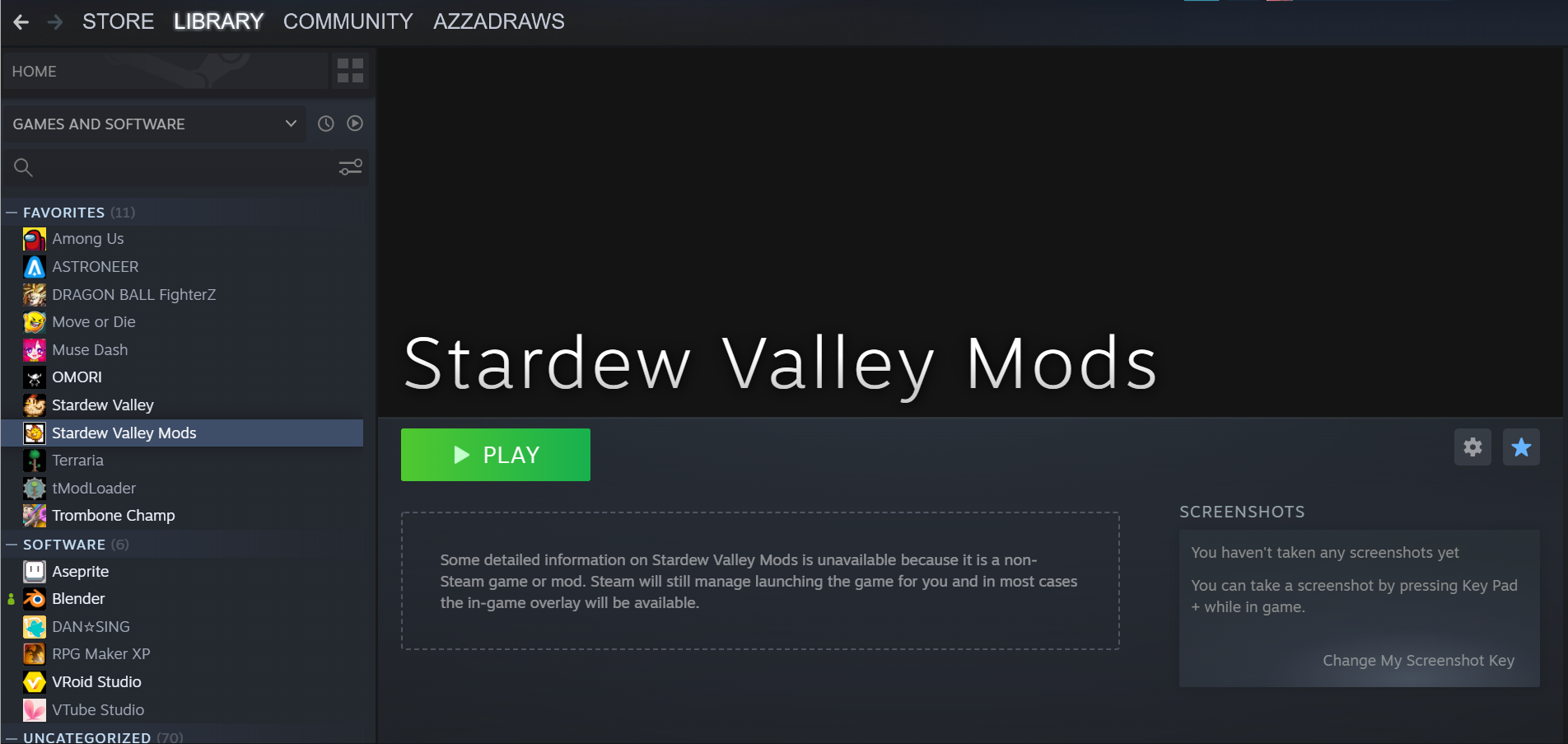
Image source: Steam Community
How to Add Mods to Stardew Valley on the Steam Deck
The Steam Deck is a top-tier platform for Stardew Valley, and modding it is entirely possible thanks to its Linux-based operating system. The process is slightly different but follows the same logic as the Windows version.
Switching to Desktop Mode
Hold the Power button on your Steam Deck and select Switch to Desktop . Once in Desktop Mode, open the web browser (usually Firefox) and download the Linux version of SMAPI from smapi.io.
Running the Linux Installer
Extract the SMAPI folder. Right-click the file named
install on Linux.sh
and select "Run in Terminal" or "Execute." A Konsole window will appear. Follow the on-screen prompts just like on Windows. The installer is exceptionally strong at finding the Steam Deck's default installation path.
Finding the Mods Folder on Steam Deck
Open the Dolphin file manager. If your game is on the internal SSD, the path is typically:
/home/deck/.local/share/Steam/steamapps/common/Stardew Valley/Mods
.
Note that
.local
is a hidden folder; you may need to click the three-bar menu in Dolphin and check "Show Hidden Files."
According to Steam Deck HQ , you do not need to set Launch Options on the Deck if you use the official installer, as it handles the redirection automatically.
Should You Use a Mod Manager or Install Mods Manually?
For beginners, the choice between manual installation and using a tool like Vortex can be confusing. Both methods have merits, but they cater to different types of users.
| Feature | Manual Installation | Mod Manager (Vortex/ModDrop) |
|---|---|---|
| Ease of Setup | Moderate (Requires folder navigation) | High (One-click downloads) |
| Stability | High (Less chance of file corruption) | Moderate (Can occasionally misplace files) |
| Steam Deck Support | Excellent | Poor (Difficult to set up on Linux) |
| Troubleshooting | Easy (Direct access to files) | Complex (Hidden virtual file systems) |
For most players, manual installation is a top choice because it teaches you exactly where your files are located, making it much easier to fix issues when a mod breaks after a game update.
What the Different Colors in the SMAPI Console Mean
When you launch Stardew Valley with SMAPI, a text window appears before the game starts. This is the SMAPI console. It provides a real-time log of everything the game is doing. Understanding the color codes is a significant advancement in your ability to troubleshoot your own game.
- White/Gray: Standard information. SMAPI is telling you which mods it found and that it is starting the game.
- Purple/Pink: An update is available. SMAPI has checked Nexus Mods and found a newer version of one of your mods. It will usually provide a URL to the download page.
- Yellow: A non-critical warning. This often means a mod is using an outdated method to load, or there is a minor conflict that isn't breaking the game. You can usually ignore these, but keep an eye on them.
- Red: A critical error. The mod failed to load entirely. This is usually caused by a missing dependency (like forgetting to install Content Patcher) or a major version mismatch.
How to Update Your Mods for the 1.6 Version and Beyond
When ConcernedApe releases a new version of Stardew Valley, your mods will likely break. This is normal. To update your mods, you should never simply "overwrite" the old files. This can leave behind old scripts that cause crashes.
The proper "clean install" method for updates is:
-
Go to your
Modsfolder. - Delete the folder of the mod you want to update.
- Download the new version from Nexus Mods.
-
Extract the new folder into your
Modsdirectory.
Always update SMAPI first before updating individual mods, as the API itself often includes the fixes needed for the game to run at all.
Frequently Asked Questions About Stardew Valley Modding
No, modding does not inherently disable achievements. However, if you launch the game directly through the SMAPI executable without setting the Steam Launch Options, Steam will not track your progress. By following the "Launch Options" step in this guide, you can enjoy a fully modded game while still earning every achievement and tracking your total playtime.
Yes, most mods can be added to an existing save without any issues. Visual mods and UI tweaks are almost always safe. However, "expansion" mods that change the map layout (like Stardew Valley Expanded) are best started on a fresh save to avoid objects spawning in inaccessible areas or overlapping with your existing farm buildings.
Every mod you add increases the amount of data the game must process during startup. While a vanilla game loads in seconds, a heavily modded setup with 400+ mods can take several minutes to reach the title screen. If your load times are excessive, consider moving the game to an SSD or reducing the number of high-resolution texture packs you are using.
Multiplayer works with mods, but there are rules. If you use "client-side" mods (like a mod that changes how your character looks), only you need to have it. However, if you use "content" mods (like new items or farm maps), every player in the session must have the exact same mods installed to prevent the game from crashing or desyncing.
Modding is generally safe if you stick to reputable sources like Nexus Mods or the official Stardew Valley forums. Nexus Mods scans every file for viruses before allowing it to be downloaded. You should be cautious of mods hosted on obscure third-party sites that promise "free" versions of paid content or require you to run suspicious
.exe
files that aren't SMAPI.
Key Takeaways for Successful Stardew Valley Modding
- Install SMAPI first as it is the mandatory foundation for almost all Stardew mods.
- Configure Steam Launch Options to ensure your achievements and playtime are still tracked by the platform.
- Use Nexus Mods as your primary source and always check the "Requirements" tab before downloading.
-
Avoid nested folders
by ensuring the
manifest.jsonfile is only one directory deep within the Mods folder. - Monitor the SMAPI console for red text to identify and fix critical errors immediately.
- Back up your saves regularly, especially before installing large expansion mods or updating the game.
Start by installing a single simple mod like UI Info Suite to verify your setup is working before attempting to install larger mod packs.