Home
How to Configure and Optimize Your Stardew Valley Controller Layout for Every Platform
For a standard Stardew Valley controller layout, use the Left Stick for movement and the Right Stick as a virtual cursor. On Xbox/PlayStation, the A/Cross button handles actions, while X/Square uses tools. To fix common PC issues, ensure Steam Input is enabled in your game settings and set the in-game Gamepad Mode to "Auto-detect." For Steam Deck users, reordering controllers in the system menu is often necessary to recognize external gamepads.
Stardew Valley is widely regarded as one of the most relaxing farming simulators, but for many players, the transition from Mouse and Keyboard (M&K) to a controller can feel restrictive. While the game was originally designed for PC, the developer, ConcernedApe, has implemented robust controller support across all major platforms. However, achieving a layout that feels fluid and efficient requires more than just plugging in a device.
Whether you are playing on a Nintendo Switch, a PlayStation 5, or a highly customized Steam Deck, understanding the nuances of button mapping and hidden input shortcuts is essential. This guide explores the technical setup for every platform, addresses persistent bugs like the Switch button swap on PC, and introduces advanced techniques used by veteran players to maintain high productivity on the farm.
Default Button Mappings for Every Major Gaming Console
The native controller logic in Stardew Valley is consistent across consoles, prioritizing ease of access to tools and inventory management. While the physical buttons vary by hardware, the functional mapping remains functionally rigid to ensure a predictable experience for players moving between systems.
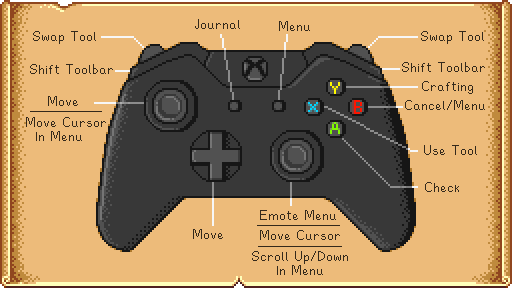
Image source: Stardew Valley Wiki
Xbox and PlayStation Layout Basics
On Xbox controllers, the A button is your primary interaction key (Action), used for talking to NPCs, picking up items, and checking the calendar. The X button is dedicated to Tool use, such as swinging your pickaxe or watering crops. The Y button opens your main menu, while B acts as the back or cancel command. Inventory cycling is handled by the LB/RB bumpers or the LT/RT triggers , allowing you to quickly swap between your sword and your pickaxe during intense cavern runs.
PlayStation users follow a near-identical pattern: Cross is Action, Square is Tool, Triangle opens the Menu, and Circle is Back. A unique feature of the PlayStation layout on PC is the ability to use the Touchpad as a mouse cursor, which can be exceptionally helpful for navigating complex menus or placing furniture with precision.
Nintendo Switch Layout Nuances
The Nintendo Switch layout is slightly different due to the physical placement of the A/B and X/Y buttons. In Stardew Valley, A remains the Action button, but its position on the right side of the cluster can feel counterintuitive to those used to Xbox layouts. Y is used for tools, and X opens the menu. According to the Official Stardew Valley Wiki , these mappings are fixed on the console version, though players can adjust "Zoom Level" and "UI Scale" to make the controller-driven cursor easier to see on the Switch's handheld screen.
| Action | Xbox / PC | PlayStation | Nintendo Switch |
|---|---|---|---|
| Use Tool | X | Square | Y |
| Action / Check | A | Cross | A |
| Open Menu | Y | Triangle | X |
| Cycle Inventory | LB / RB | L1 / R1 | L / R |
How to Connect and Configure Your Controller on PC
Connecting a controller to a PC is generally a plug-and-play experience for Xbox controllers, as Windows natively supports the XInput standard. However, PlayStation DualShock 4 or DualSense controllers often require additional software layers to function correctly. Many players find that without proper configuration, the game may fail to recognize the controller entirely or display incorrect button prompts.
Enable Steam Input: If you are playing via Steam, navigate to Settings > Controller > External Device Settings . Ensure that support for your specific controller type (PlayStation, Switch, or Generic) is toggled to "On."
Check In-Game Settings: Launch Stardew Valley and open the Options menu (the controller icon tab). Scroll down to the "General" section and look for Gamepad Mode . Ensure this is set to "Auto-detect" or "Force On." Setting this to "Force Off" is a common reason for controller failure.
Calibrate the Deadzone: If your character is drifting or the cursor moves on its own, use the Steam Controller settings to increase the "Deadzone" of your joysticks. This is particularly important for older controllers that may have developed slight mechanical wear.
For those using non-Steam versions of the game (such as GOG or Game Pass), tools like DS4Windows can emulate an Xbox controller, tricking the game into providing full support for PlayStation hardware. According to reports on the Stardew Valley Forums , many detection issues are resolved by simply ensuring the controller is plugged in before launching the game executable.
Using Steam Input to Remap Your Buttons
While the in-game remapping options for controllers are limited, Steam Input offers a top-tier level of customization that allows you to bypass these restrictions. This is especially useful for players who want to bind keyboard-specific shortcuts to their controller, such as the 'M' key for the map or the 'J' key for the journal.
Accessing the Layout Editor
To customize your layout, right-click Stardew Valley in your Steam Library, select Manage , and then Controller Layout . From here, you can bind any button to any keyboard key or mouse action. For example, many veteran players bind the Back Paddles on an Xbox Elite or Steam Deck to the inventory scroll keys, allowing them to swap items without taking their thumbs off the movement sticks.
Community Layouts
If you don't want to build a layout from scratch, you can browse "Community Layouts" within the Steam menu. These are configurations shared by other players that are often optimized for specific playstyles, such as combat-heavy layouts that place the sword on a trigger for faster reaction times. These layouts rank among the top choices for players who find the default cycling system clunky during late-game Skull Cavern runs.
How to Fix the Inverted Switch Button Layout on PC
A frequent pain point for Nintendo Switch Pro Controller users on PC is the "Button Swap" issue. Because Nintendo uses a different physical layout for A/B and X/Y compared to the Xbox standard, the on-screen prompts in Stardew Valley often don't match the buttons you are pressing. This can lead to accidentally eating crops when you meant to harvest them.
If the global toggle does not work for your specific setup, you can manually swap the bindings within the Steam Input layout editor. Simply map the controller's physical 'A' button to the 'B' output, and vice versa. This manual fix is a reliable way to ensure your muscle memory from the console version carries over perfectly to the PC environment.
Pro Techniques to Make Controller Gameplay Faster and More Efficient
Many players believe that Mouse and Keyboard is the only way to achieve maximum efficiency in Stardew Valley, but several "Pro" techniques allow controller users to match that speed. These methods rely on the game's internal logic for handling "held" inputs.
Mastering the Hold and Run Harvesting Method
Instead of pressing the Action button for every single crop, you should hold the Action button (A/Cross) and simply run through your fields. As long as you are holding the button, your character will automatically harvest every crop they pass. This technique is significantly faster than individual clicking and is essential for large-scale farms with hundreds of ancient fruit plants.
The Rapid Refill Strategy
This same logic applies to machines like Kegs, Preserves Jars, and Furnaces. If you hold the Action button while running past a row of machines, you will simultaneously collect the finished product and deposit a new raw material in a single motion. This "one-frame" interaction is a top-tier efficiency booster that many new players overlook.
D-Pad Tool Mapping
Cycling through a full 12-slot toolbar with bumpers can be slow. Using Steam Input, you can map the D-Pad to specific keyboard numbers (1, 2, 3, 4). This allows you to instantly equip your most-used tools—like your Pickaxe, Sword, and Hoe—with a single directional press, bypassing the need to cycle through seeds or forage items in your inventory.
How to Craft and Buy Items in Large Stacks
In the late game, you will often need to buy hundreds of seeds or craft dozens of kegs at once. Doing this one-by-one on a controller is tedious, but there are built-in modifiers to speed up the process. On a controller, the Tool button (X/Square) acts as a modifier in crafting and shop menus.
- Crafting in 5s: Hold the Tool button while selecting a recipe to craft five items at once.
- Buying in Bulk: In a shop menu, holding the Tool button while purchasing will buy items in stacks of five.
- The "Shift" Equivalent: On PC, if you map a controller button to the Shift key via Steam Input, you can hold that button while pressing the Action button to buy items even faster.
These shortcuts are vital for maintaining a high pace of play, especially when visiting Sandy at the Oasis or the Dwarf in the mines, where purchasing materials in bulk is a weekly necessity.
Troubleshooting Common Controller Issues and Recognition Bugs
Even with the correct settings, technical hurdles can arise. One of the most persistent issues involves the Steam Deck when used with an external controller in docked mode. Many users report that the game ignores the external gamepad and only listens to the Deck's built-in controls.
Fixing the Steam Deck External Controller Bug
According to community discussions on Reddit , the fix involves reordering your controllers. While the game is running, press the Steam button, go to Controller Settings , and select "Reorder Controllers." Move your external controller (Xbox, PS5, etc.) to the #1 position. This forces the game to prioritize the external input over the integrated hardware.
Generic Controller Initialization
If you are using an off-brand or generic controller that isn't being recognized, a common community trick is to plug in an official Xbox or PlayStation controller first. Once the game initializes the gamepad API, you can often hot-swap to the generic controller, and it will begin functioning. This suggests that the game's initial handshake with the controller API sometimes requires a standard XInput signal to trigger.
Using Mods to Add Radial Menus and Modern Controls
For players who want to modernize their experience beyond what the base game offers, the modding community has developed several tools. The Star Control mod (formerly known as Better Gamepads) is widely considered a significant advancement for controller users.
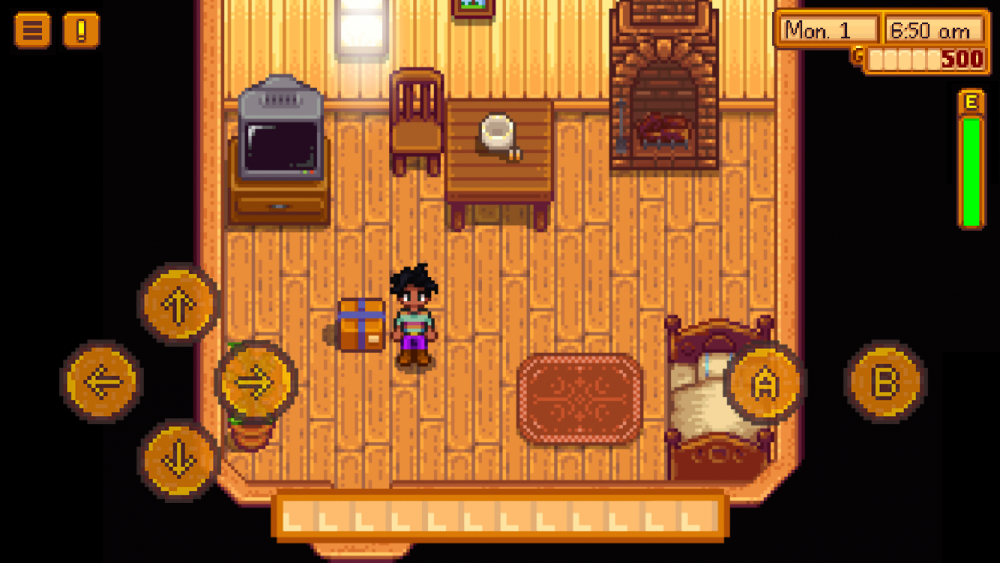
Image source: Stardew Valley Forums
Star Control introduces Radial Menus (or "Pie Menus"), allowing you to hold a button and use the analog stick to select an item from your toolbar. This is much faster than cycling and feels more in line with modern titles like The Legend of Zelda: Breath of the Wild . You can find this mod on Nexus Mods , though it does require the SMAPI modding framework to be installed first. Note that this mod typically requires a resolution of at least 1080p to display the radial UI correctly without clipping.
Key Takeaways for Optimizing Your Controller Experience
- Check Gamepad Mode: Always ensure the in-game setting is set to "Auto-detect" to prevent recognition failures.
- Enable Steam Input: Use Steam's software layer to support PlayStation and Switch controllers on PC.
- Fix Switch Swaps: Use Big Picture Mode to toggle the "Nintendo Button Layout" for accurate on-screen prompts.
- Use the "Hold" Method: Hold the Action button while running to harvest and refill machines at maximum speed.
- Reorder on Steam Deck: Manually move external controllers to the #1 slot in the system menu if they aren't working.
- Consider Star Control: Install the radial menu mod to modernize inventory management and tool swapping.
By combining these technical fixes with efficient movement habits, you can enjoy a controller experience that is just as productive as a traditional mouse and keyboard setup.
First, ensure your controller is recognized by Windows or Steam. In Stardew Valley, go to the Options menu and check that "Gamepad Mode" is not set to "Force Off." If you are using a PlayStation or Switch controller, you must enable the corresponding support in Steam's Controller Settings. Restarting the game after plugging in the controller is also a common fix for initialization errors.
For combat, many players recommend using Steam Input to bind your sword to a Trigger (RT/R2) or Bumper (RB/R1) . This allows you to spam attacks while keeping your thumb on the Right Stick to adjust your aim or use the virtual cursor. Additionally, binding food items to the D-Pad can save your life in the mines by allowing for instant healing without scrolling.
Yes, the mobile versions of Stardew Valley support Bluetooth controllers like the Xbox Wireless Controller, DualSense, and mobile-specific grips like the Backbone One. Most of these are plug-and-play, though you may need to adjust the "Control Scheme" in the mobile app's settings menu to "Joystick & Buttons" to enable full gamepad functionality.
This happens because Nintendo's A/B and X/Y positions are the inverse of the Xbox standard used by Windows. To fix this, open Steam in Big Picture Mode, go to Controller Settings, and enable "Use Nintendo Button Layout." This will remap the inputs so that the physical 'A' button on your controller performs the 'A' action in the game.
The back paddles (L4, L5, R4, R5) are not natively supported by the game, but you can map them using Steam Input. A popular choice is to map them to keyboard keys like 'M' (Map), 'J' (Journal), or 'Tab' (Inventory Tab Swap). This allows you to access deep menu functions without ever leaving the main gameplay screen.