Home
How to Install and Use FC 25 Live Editor v25.3.4 Safely
v25.3.4 (Released April 2025)
Player Cloning & Presets
Offline Use Only (EAAC Bypass)
PC (EA App Recommended)
The release of FC 25 Live Editor v25.3.4 marks a significant advancement for the modding community, providing tools that were previously limited to complex database editing. Developed by Aranaktu, this version focuses on stability and user-requested features like player cloning and database cleanup. As the game evolves through various Title Updates (TU), maintaining a functional editing environment requires a specific workflow to avoid account penalties and software crashes.
In this guide, we will explore the technical nuances of v25.3.4, including how to manage the new preset system and how to navigate the common pitfalls associated with EA Anti-Cheat (EAAC). Whether you are looking to revitalize your Career Mode with legendary players or simply want to fix immersion-breaking bugs, this version stands out as a top choice for PC players.
Image source: Patreon
What Is New in the v25.3.4 Update?
The v25.3.4 update, released on April 15, 2025, is widely considered one of the most stable iterations of the tool for the current game cycle. Unlike previous versions that focused primarily on attribute editing, this release introduces deeper database manipulation features that allow for a more customized Career Mode experience.
The New Player Cloning Feature
One of the most impactful additions in v25.3.4 is the ability to duplicate existing players within the database. Previously, creating a "regen" or a custom version of a legendary player required manual entry of hundreds of data points, from physical attributes to specific playstyles. The new cloning tool automates this process, allowing you to create an exact replica of any player with a single click. This is particularly useful for users who want to test how a specific player performs in different tactical setups without altering the original database entry.
Deleting Players from the Database
Database bloat is a common issue in long-term Career Mode saves. v25.3.4 introduces a safe method for deleting players from the active database. This feature is not just about cleaning up menus; it helps in reducing save file corruption and improving loading times during transfer windows. By removing unwanted free agents or retired players who haven't properly cleared from the system, you can maintain a leaner, faster game environment.
Custom ID Support and Option Picker
For advanced modders, the new version offers enhanced support for custom IDs. The option picker has been updated to recognize assets that aren't part of the vanilla game files. According to the official release notes on Patreon , this allows for more granular control over player faces, boots, and accessories that are added via external mod managers.
How to Download the Official v25.3.4 Files
Accessing the Live Editor requires understanding the developer's release cycle. Aranaktu utilizes a tiered release model that ensures supporters receive early access while the general public eventually gets a stable, free version. This "Patreon Gap" is a standard practice in the modding community to fund the significant time required for reverse-engineering EA's code.
New versions like v25.3.4 are first released to Patreon supporters for testing and early use.
Once major bugs are identified and fixed, the version is made available for free on platforms like GitHub and FIFA-Infinity.
Minor updates (e.g., v25.3.4b) may be released to address specific Title Update compatibility issues.
To ensure your system remains secure, only download the Live Editor from verified sources. The FIFA-Infinity download portal and the official GitHub repository are the only recommended locations for the public version. Be wary of third-party sites claiming to have "v25.4.x" or higher before the developer has announced them, as these are often vehicles for malware.
Step-by-Step Guide to Installing the Live Editor
The Live Editor is a DLL-based tool that injects itself into the game's memory. Because it interacts with the game at a low level, the installation process must be followed precisely to avoid "Injection Failed" errors or immediate crashes upon launch.
- Prepare the Environment: Ensure you have the latest Microsoft Visual C++ Redistributable installed. The tool relies on these libraries to execute its C++ code within the game process.
- Extraction: Download the v25.3.4 archive and extract it to a dedicated folder. Do not extract the files into your game installation folder, as this can cause conflicts with the EA Anti-Cheat launcher.
- Administrator Privileges: Right-click the `Launcher.exe` (or the specific Live Editor executable) and select "Run as Administrator." This is necessary for the tool to have permission to write to the game's memory space.
- The Launch Sequence: Open the Live Editor first. Once the interface appears, you will see a "Run Game" button. However, for the most stable experience, many users find it better to launch the EA App first, then initiate the game through the Live Editor.
How to Bypass EA Anti-Cheat and Play Safely Offline
The most critical aspect of using the FC 25 Live Editor is managing the EA Anti-Cheat (EAAC). The tool includes a built-in bypass that allows it to function, but this bypass only works if the game is played in offline mode. Attempting to use the Live Editor while connected to EA Servers is a high-risk activity that will likely result in a permanent account ban.
The "Offline Lock" Strategy
To ensure 100% safety, we recommend the "Offline Lock" workflow. This prevents the game from communicating with EA's servers and ensures the anti-cheat does not flag the memory modifications as malicious software.
| Step | Action | Purpose |
|---|---|---|
| 1 | Set EA App to "Go Offline" | Prevents server-side checks and automatic updates. |
| 2 | Disable Internet (Optional) | Provides an extra layer of security against accidental connection. |
| 3 | Launch Live Editor | Initializes the injection environment. |
| 4 | Press "Run Game" | Starts the game with the EAAC bypass active. |
Mastering the New Player Preset and Cloning System
The preset system in v25.3.4 is a notably innovative feature that changes how users manage their squads. Instead of editing players one by one, you can now create "Master Templates" that can be applied across multiple saves or players.
Creating a Master Player Template
Imagine you have spent hours perfecting the face, attributes, and playstyles of a custom youth academy player. In previous versions, if you started a new Career Mode, you would have to redo that work. With v25.3.4, you can export that player as a `.preset` file. This file contains all the metadata associated with the player's identity in the database.
To use this feature, navigate to the Player Editor within the tool, select your player, and click "Export to Preset." You can then load any other player—even a generic 45-rated free agent—and click "Import Preset" to instantly transform them into your master template. This workflow is exceptionally strong for users who enjoy creating "Super Leagues" or restoring classic legendary squads.
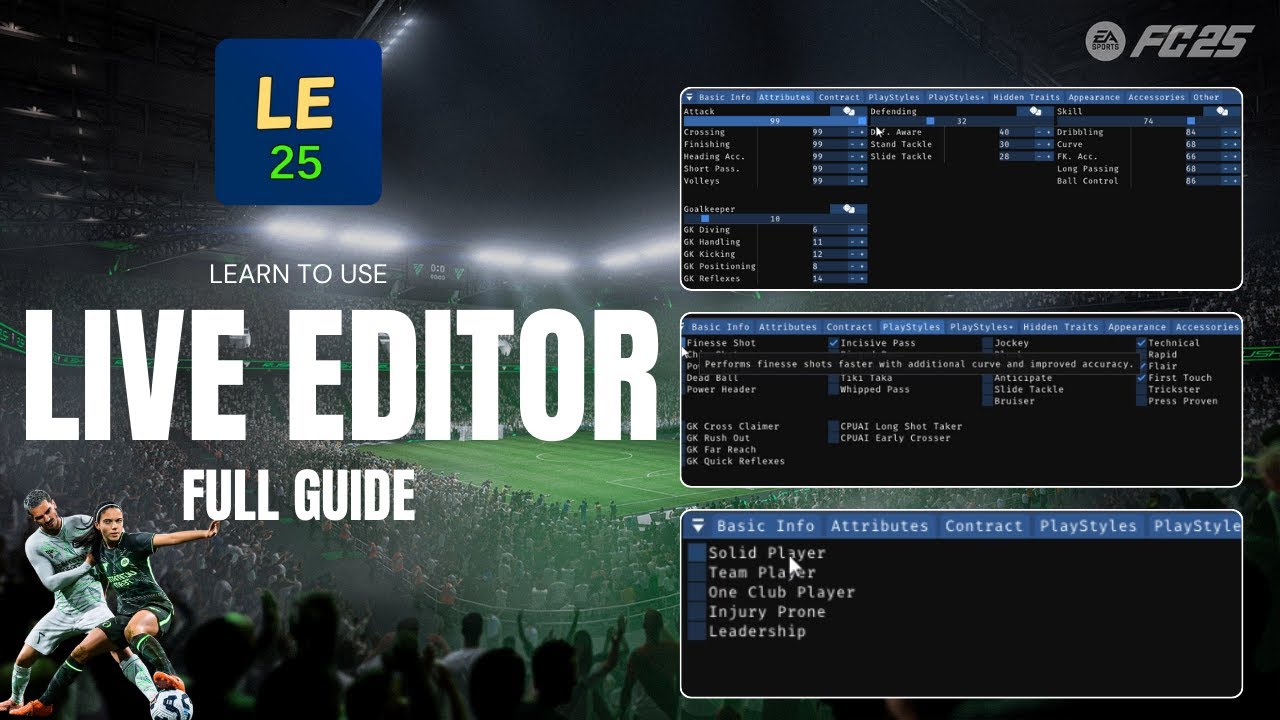
Image source: YouTube
How to Fix Common Injection and Launch Errors
Even with a stable version like v25.3.4, technical hurdles are common due to the aggressive nature of EA's security updates. Based on community feedback from Reddit troubleshooting threads , most issues can be resolved with a few specific adjustments.
Solving the EA App Loop
The "EA App Loop" occurs when you click "Run Game" in the Live Editor, but instead of the game launching, the EA App simply closes and reopens. This usually happens because the tool cannot find the game process quickly enough. To fix this, try opening the game normally through the EA App first. As soon as the small splash screen appears, quickly switch to the Live Editor and press "Run Game." This "manual timing" method often forces the injection to succeed.
Understanding the Orange TU Status
In the Live Editor UI, you will see a "Game TU" indicator. If this is green, the tool is fully compatible. If it is orange , it means EA has released a minor Title Update that the tool doesn't officially recognize yet. In most cases, v25.3.4 will still work in Orange status, but you should proceed with caution and back up your save files, as some database addresses may have shifted.
Windows 8 Compatibility Mode Fix
If the tool crashes immediately upon injection, the issue is often related to Windows 11's security features. Navigate to the `EAAntiCheat.GameServiceLauncher.exe` in your game folder, right-click it, and go to Properties. Under the Compatibility tab, check "Run this program in compatibility mode for: Windows 8" and check "Run this program as an administrator." This legacy setting often bypasses modern permission conflicts that block the Live Editor.
Improving Game Performance with the Live Editor
Beyond editing players, v25.3.4 offers several "Legacy File" options that can significantly improve how the game runs on mid-range hardware. By replacing specific game files with optimized versions, you can reclaim lost frames per second (FPS) during matches.
- The "No Crowd" Boost: One of the most popular performance mods involves disabling the 3D crowd models. This can result in a 10-15% FPS increase, which is vital for players using laptops or older GPUs.
- Memory Management: The Live Editor includes a "Clear Cache" function that helps prevent the game from stuttering during long sessions. If you notice the game becoming sluggish after three or four matches, using this feature can refresh the memory allocation.
- LOD Adjustments: You can force the game to use high-quality Level of Detail (LOD) models for players even at a distance, or conversely, lower them to save resources. This granular control is a significant step forward for PC optimization.
Key Takeaways for FC 25 Live Editor v25.3.4
Using the Live Editor effectively requires a balance of technical setup and safety precautions. Here is the distilled summary of what you need to know:
- Prioritize v25.3.4 for its stable player cloning and database cleanup features.
- Always use Offline Mode in the EA App to prevent account bans and forced updates.
- Leverage the Preset System to save time when creating custom players or restoring legends.
- Apply the Windows 8 Fix if you encounter persistent injection failures or crashes.
- Monitor the TU Status in the tool's UI to ensure compatibility after game patches.
- Avoid Online Modes entirely while the tool is active to protect your EA account.
- Use the EA App as your primary launcher for the most consistent injection results.
For the best results, always back up your Career Mode save files before performing major database edits or player deletions.
Frequently Asked Questions