Home
How to Install and Use the FC 25 Live Editor for Career Mode
The FC 25 Live Editor , developed by xAranaktu , is a C++ based DLL injector that allows real-time memory editing in Career Mode. It is a PC-only tool that bypasses EA Anticheat (EAAC) for offline play. Key features include editing player attributes, unlocking all Playstyle+ slots, and match-fixing. To avoid account bans, it must be used strictly in Offline Mode .
What Is the FC 25 Live Editor and Who Created It?
The FC 25 Live Editor stands out as a leading choice for enthusiasts looking to customize their offline gaming experience. At its core, the tool is a sophisticated DLL (Dynamic Link Library) written in C++ that injects itself into the game's process memory. This allows users to modify data values—such as player stats, transfer budgets, and match results—while the game is running.
The tool is created and maintained by xAranaktu , a prominent figure in the sports game modding community. According to the official GitHub repository , the primary goal of the Live Editor is to provide features that the base game lacks, particularly for Manager and Player Career Modes. By bypassing the EA Anticheat (EAAC) system, it opens up a level of control that is otherwise restricted by the game's architecture.
In recent years, the tool has evolved from a simple attribute editor into a complex ecosystem capable of running custom scripts. As of September 2026, the tool continues to be updated frequently to match EA's Title Updates (TU), ensuring that the community can maintain their custom storylines even as the base game changes. It is widely regarded as one of the most stable and feature-rich modding tools available for the franchise.
Can You Use the Live Editor on PS5 or Xbox?
A frequent question among the community is whether this tool can be used on PlayStation 5 or Xbox Series X|S. The short answer is no. The FC 25 Live Editor requires the ability to inject code into the game's active memory and bypass kernel-level anticheat systems—actions that are currently impossible on modern, closed-ecosystem consoles.
The technical barrier lies in how consoles handle security. Unlike a PC, where a user can run an administrator-level injector, consoles use encrypted file systems and restricted memory access. For those who want to use these advanced editing features, moving to the PC version of the game is the only viable path. This limitation is documented across community forums and the developer's own FAQ pages.
How to Download and Install the FC 25 Live Editor Safely
Setting up the tool requires a few specific steps to ensure Windows permissions do not interfere with the injection process. Following this sequence helps prevent the most common startup errors.
-
Download the Package:
Obtain the latest
FC25LiveEditor.zipfrom the official GitHub or the developer's Patreon for early access versions. -
Extraction:
Extract the contents to a dedicated folder.
Crucial Tip:
Avoid extracting to
C:\Program Filesor your game directory. Instead, use a folder likeC:\Games\FC25Moddingto bypass Windows UAC (User Account Control) restrictions. - Antivirus Exclusion: Because the tool uses DLL injection, some antivirus software may flag it as a "false positive." You may need to add the folder to your antivirus exclusion list.
-
Run as Administrator:
Right-click
FC25LiveEditor.exeand select "Run as Administrator." This is necessary for the tool to have the permissions required to interact with the game process. -
Launcher Configuration:
If you are using other mods via the FC 25 Mod Manager, ensure you add the command line argument
-dataPath FIFAModDatain the Live Editor settings to ensure compatibility.
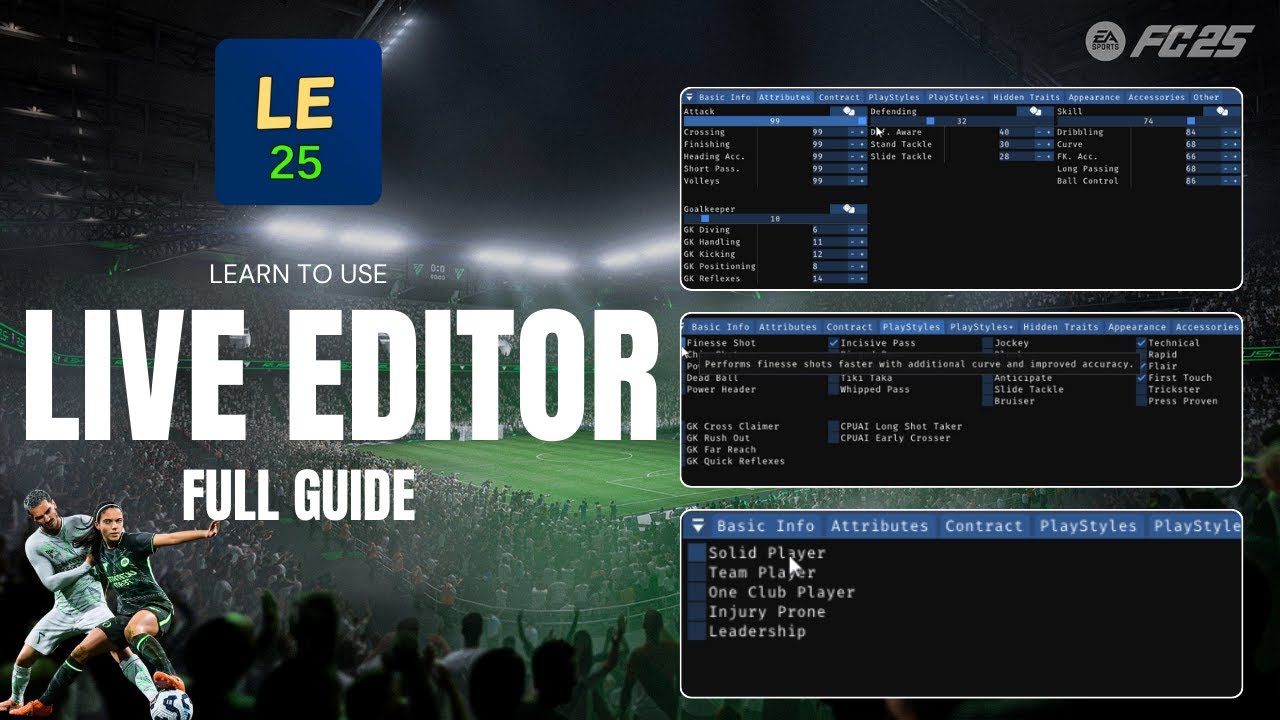
Image source: YouTube
Why the Live Editor Fails to Inject and How to Fix It
One of the most frustrating issues users face is the "Run Game" button failing to trigger the injection, or the game launching without the Live Editor overlay appearing. According to community discussions on Reddit , this often happens because the EA App interferes with the launcher's timing.
The Manual Injection Sequence
If the standard "Run Game" button doesn't work, use this community-proven workaround:
- Open the Live Editor Launcher but do not click "Run Game" yet.
- Launch FC 25 manually through the EA App or Steam.
- Wait for the initial splash screen (the small rectangular image) to appear.
- Quickly switch back to the Live Editor and click "Inject" or "Run Game."
- If successful, you will see a small overlay window in the top-left corner of the game once you reach the main menu.
This method ensures the game process is already active and ready to receive the DLL before the EA Anticheat fully locks down the memory space. Many users find this approach significantly more reliable than letting the tool launch the game automatically.
Understanding the Orange Game TU Status and Version Mismatches
The Live Editor features a compatibility indicator known as the "Game TU" (Title Update) status. This is located in the bottom corner of the launcher and uses a traffic-light system to inform you of the tool's health relative to the current game version.
- Green Status
- The tool is fully updated and matches the current game version. All features are safe to use.
- Orange Status
- A version mismatch has been detected. This typically happens right after EA releases a small patch. While the tool may still work, memory offsets might have shifted, increasing the risk of crashes or save corruption.
- Red Status
- The tool is incompatible. This usually occurs after a major Title Update. You should wait for an update from xAranaktu before attempting to use it.
When the status is Orange, it is highly recommended to back up your Career Mode save files before making any edits. As noted in the Patreon release logs , version v25.4.2 specifically addressed several offset shifts that caused crashes during Orange status periods.
How to Edit Players and Max Out Career Mode Stats
The Player Editor is the most utilized feature of the tool. It allows for granular control over every aspect of a footballer's profile, far exceeding the "Edit Player" options found in the base game. In the v25.4.2 update, the tool introduced the ability to unlock all Playstyle slots, a feature highly requested by the community.
Key Player Editing Features
- Attributes & Potential: You can set any attribute to 99 and lock potential at 99 to ensure dynamic potential never drops your player's ceiling.
- Playstyle+ Assignment: Unlike the base game, which limits Playstyle+ slots, the Live Editor allows you to assign multiple "Gold" playstyles to a single player.
- Physical Edits: Change height, weight, and even body type (e.g., "Lean" vs "Stocky") which significantly affects how a player feels on the ball.
- Never Tired Status: A toggle that freezes stamina at 100%, allowing you to play high-intensity pressing football for the full 90 minutes without fatigue.
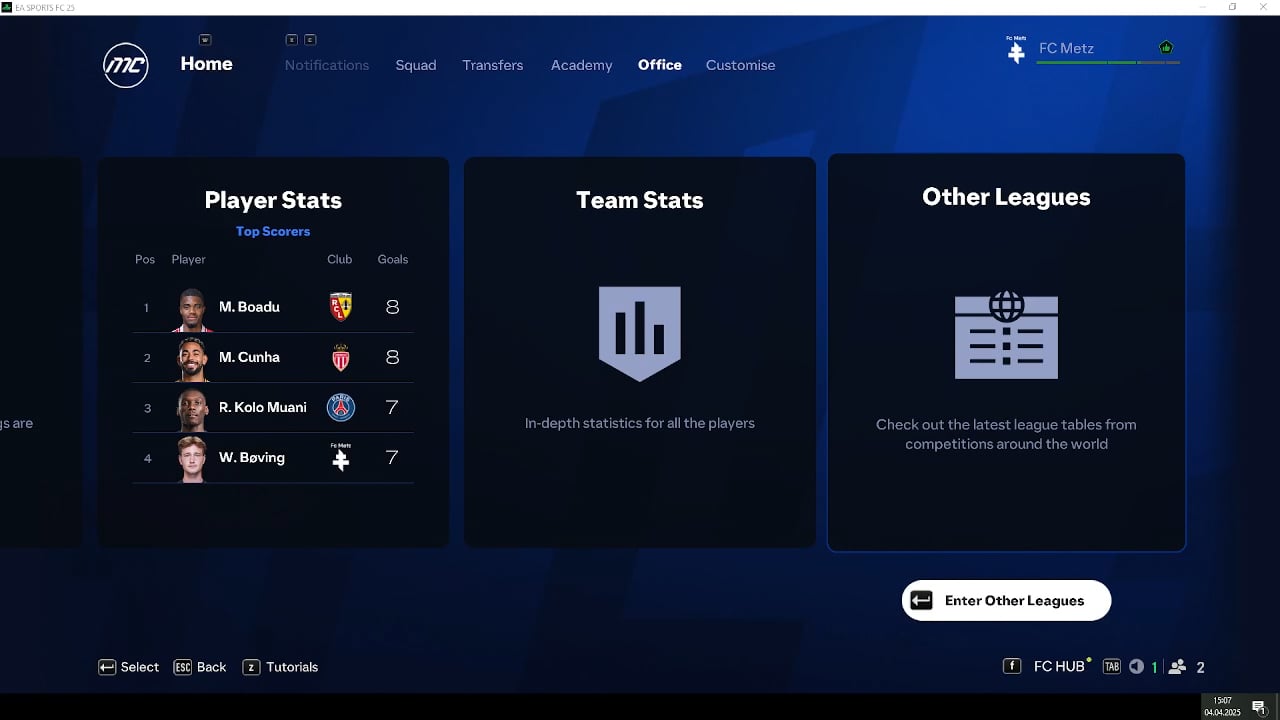
Image source: Vimeo
How to Create Storyline Careers Using Advanced Scripts
Beyond simple stat boosts, the Live Editor enables complex "Storyline" workflows. By combining different scripts, you can simulate scenarios that the standard Career Mode engine cannot handle. This adds a layer of depth that makes the game feel fresh even after multiple seasons.
The Financial Collapse
Use the Transfer Budget editor to set a club's funds to zero and apply a Transfer Ban script. This simulates a club in financial administration, forcing you to rely entirely on youth academy players.
The Rival Sabotage
Use the Match-Fixing tool to ensure your main rivals lose their upcoming games. This is a popular way to create a "corrupt league" narrative or to ensure a specific team gets relegated.
The Wonderkid Factory
Use the 999 VPRO Skill Points script in Player Career to bypass the grind, or use the "Create Player from Preset" to populate your youth academy with 16-year-old versions of icons like Pelé or Zidane.
These workflows require navigating to the "Miscellaneous Features" menu within the Live Editor overlay. From there, you can access the "Career Mode" sub-menu, which contains the specific toggles for "Unsackable" status and "Bypass Agent Objectives"—the latter being a significant advancement for those frustrated by the rigid objectives in Player Career Mode.
Using the Live Editor on Steam Deck, Linux, and Mac
While the official version is Windows-centric, the community has developed alternatives for other platforms. The LivePro Editor , a fork found on GitHub, offers experimental support for Linux and macOS via Wine and Proton prefixes. This is particularly useful for Steam Deck users who want to mod their game on the go.
To run the tool on a Steam Deck, you typically need to:
- Install the Live Editor into the same Proton prefix as the game.
- Use a launch script to ensure both the game and the injector start within the same virtual environment.
- Adjust the resolution of the overlay, as the default UI can sometimes be too large for the Deck's 800p screen.
Differences Between the Free Version and Patreon Early Access
The distribution of the Live Editor follows a tiered model. When EA releases a new Title Update, the game's memory addresses change, rendering the old version of the tool useless. xAranaktu prioritizes updates for Patreon supporters before releasing them to the general public.
| Feature | Free Version | Patreon (Early Access) |
|---|---|---|
| Update Release Timing | Usually 7+ days after TU | Immediate (often <24 hours) |
| Technical Support | Community Forums | Direct Discord & Patreon Access |
| Beta Features | Stable releases only | Access to experimental scripts |
| Legacy Versions | Limited availability | Full archive of all versions |
For most users, the free version is sufficient, provided they are willing to wait a week after every game update. However, for those who play daily and want to avoid downtime, the Patreon subscription ranks among the top ways to support the developer while keeping the tool functional year-round.
Is Using the Live Editor Safe for Your EA Account?
Safety is a paramount concern when using any tool that modifies game memory. The FC 25 Live Editor is designed for offline use only . Because it actively bypasses EA Anticheat, the game's security systems will flag the injection if you attempt to connect to EA servers.
To stay safe, many users set their EA App to "Offline Mode" before launching the game. This prevents accidental connections to the servers. As long as you remain within the confines of Manager or Player Career Mode, the risk of a ban is virtually non-existent, as EA does not actively monitor offline save data for modifications.
Key Takeaways for FC 25 Live Editor Users
- PC Exclusive: The tool is only compatible with Windows; console versions do not exist.
- Offline Only: Using the editor in online modes like Ultimate Team will lead to an account ban.
- Manual Injection: If the "Run Game" button fails, launch the game manually and inject at the splash screen.
- TU Status: Always check the Game TU indicator; Green is the safest state for editing.
- Advanced Features: Use the tool to unlock all Playstyle+ slots and bypass frustrating Agent Objectives.
- Patreon Benefits: Supporters get updates within 24 hours of a game patch, while free users wait roughly 7 days.
- Backup Saves: Always create a manual backup of your career save before using the "Match-Fixing" or "Transfer Ban" scripts.
For the best experience, always ensure you are running the launcher as an administrator and keep your EA App in offline mode during your modded sessions.
Frequently Asked Questions
Why does my game crash immediately after I click "Inject"?
Crashes during injection are usually caused by a version mismatch (Orange or Red TU status) or interference from antivirus software. Ensure your game version matches the tool version listed on xAranaktu's Patreon or GitHub. Additionally, try disabling any other overlays, such as Discord or Steam Overlay, as they can sometimes conflict with the Live Editor's UI injection.
Can I use the Live Editor alongside the FC 25 Mod Manager?
Yes, the two tools are highly compatible. To use them together, you must launch the Live Editor first, then launch the game through the Mod Manager. Make sure you have added the
-dataPath FIFAModData
argument to the Live Editor's settings so it can correctly read the modified files generated by the Mod Manager.
How do I get 999 skill points in Player Career Mode?
Once the game is running and the Live Editor overlay is visible (usually by pressing F9 or a custom hotkey), navigate to the "Miscellaneous Features" tab. From there, go to "Career Mode" and then "Player Career." You will find a button to "Set Skill Points to 999." This allows you to max out your pro's skill tree immediately without playing multiple seasons.
Is there a way to use the Live Editor on the Steam version of FC 25?
Yes, the tool works with the Steam version, but the injection process can be slightly more temperamental. It is often better to use the "Manual Injection" method described earlier. Open the Live Editor, launch the game via Steam, and click "Inject" once the EA splash screen appears. Some users find that the EA App version of the game offers slightly better stability with memory injectors.
What should I do if the "Player Editor" menu is blank?
A blank Player Editor usually means the tool hasn't successfully hooked into the game's memory or you haven't "loaded" a player yet. In the game, go to the "Squad" or "Edit Players" menu and select a player so their data is active in the game's memory. Then, alt-tab to the Live Editor and click "Refresh" or "Read Memory." If it remains blank, you likely have a version mismatch.