Home
How to Set Up and Play Stardew Valley Co-op on Every Platform
Stardew Valley has evolved from a solitary farming experience into a robust social simulator. Whether you are looking to manage a massive industrial farm with seven friends on PC or share a cozy split-screen session on your couch, the multiplayer mechanics offer deep flexibility. However, setting up a session requires more than just clicking a button; it involves understanding cabin requirements, connection protocols, and platform-specific limitations.
As of 2026, the game has reached version parity across most systems, but the way you connect varies significantly between a Steam deck, a Nintendo Switch, and a mobile device. This guide provides the technical walkthrough necessary to get your farm running smoothly, alongside advanced strategies to ensure your group thrives despite the unique challenges of shared gameplay.
Which Platforms Support Stardew Valley Multiplayer?
Before attempting to host a session, it is vital to know the constraints of your hardware. While the core gameplay remains consistent, player counts and connection methods differ. Notably, the 2026 landscape includes the Switch 2, which has expanded the local and online capabilities of the Nintendo ecosystem.
| Platform | Max Online Players | Split-Screen | Cross-play Status |
|---|---|---|---|
| PC (Steam/GOG) | 8 Players | 4 Players | PC to PC only |
| Nintendo Switch | 4 Players | 2 Players | None |
| Switch 2 (2026 Update) | 8 Players | 4 Players | None |
| PS4 / PS5 | 4 Players | 2-4 Players | None |
| Xbox One / Series X | 4 Players | 2-4 Players | None |
| Mobile (iOS/Android) | 4 Players (Exp.) | No | PC via Direct IP |
According to the Stardew Valley Wiki , PC remains the most flexible platform, supporting the highest player count. Consoles are generally capped at four players due to hardware processing limits, though newer generation hardware has improved the stability of these sessions significantly.
How to Start a New Multiplayer Farm from Scratch
Starting a fresh world is the most straightforward way to experience co-op. This allows you to configure the world specifically for multiple people from day one, avoiding the logistical headache of building cabins later.
- Access the Co-op Menu: From the main title screen, select "Co-op" instead of "New." This opens a sub-menu with two tabs: Join and Host.
- Host a New Farm: Select the "Host" tab and click "Host New Farm." This takes you to the character creation screen, which now includes multiplayer-specific options.
- Configure Starting Cabins: You must choose how many cabins to start with (up to 7 on PC, up to 3 on most consoles). You can also choose the "Cabin Layout"—keeping them close together or spread across the farm.
- Select the Map: While any map works, the Four Corners map is widely considered a top choice for multiplayer. It divides the land into four distinct areas, each with its own small pond and specialized resource, allowing players to have their own "territory" while sharing a central hub.
- Set Profit Margins: If you want a challenge, you can reduce profit margins (75%, 50%, or 25%). This is recommended for larger groups to prevent the farm from becoming wealthy too quickly, as multiple players can produce significantly more goods than one.
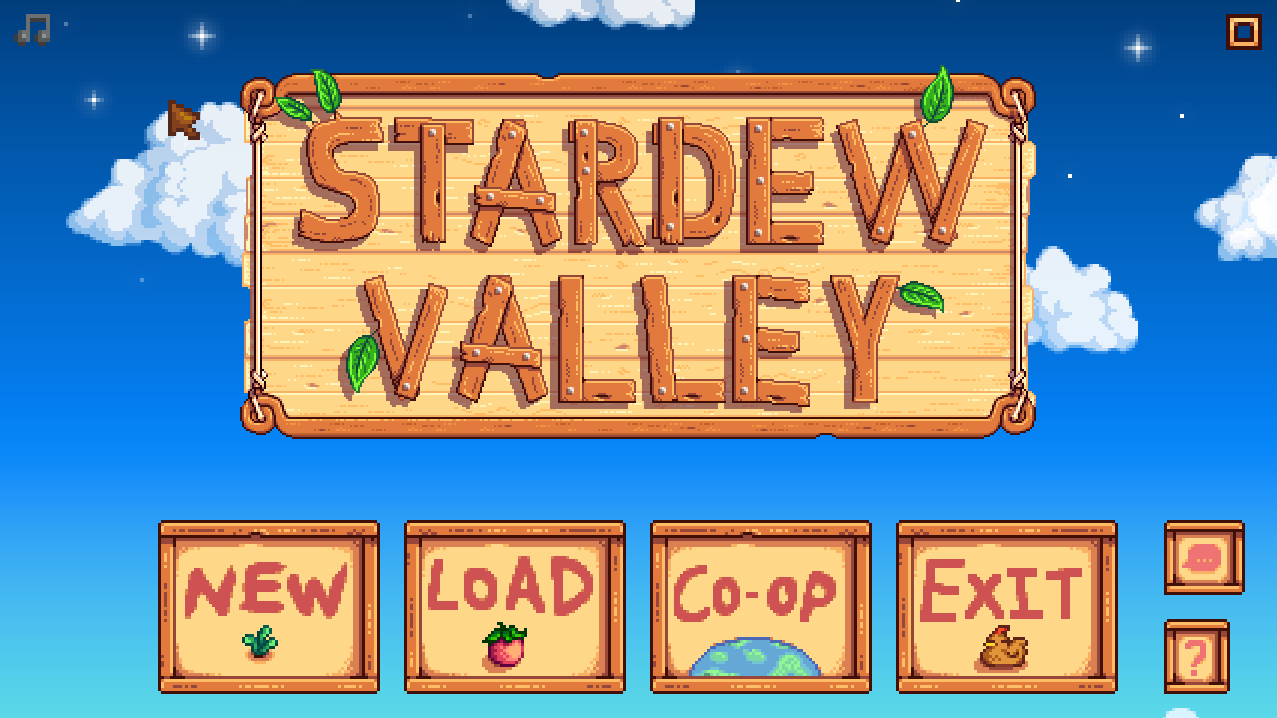
Image source: IGN
How to Turn Your Solo Save Into a Co-op World
Many players realize they want company after they have already invested dozens of hours into a solo farm. You do not need to restart your progress to invite friends, but you must satisfy the "Cabin Rule."
In Stardew Valley, every farmhand (guest player) requires a physical place to live. If you are the host, you already have the farmhouse. For every friend you want to invite, you must build a cabin. These are not just decorative; they serve as the spawn point and storage area for your friends.
You can choose from three styles: the Stone Cabin, the Plank Cabin, or the Log Cabin. Functionally, they are identical, and each can be upgraded just like the main farmhouse to include a kitchen and a cellar. Once the cabin is placed, your farm will appear in the "Join" tab for your friends (if you are on the same network or platform friends list).
How to Connect on PC Using Steam or Invite Codes
PC players have the most robust connection options, but they also face the most technical hurdles. There are three primary ways to connect: Steam/GOG Friends List, Invite Codes, and Direct IP.
Using the Friends List
This is the easiest method. If you and your friends are both on Steam or both on GOG, the host simply needs to start the game. The farmhands can then right-click the host's name in their friends list and select "Join Game." If the farm doesn't appear, ensure the host has set the "Server Mode" to "Friends Only" in the in-game options menu.
Generating Invite Codes
If you are playing across different launchers (e.g., one person on Steam and one on the Microsoft Store), you will need an Invite Code. The host can find this by opening the menu, navigating to the controller icon (Options), and scrolling down to the "Multiplayer" section. Click "Show Invite Code," and a string of alphanumeric characters will appear. Share this with your friends, who can enter it in the "Join" tab of their Co-op menu.
Direct IP and Port Forwarding
For those experiencing lag or firewall issues, a Direct IP connection is often more stable. This requires the host to share their public IP address. Crucially, the host may need to open UDP port 24642 on their router to allow incoming traffic. This method is also the primary way to connect PC and Mobile players in the experimental 1.6+ environment.
Image source: Stardew Valley Wiki
How to Play Split-Screen on Nintendo Switch and Consoles
Local split-screen is a fantastic way to play with someone in the same room without needing a second console or an internet connection. This feature is available on Switch, PlayStation, and Xbox.
To start split-screen, the host must first load their farm (either a new multiplayer farm or a solo farm with an existing empty cabin). Once the host is in the game world:
- Open the in-game menu and navigate to the Options tab (the controller icon).
- Scroll down to the "Start Local Co-op" button and select it.
- The second player must then press "Start" or "Options" on their controller.
- The screen will split, and the second player can choose an existing character or create a new one to occupy the available cabin.
On the standard Nintendo Switch, split-screen is limited to two players due to the console's processing power. However, on PS5, Xbox Series X, and the Switch 2 (2026), you can enjoy up to four players on a single screen, provided your television is large enough to accommodate the divided view.
How to Unlock the Secret Mobile Multiplayer Mode
For years, mobile players were left out of the multiplayer experience. With the 1.6 update, developer ConcernedApe added an experimental multiplayer mode to iOS and Android. It is hidden behind a "Konami-style" secret code to ensure only those who understand its experimental nature use it.
The Mobile Unlock Sequence
To reveal the Co-op button on mobile, follow these steps on the title screen:
- Look at the Stardew Valley logo. You will see small leaves or decorations around the letters.
- Tap the leaves in this specific order: ↑ ↑ ↓ ↓ ← → ← → (Up, Up, Down, Down, Left, Right, Left, Right).
- After the sequence, tap the "?" button in the bottom right corner.
- Exit the "About" menu, and you should now see a four-player icon or a "Co-op" button on the main screen.
How Multiplayer Changes the Game Mechanics
Playing with others isn't just about having more hands on deck; it fundamentally changes how time and resources function. Understanding these shifts is critical to avoiding frustration.
The "XP Tax" and Skill Leveling
In solo play, you get all the experience for every action. In multiplayer, XP is not shared. If one player does all the watering and another does all the harvesting, the harvester will level up Farming while the waterer gains nothing. This creates an "XP Tax" where the group's total progress can feel slower because the experience is spread thin. To counter this, many groups assign "specialists" who focus on specific skills to unlock high-tier crafting recipes (like Kegs or Iridium Sprinklers) as quickly as possible.
Time and Pausing
Time never stops in multiplayer. In solo play, opening your inventory or fishing pauses the clock. In co-op, the clock keeps ticking. This makes days feel much shorter. However, the host has a secret weapon: the /pause command. By typing `/pause` into the chat box, the host can freeze time for everyone—essential for bathroom breaks or when a player is stuck in a long cutscene.
Shared vs. Separate Wallets
By default, all players draw from the same pool of gold. This can lead to tension if one player spends the group's savings on rare seeds without asking. You can change this at the Mayor's Manor by using the "Town Ledger" to split the money into separate accounts. This allows for individual financial freedom while still permitting players to send money to each other when needed.
Image source: GameRant
Advanced Strategies for Co-op Success
To maximize your farm's efficiency, you should look beyond basic farming and utilize strategies that only work in a group setting.
Profession Stacking
This is one of the most effective ways to generate wealth. Different players can choose different professions at levels 5 and 10. For example, one player can take the Agriculturalist profession (crops grow 10% faster), while another takes the Artisan profession (artisan goods sell for 40% more). If the Agriculturalist plants the crops and the Artisan sells the wine, the farm benefits from both bonuses simultaneously. This synergy is a significant advancement over solo play.
The "Lag Role" Strategy
In the Mines or Skull Cavern, combat is highly sensitive to latency. The player with the lowest ping (usually the host) should act as the primary combatant, clearing monsters. Players with higher latency should focus on mining rocks and finding ladders. This prevents "lag deaths" where a player takes damage from a monster that hasn't appeared on their screen yet.
Shared Luck and Daily Planning
Daily luck affects everyone, but individual actions can influence the outcome. In co-op, you can have one player check the TV for the luck forecast while others prepare their inventories. On "Best Humor" luck days, the entire team should abandon farm chores and head to the mines together to maximize the chance of finding Iridium and Prismatic Shards.
How to Fix Common Connection and Lag Issues
Even with a perfect setup, technical issues can arise. Here are the most common fixes for Stardew Valley connection problems:
- "This character belongs to another player"
- This error occurs when a player tries to join a farm using a different account or ID than the one they used when they first occupied that cabin. The host can fix this by demolishing the cabin at Robin's and rebuilding it, which clears the "ownership" of that slot.
- Missing Invite Code Button
- If the "Show Invite Code" button is missing, it usually means the game cannot communicate with the platform's servers. Ensure your Steam or GOG client is not in "Offline Mode." On consoles, ensure your subscription (Switch Online, PS Plus) is active.
- Version Mismatch Errors
- All players must be on the exact same version of the game. In 2026, this is usually 1.6.x. If one player has an update pending, they will not be able to see the host's farm. Check for updates manually in your game launcher.
- NAT Type Issues on Console
- If you can see the farm but cannot join, your router's NAT type might be set to "Strict." You want NAT Type A or B (Switch) or "Open" (Xbox/PS). This often requires logging into your router settings and enabling UPnP (Universal Plug and Play).
Frequently Asked Questions
- Does Stardew Valley have cross-platform play?
- Generally, no. You cannot play between a PlayStation and a PC, or a Switch and an Xbox. The only exception is the experimental connection between PC and Mobile via Direct IP, provided both are running the same version of the game. This requires the mobile player to manually enter the host's IP address.
- Do both players need to own the game for multiplayer?
- For online play, yes. Every player must own a copy of the game on their respective platform. For local split-screen, only the host needs to own the game, as the other players are simply using additional controllers on the same machine.
- Can I play on the farm if the host is offline?
- No. The save file is stored locally on the host's device. If the host is not in the game and hosting the session, the farmhands cannot access the world. There are community mods for PC that allow for "dedicated servers," but these are not officially supported.
- What happens to my items when I log off?
- Your inventory is saved to your character. When you log back in, you will have everything you had before. If the host deletes your cabin while you are away, your items are not lost; they will be placed in a chest in the Mayor's Manor for the host to retrieve or return to you.
- Can we get married in multiplayer?
- Yes! Players can marry NPCs as usual, or they can marry each other. To marry another player, you must buy a "Wedding Ring" recipe from the Traveling Cart for 500g and craft it using one Prismatic Shard and five Iridium Bars. Proposing to a player works just like proposing to an NPC with a Mermaid's Pendant.
Final Multiplayer Checklist
Before you head out to Pelican Town with your friends, run through this quick checklist to ensure a lag-free experience:
- Verify Versions: Ensure every player has updated to the latest 1.6+ patch.
- Build Cabins: Confirm the host has enough cabins for every intended guest.
- Check Server Mode: Set the game to "Friends Only" or "Invite Only" in the options.
- Assign Roles: Decide who will focus on which skills to maximize XP efficiency.
- Test Connection: If playing on PC, have the host ready to provide an Invite Code if the friends list fails.
-
Prepare for Time:
Remember that time doesn't pause; keep the
/pausecommand in mind for emergencies.
Start with the Four Corners map to give everyone their own space while maintaining a shared goal of restoring the Community Center.