Home
How to Play Stardew Valley Split-Screen on Every Platform
Yes, Stardew Valley supports local split-screen co-op on PC (Windows/Mac/Linux), PlayStation 4/5, Xbox One/Series X|S, and Nintendo Switch. This feature was introduced in the 1.5 update. PC and high-end consoles support up to 4 players , while the Nintendo Switch is limited to 2 players . Split-screen is currently not available on mobile devices (iOS/Android).
Stardew Valley has evolved significantly since its 2016 debut, transforming from a solitary farming experience into a robust multiplayer adventure. While online play has been a staple for years, the introduction of local split-screen in version 1.5 marked a major milestone for the community. Whether you are looking to share a farm with a partner on the couch or host a four-player farming party on your PC, understanding the technical requirements is the first step toward a successful harvest.
As of 2026, the game remains a top choice for cooperative play, though recent updates like version 1.6 have introduced new nuances and occasional technical hurdles. This guide provides a detailed walkthrough of how to enable split-screen, manage hardware requirements, and navigate the specific bugs that have emerged in recent months.
Which Platforms Support Stardew Valley Split-Screen?
Platform compatibility is the most common point of confusion for new players. While ConcernedApe has brought parity to most versions of the game, hardware limitations still dictate how many people can play together in the same room. According to the official Stardew Valley Wiki , the 1.5 update was the catalyst for local play across all major gaming systems.
The most flexible platform with advanced display options.
Supports full 4-player local co-op on modern consoles.
Limited by hardware; Switch 2 expected to support 4.
Local split-screen is absent from the mobile versions.
PC and Console Support for Up to 4 Players
For players on Windows, Mac, or Linux, Stardew Valley offers a highly stable 4-player split-screen experience. The PC version is widely regarded as one of the strongest options for local play because it allows for high-resolution output across large monitors or even multiple screens. Similarly, the PlayStation 5 and Xbox Series X|S handle 4-player sessions with ease, maintaining a consistent frame rate even when the farm becomes crowded with crops and machines.
Nintendo Switch Limits and Future Switch 2 Upgrades
The current Nintendo Switch hardware faces specific constraints that limit local split-screen to just two players. While the game runs smoothly in this mode, attempting to render four distinct viewpoints on the Switch's mobile processor would likely compromise performance. However, early reports regarding the next-generation "Switch 2" suggest that 4-player local co-op will be a standard feature, bringing it in line with PC and other consoles. For now, Switch owners should plan for a duo experience.
Why Split-Screen Is Not Available on Mobile Devices
Despite the 1.6 update bringing many features to mobile, local split-screen remains unavailable on iOS and Android. While the mobile version includes an "Experimental Multiplayer" tag, this primarily refers to technical backend features rather than local couch co-op. The interface complexity of managing multiple players on a touch-based device is a significant hurdle that has yet to be cleared by the development team.
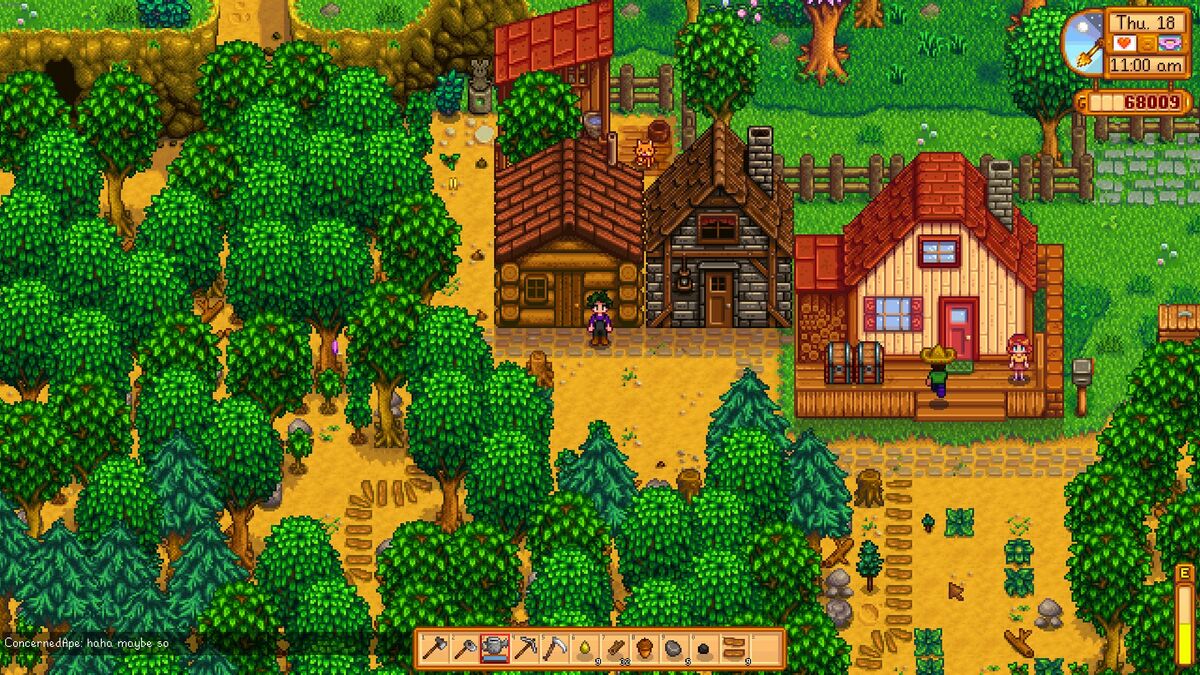
Image source: Stardew Valley Wiki
What Do You Need Before Starting Local Co-op?
You cannot simply plug in a second controller and start playing immediately. Stardew Valley requires a specific in-game infrastructure to house additional players. This "Cabin Rule" is the most frequent reason players find the "Start Local Co-op" button missing or grayed out.
The Essential Cabin Requirement for New Players
In the world of Stardew Valley, every player needs a home. For multiplayer, this means you must have a cabin for every additional person joining the farm. If you are starting a brand-new farm, you can select "Starting Cabins" in the advanced options menu to have them appear instantly. If you are adding a player to an existing save, you must visit Robin the Carpenter.
| Cabin Type | Cost | Materials Needed | Visual Style |
|---|---|---|---|
| Stone Cabin | 100g | 10 Stone | Rustic stone masonry |
| Plank Cabin | 100g | 10 Wood | Classic wooden slats |
| Log Cabin | 100g | 10 Wood | Traditional log home |
Controller Requirements for PC and Console Users
Input devices are another critical factor. On PC, the first player typically uses a keyboard and mouse, while all subsequent players must use controllers. The game does not support two players sharing a single keyboard. For console users, each player needs a full controller set. On the Nintendo Switch, this means each player needs either a Pro Controller or a pair of Joy-Cons; the game does not support "Single Joy-Con" play due to the number of buttons required for farming actions.
If you are using non-standard or older controllers on PC that the game doesn't recognize, the Universal Split Screen tool on GitHub is a highly recommended community solution to force input recognition.
How to Start a Split-Screen Game in Stardew Valley
Once you have your cabins and controllers ready, the process of launching the session is straightforward. There are two primary methods depending on whether you are starting fresh or continuing an existing legacy.
- Prepare the Hardware: Connect all controllers to your PC or console before launching the game. This ensures the software detects the inputs during the initial boot sequence.
- Access the Multiplayer Menu: From the title screen, select "Co-op." If you are the host, select "Host" and then choose your farm.
- Enable Local Co-op: Once you are in the game world, open the game menu (Esc on PC, Options/Menu on consoles). Navigate to the controller icon tab (Options). Scroll down until you see the "Multiplayer" section and click "Start Local Co-op."
- Join the Game: The second player must press the "Start" or "Menu" button on their controller. They will then be prompted to select an existing character or create a new one to occupy one of the available cabins.
Adding a Second Player to an Existing Single-Player Save
Many players want to bring a friend into a farm they have spent hundreds of hours perfecting. To do this, you must first play the game in single-player mode and visit Robin at the Carpenter's Shop. Purchase a cabin (which is built instantly) and place it anywhere on your farm. Once the cabin is placed, you can follow the steps above to "Start Local Co-op" from the options menu. This allows you to transform any solo journey into a shared experience at any time.
Advanced Setup for PC Players Using Two Monitors
One of the few complaints about split-screen is that it cuts the available screen real estate in half, which can feel cramped. PC players have a unique advantage here: the ability to span the game across two physical monitors, giving each player their own full screen.
Stretching the Game Window Across Multiple Screens
The simplest method involves setting the game to "Windowed" mode. You can then manually click and drag the edges of the game window to stretch it across both monitors. While this works, it often results in the "split" happening right at the monitor bezels, which can be distracting. You will likely need to adjust the in-game zoom level to ensure the UI elements remain readable.
Using Nvidia Surround for a Seamless Dual Monitor Split
For a more professional setup, users with Nvidia graphics cards can use the "Surround" feature. By opening the Nvidia Control Panel and selecting "Span displays with Surround," Windows will treat two monitors as one single, ultra-wide display (for example, 3840x1080). When you launch Stardew Valley in this resolution, the vertical split will align perfectly with the gap between your monitors. This creates an exceptionally strong immersion factor that few other local co-op games can match.
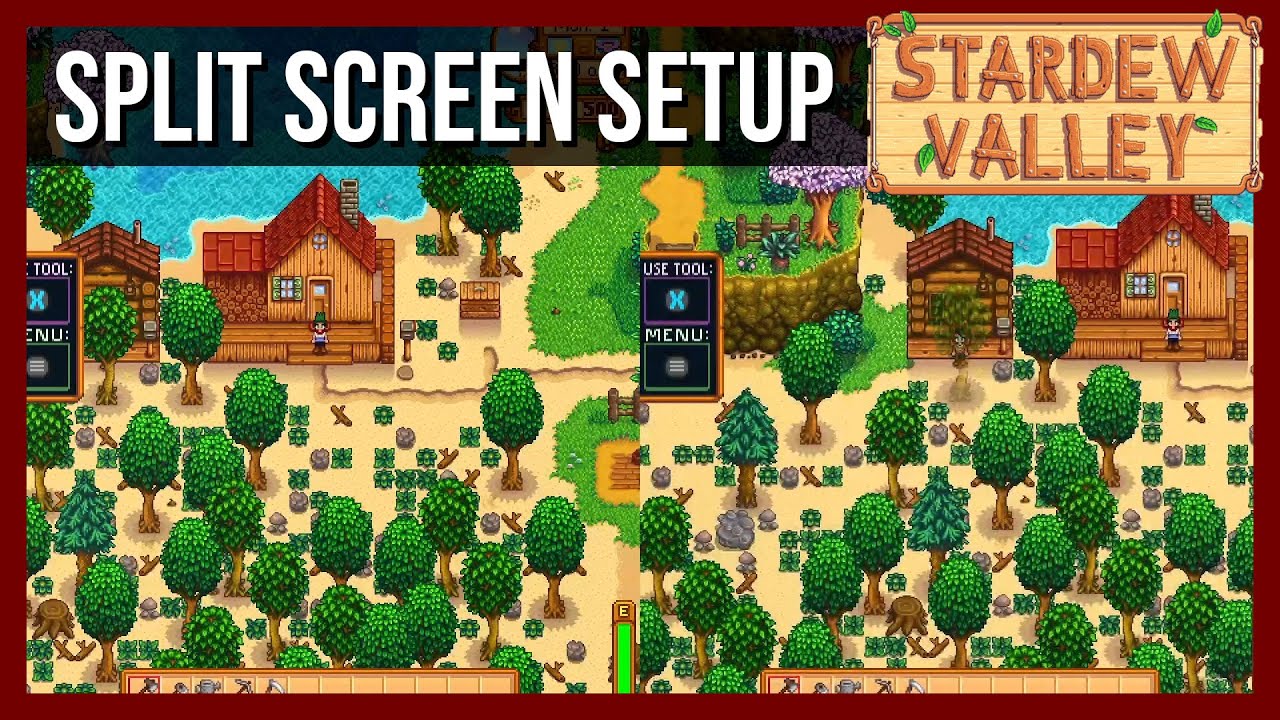
Image source: YouTube
Troubleshooting Common 1.6 Update Split-Screen Bugs
While the 1.6 update brought a wealth of new content, it also introduced specific technical glitches that primarily affect local co-op players. Being aware of these can save you from losing progress during a long day in the mines.
How to Fix UI Cutoff and Missing Energy Bars
A recurring issue on PlayStation and Xbox consoles following the 1.6 update is the "UI Cutoff" bug. In split-screen mode, the game sometimes fails to scale the interface correctly, causing Player 2’s energy bar or toolbar to disappear off the edge of the screen. To fix this, navigate to the Options menu and manually adjust the "UI Scale" and "Zoom Level." Reducing the UI scale to 90% or 85% usually forces the elements back into the visible area of the television.
Preventing Game Crashes in the Mines on Nintendo Switch
Switch players have reported a specific "Bomb Crash" bug. When playing in split-screen, using explosives in the mines can occasionally trigger a software error that closes the game. To minimize this risk, players should avoid using multiple bombs simultaneously. Additionally, the "Frozen Time" bug occurs when one player transitions between mine floors while the other is in combat. Staying on the same floor or communicating before moving to the next level is a popular choice for avoiding these freezes.
Comparing Local Split-Screen and Online Multiplayer Features
Choosing between local and online play depends on your hardware and your social goals. While the core gameplay remains identical, the technical limitations vary significantly between platforms.
Can You Mix Local and Online Players in One Session?
This is a feature where the PC version stands out as a top contender. On PC, the host can have one person playing via split-screen next to them while two other friends join remotely via the internet. This "hybrid" setup is perfect for groups spread across different locations. Unfortunately, consoles (PlayStation, Xbox, and Switch) do not currently support this; you must choose either a purely local session or a purely online session.
Frequently Asked Questions
- Does each player need their own copy of the game for split-screen?
- No, only the host needs to own a copy of Stardew Valley. Local split-screen allows multiple people to play using a single purchase on one console or PC. This makes it a very cost-effective way to enjoy the game with family or roommates.
- Can I play split-screen on Stardew Valley mobile?
- As of late 2026, split-screen is not supported on iOS or Android devices. While the mobile version has received many updates to bring it closer to the PC version, the technical requirements for local co-op have not yet been implemented for mobile hardware.
- Why is the "Start Local Co-op" button missing in my menu?
- This is almost always due to a lack of available cabins. Even if you have a second controller connected, the game will not show the option to start co-op unless there is an empty cabin on the farm for the second player to move into. Visit Robin to build one for 100g.
- Can two players use the same keyboard on PC?
- No, the game requires separate input devices for each player. Typically, Player 1 uses the keyboard and mouse, while Player 2, 3, and 4 must use gamepads (such as Xbox, PlayStation, or generic USB controllers).
- Do I need an internet connection for split-screen?
- No, local split-screen is a fully offline feature. You can play with friends in the same room without any internet connection, making it an excellent choice for travel or areas with unreliable web access.
- Can I transfer farm ownership to a second player?
- According to the official game mechanics, the host always owns the save file. While farmhands have their own inventory, skills, and relationships, they cannot take over the farm or play the save file without the host being present, unless you use third-party save editing tools on PC.
Key Takeaways for Stardew Valley Local Co-op
- Check your version: Ensure you are running version 1.5 or higher to access split-screen features.
- Build cabins first: You must have one cabin per additional player, costing 100g and 10 basic materials at Robin's shop.
- Know your limits: PC, Xbox, and PlayStation support 4 players; Nintendo Switch is limited to 2.
- Prepare controllers: PC players need controllers for everyone except Player 1; Switch players need full controller sets (no single Joy-Cons).
- Fix UI issues: If the 1.6 update cuts off your energy bar, adjust the UI Scale in the options menu to 85-90%.
- PC Dual Monitors: Use Nvidia Surround to span the game across two screens for a premier full-screen experience for both players.
To get started immediately, launch your favorite save file, head to the Carpenter's Shop to commission a new cabin, and invite a friend to join your valley journey today.