Home
How to Set Up and Use the KOTOR Save Editor on Any Platform
The
KotOR Savegame Editor (KSE)
, specifically version
3.3.7a
maintained by Fair Strides, stands out as a top choice for modifying
Star Wars: Knights of the Old Republic I and II
. To use it successfully on modern systems, you must point the editor to your save directory (often found in Steam's
cloudsaves
folder) and use the
KPF.exe
utility to locate game paths. For Windows 11 users, setting the
kse.ini
file to
Read-Only
after configuration is a critical step to prevent the software from losing your settings.
Modifying your experience in the Knights of the Old Republic series has been a community staple for over two decades. Whether you are looking to fix a broken quest, experiment with a "Jedi from Level 1" build, or simply bypass the grind for credits, the KotOR Savegame Editor (KSE) is the industry standard tool. However, as gaming has moved from physical CDs to platforms like Steam, GOG, and mobile devices, the process of getting KSE to actually "see" your saves has become increasingly complex.
Modern operating systems like Windows 11 and the Linux-based Steam Deck introduce file permission hurdles and non-standard directory structures that often result in the dreaded "No save games found" error. This guide provides a technical, cross-platform workflow to ensure you can edit your saves regardless of where you play.
Where to Download the Latest KOTOR Savegame Editor
When searching for KSE, it is vital to avoid legacy versions (pre-3.3.0) that were designed for Windows XP and retail discs. These older versions lack the necessary logic to handle Steam Cloud saves and high-resolution UI scaling. The current maintained version is KSE 3.3.7a , updated by the modder Fair Strides to ensure compatibility with modern hardware.
Official Repositories
You should only download KSE from verified community hubs to ensure you are getting the latest bug fixes and pathing utilities. The most reliable sources include:
- DeadlyStream : The primary hub for KOTOR modding and the most up-to-date repository for Fair Strides' work.
- Nexus Mods : A widely regarded alternative that hosts the 3.3.7a build.
- GitHub : Useful for those looking to examine the source code or track specific development branches.
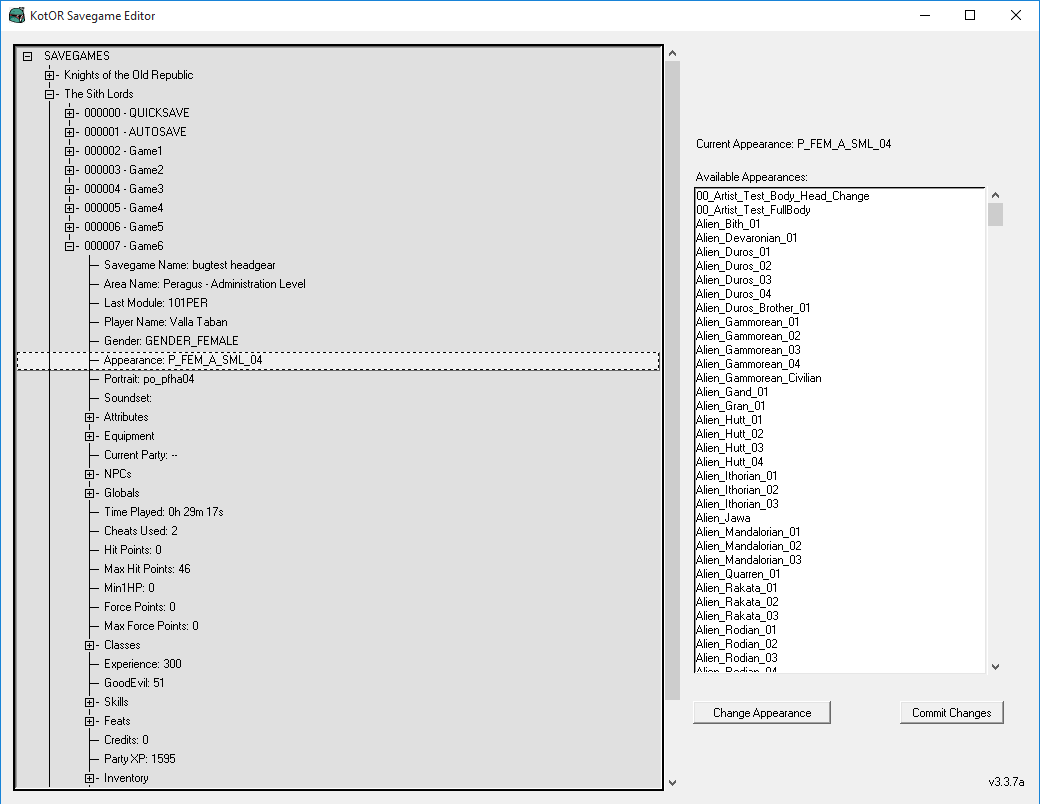
Image source: Deadly Stream
Essential Files in the Package
When you extract the KSE zip file, you will notice several executables. Understanding their roles is the first step toward a successful setup:
- kse.exe : The main editor application.
- KPF.exe (KotOR Path Finder) : A crucial utility that scans your registry to find where Steam or GOG installed the games. You should always run this before opening the editor for the first time.
- kse.ini : The configuration file that stores your folder paths. If KSE fails to launch, this is usually where the error resides.
How to Install KSE on Windows 11 and Fix Pathing Errors
Windows 11 users frequently encounter issues where KSE opens to a blank screen or fails to locate any saves. This is typically due to how Steam handles "Cloud Saves," moving them out of the game's root directory and into a user-specific folder deep within the Steam hierarchy.
The Automatic Setup with KPF
Start by running
KPF.exe
. This tool attempts to automatically populate the
kse.ini
file with the correct paths for both
KotOR I
and
KotOR II
. If you are using the retail CD version or GOG, this usually works perfectly. However, for Steam users, KPF might find the game executable but fail to find the saves.
Manual Configuration for Steam Users
If KPF fails, you must manually edit the
kse.ini
file. Open it with Notepad and look for the
[K1_Paths]
or
[K2_Paths]
sections. You need to point the "SavePath" variable to your actual save folder. For KOTOR 2 on Steam, this is often located at:
C:\Program Files (x86)\Steam\steamapps\common\Knights of the Old Republic II\cloudsaves\[YourUserID]
kse.ini
file, Windows paths must use backslashes (
\
). If you copy a path from a web browser or certain file explorers that use forward slashes (
/
), KSE will fail to read the directory.
The "Read-Only" Hack to Prevent Configuration Reset
A common pitfall is that KSE may overwrite your manual changes with incorrect defaults every time you close the program. To fix this, follow this workflow:
-
Manually enter the correct paths into
kse.iniand save the file. -
Right-click
kse.iniand select Properties . - Check the box for "Read-only" and click Apply.
This prevents KSE from modifying the file, ensuring your working paths remain intact for every session. This is widely considered one of the most effective ways to stabilize the editor on modern Windows systems.
How to Edit KOTOR Saves on Steam Deck and Linux
The Steam Deck has become a popular way to play KOTOR, but since KSE is a Windows-based
.exe
, it requires a compatibility layer to function. Simply adding KSE as a "Non-Steam Game" is often insufficient because the editor needs to exist within the same "Wine Prefix" as the game to see the files correctly.
Running KSE via Protontricks
The most reliable method on Linux is using Protontricks , which you can download from the Discover store in Desktop Mode. Protontricks allows you to run a specific executable inside the virtual Windows environment created for KOTOR.
- Open Protontricks and select Knights of the Old Republic from the list.
- Select "Run explorer" or "Run a command-line shell."
-
Navigate to your KSE folder and launch
kse.exe.
Accessing the Linux File System
When KSE asks for your game path on a Steam Deck, you won't see
/home/deck/...
directly. Instead, you must navigate through the
Z: drive
, which Wine uses to map the Linux root directory. Your Steam library is typically found at:
Z:\home\deck\.local\share\Steam\steamapps\common\...
C:\SteamLibrary\steamapps\common\swkotor\saves
Z:\home\deck\.local\share\Steam\steamapps\common\swkotor\saves
The Step-by-Step Process for Editing KOTOR Android Saves
The Android version of KOTOR is a direct port of the PC version, meaning the save files are identical in format. However, Android's security restrictions (especially on Android 11 and newer) make it difficult for apps to talk to each other. The solution is the "PC-to-Mobile" loop.
Connect your phone to a PC via USB. Navigate to:
Internal Storage/Android/data/com.aspyr.swkotor/files/saves
.
Copy the entire
saves
folder to your PC's desktop. Do not edit them directly on the phone, as this can lead to file corruption.
Open KSE on your PC. In the settings, point the "SavePath" to the folder you just copied to your desktop. KSE will treat this as a standard game installation.
Perform your edits, click "Commit Changes," and then copy the folder back to your Android device, overwriting the old files.
Advanced Character Customization and NPC Swapping Tricks
KSE is capable of much more than just increasing your Strength stat. By manipulating the "Appearance" and "Class" fields, you can fundamentally change how the game plays.
Changing Your Character Model (The Droid Protagonist)
One of the most popular creative uses for KSE is changing the player's appearance to a droid, such as HK-47 or T3-M4. In the "Appearance" tab, you can select any model in the game's database. However, there is a technical caveat: the game engine still views your character as "Organic." This means you will still use Medpacs instead of Repair Kits unless you also use KSE to add the "Droid" feats and remove the "Human" ones. This level of customization sets a high standard for what players can achieve with simple save editing.
Early Prestige and Class Swapping
In KotOR II , prestige classes (like Sith Lord or Jedi Master) are usually locked until Level 15. With KSE, you can set your class to a prestige option at Level 1. To do this correctly, you must:
- Change the "Class" field to your desired prestige class.
- Adjust your "Level" to match the number of feats and powers you've assigned.
- Ensure you remove the original base class (e.g., Jedi Guardian) to avoid "multiclassing" bugs that can break your character's progression.
Removing the "Cheats Used" Watermark
If you have ever used the in-game console (the
~
key), your save game thumbnail will be permanently branded with a "Cheats Used" watermark. Many players find this unsightly. KSE allows you to toggle this flag off. Simply navigate to the "Globals" or "Save Info" section and look for the
CheatsUsed
boolean. Setting this to
0
will clean up your save file completely.
How to Fix the "No Save Games Found" Error for Good
If you have followed the pathing steps and still see nothing in KSE, the issue is likely related to how the game files are structured or how the OS is protecting them.
Common Causes Checklist
- Steam Cloud Sync: If Steam Cloud is active, it may overwrite your edited save with the old version from the cloud the moment you launch the game. Disable Steam Cloud for KOTOR before editing.
-
Override Subdirectories:
KSE reads the
Overridefolder to find modded items. However, it cannot read subfolders. If you have mods installed in subdirectories, KSE won't show those items in the inventory editor. -
Administrative Privileges:
On Windows 11, try running
kse.exeas an Administrator. This gives the program permission to read from theProgram Filesdirectory. - The MacOS Workaround: Mac users often find that version 3.3.7a fails to launch due to executable architecture differences. In these cases, using the older KSE 3.3.3 is often a successful alternative, as it lacks some of the newer path-finding requirements that trigger MacOS security alerts.
Frequently Asked Questions
Override
folder so KSE can index the item IDs correctly.
The Bottom Line
Mastering the KOTOR Save Editor is the most effective way to tailor your journey through the Old Republic. To ensure success, keep these key takeaways in mind:
-
Always backup
your
savesfolder before opening KSE; the "Commit Changes" action is permanent. -
Use KPF.exe
as your first step to automate pathing, but be prepared for manual
kse.iniedits on Steam. - Set kse.ini to Read-Only once you have found the correct paths to prevent Windows 11 from resetting your configuration.
- Edit Attributes (like Constitution or Wisdom) rather than raw HP/FP values to ensure your changes stick.
- Use Protontricks for a smooth experience on Steam Deck and Linux.
- Transfer saves to PC for Android editing, as direct mobile editing is prone to failure.
Start by identifying your save folder location today, as this is the single most important step in the entire editing process.