Home
How to Use Farm Foundry to Edit Your Stardew Valley Save Files Safely
Farm Foundry (also known as SDVSE) is a standalone Windows tool used to modify
Stardew Valley
save data without needing SMAPI. It allows players to adjust gold, relationships, and inventory, and even fix corrupted item slots. To use it safely, always
disable Steam Cloud Sync
and create a manual backup of your
%appdata%
save folder before making any changes.
What Is Farm Foundry and How Does It Work?
Farm Foundry, frequently referred to in the community as the Stardew Valley Save Editor (SDVSE), is a specialized Windows executable (.exe) designed to parse and modify the XML-based save files generated by Stardew Valley . Unlike many popular mods that require the Stardew Modding API (SMAPI) to run alongside the game, Farm Foundry operates as an external utility. This makes it a top choice for "vanilla" players who wish to adjust their game state without altering the core game files or installation directory.
The tool works by reading the raw data stored in your save folder and presenting it through a user-friendly graphical interface. According to technical documentation from ST Code Matrix , the editor interacts directly with the game's serialization logic. This allows users to modify a wide array of variables, including total gold, individual skill levels (Farming, Mining, Foraging, Fishing, and Combat), and friendship hearts with villagers. Furthermore, it provides granular control over the weather, current season, and even the specific day of the year.
One of the most significant advantages of using Farm Foundry is its ability to handle complex inventory data. It allows you to add items, change stack sizes up to 999, and even swap out farm types mid-playthrough. While it is a Windows-based application, the save files it produces are cross-platform compatible, meaning you can edit a save on your PC and transfer it back to a mobile device or certain consoles, provided you have the means to move the files.
How to Download and Install Farm Foundry on Your PC
To ensure you are using a safe and verified version of the tool, it is highly recommended to download Farm Foundry from Nexus Mods . This platform is the primary repository for the editor and hosts the most current builds, which are regularly scanned for malicious code. The installation process is straightforward, as the tool does not use a traditional Windows installer that modifies your registry.
- Visit the Farm Foundry page on Nexus Mods and navigate to the "Files" tab.
- Download the main file (usually a .zip archive).
- Extract the contents of the .zip file to a dedicated folder on your desktop or in your Documents.
- If you are using a "Legacy" version of the editor for older game versions, you may also need to download the "External Images Pack" to see item icons correctly.
-
Double-click the
FarmFoundry.exefile to launch the application.
It is important to note that because this is an unsigned executable from an independent developer, Windows Defender or other antivirus software may flag it as a "potential threat." As long as you have downloaded the file from the official Nexus Mods page, this is typically a false positive. You can safely bypass this by clicking "More Info" and then "Run Anyway" in the Windows SmartScreen prompt.
Is Farm Foundry Compatible With the Stardew Valley 1.6 Update?
The release of Stardew Valley version 1.6 introduced significant changes to the game's internal data structures, including new farm types like the "Meadowlands" farm and new items such as Dehydrators and Fish Smoker. Consequently, compatibility depends entirely on which version of Farm Foundry you are using. Older "Legacy" versions of the tool will not recognize 1.6-specific data and may even corrupt your save if you attempt to save changes to a 1.6 file.
When checking for compatibility, always look at the "Last Updated" date on the download page. Versions updated after the 1.6 release are designed to handle the new Meadowlands farm map and the expanded item ID list. If you are playing on an older version of the game (such as 1.5.6 on certain mobile platforms), you should continue using the Legacy version of the editor to ensure the XML tags match your game's expectations.
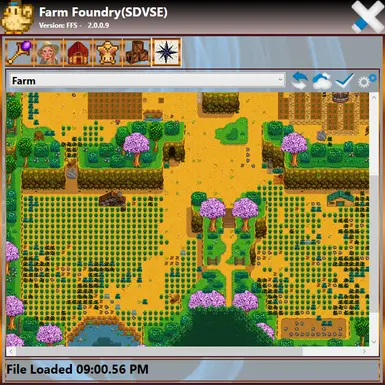
Image source: Nexus Mods
How to Edit Your Money Skills and Relationships
Once you have launched Farm Foundry, the first step is to load your save file. On Windows,
Stardew Valley
saves are located in the
%appdata%\StardewValley\Saves
directory. You can quickly access this by pressing
Win + R
, typing the path, and hitting Enter. Inside, you will find folders named after your character; you need to select the file that matches your character's name (e.g.,
CharacterName_123456789
).
After the save is loaded, you will see several tabs at the top of the editor:
- General: Here you can edit your character's name, current gold, and total earnings. Simply type the desired amount into the text box.
- Skills: This tab features sliders for each of the five main skills. You can set these to level 10 instantly, though many users find that setting them to level 9 and earning the final level in-game is a safer way to trigger the profession selection screen.
- Relationships: This section lists every NPC you have met. You can use the heart sliders to increase friendship levels. Note that for marriage candidates, the editor allows you to bypass the "bouquet" requirement, though this can sometimes lead to minor dialogue glitches.
Always remember to click the "Save" button in the bottom right corner of the tool after making changes. Farm Foundry will overwrite the existing file, but it also creates an automatic backup in the same folder, usually appended with
_backup
or
.old
.
How to Change Your Farm Map Without Breaking Your Game
Changing your farm type (e.g., moving from the Standard Farm to the Forest Farm) is one of the most popular uses for Farm Foundry, but it is also the most technically risky. When you change the farm type in the dropdown menu, the editor updates the underlying map ID. However, it does not move your existing buildings, trees, crops, or fences.
This leads to a common issue where your barn might end up in the middle of a pond, or your fruit trees might be stuck inside a cliff wall on the new map. To avoid this, follow this cleanup strategy before performing the swap:
- In the game, move all buildings to the center of the farm where there is likely to be clear land on any map.
- Clear out all trees, grass, and debris from the edges of the farm.
- Empty any chests that are placed near the farm boundaries.
- Save the game and close it completely.
- Open the save in Farm Foundry, change the map type, and save.
If you find items stuck in the terrain after the swap, you will need to use a mod like "Noclip Mode" or the "Reset Terrain Features" mod to clear the obstructions, as Farm Foundry cannot reposition individual world objects easily.
How to Fix the Inventory Displacement Bug Using Farm Foundry
A frustrating issue known as the "Inventory Displacement Bug" occasionally affects players, particularly those using older versions of the game or those who have uninstalled certain mods. This bug causes items to shift by one slot every time the inventory cycles, or makes certain slots appear empty while still occupying space. This is often caused by "ghost" items or corrupted XML tags that the game engine cannot properly clear.
Farm Foundry serves as an exceptionally strong repair tool for this specific problem. Follow this dedicated technical walkthrough to reset your backpack logic:
- Launch Stardew Valley and fill every slot of your inventory with "junk" items (like stones or fiber). Save and exit the game.
- Open your save in Farm Foundry and navigate to the Backpack tab.
- You will see a grid representing your inventory. Even if a slot looks empty in the editor, click the small settings gear icon on every single slot.
- Select "Delete" for every item in the backpack until the entire grid is empty.
- Save the file in Farm Foundry.
- Reload the game. Your inventory should now be completely empty and the internal slot counters will have been reset, resolving the displacement issue.
How to Edit Stardew Valley Saves on PS4 Switch and Mobile
While Farm Foundry is a Windows application, it can modify saves from other platforms if you can access the files. Each platform has a unique set of hurdles that must be cleared for the editor to recognize the data.
PS4 "Raw" Editing
PS4 saves are typically encrypted. You must use a tool like Save Wizard to extract the save in "RAW" text format. A specific hurdle involves the
<compressed>
tag. You must manually delete this tag in a text editor before opening the file in Farm Foundry. After editing, you must re-insert the tag at the end of the file so the PS4 recognizes it as a valid save.
Switch Decryption
Nintendo Switch saves require a hacked console to export. Once exported, the saves are often compressed. Users typically need a third-party utility like
QuickZip
to move the save into a
_decrypted
folder. Farm Foundry can then read the XML file within that folder. Once edited, the file must be re-encrypted before being injected back into the Switch.
iOS & Android Sync
Mobile saves are the easiest to edit. On iOS, use the "Files" app to move your save folder to Google Drive. On a PC, download the file, edit it with Farm Foundry, and upload it back to Google Drive. Crucial Tip: When moving the file back to your iPhone, ensure you select "Replace" when prompted. If you rename the file, the game will not recognize the new data.
How to Edit Saves on Dedicated Servers Like Shockbyte
Editing a save for a multiplayer farm hosted on a dedicated server (such as Shockbyte or G-Portal) requires a specific sequence to prevent the server from overwriting your changes. Because these servers often sync with Steam Cloud or have their own internal backup routines, timing is everything.
According to the
Shockbyte Knowledgebase
, you must first stop the server entirely. Attempting to edit a save while the server is "Active" or "Starting" will result in the server overwriting your local edits with the version currently held in its RAM. Once the server is stopped, navigate to the file manager and locate the path:
/StardewValley/Saves/YourFarmName_12345/
.
Download the save file to your PC, perform your edits in Farm Foundry, and then upload the file back to the same directory. You must ensure the "Overwrite" option is checked in your FTP client or file manager. Only after the upload is complete should you restart the server. This ensures the server loads the modified XML data into its memory upon boot-up.
Why Your Changes Might Not Appear in the Game
It is a common frustration for users to spend time meticulously editing their farm only to find that nothing has changed when they load the game. This is almost always caused by one of two issues: Steam Cloud conflicts or visual desync.
- Steam Cloud Conflict
- Steam Cloud is designed to protect your data by ensuring the most recent version of a file is synced across devices. If you edit a local file while Steam is running, the cloud service may detect a discrepancy and "restore" the older, unedited version from the cloud. To prevent this, always disable Steam Cloud Sync in the game's properties before using Farm Foundry.
- Visual Desync (Preview Image)
- The "Load Game" screen in Stardew Valley displays a small snapshot of your farm and character. This image is a separate file (a .png snapshot) and is not updated by Farm Foundry. Even if you have successfully changed your hair color or farm layout, the preview will show the old version. The changes will only appear once you actually enter the world and save the game in-game, which generates a new preview snapshot.
Safety Protocols and Using the Backup Manager
While Farm Foundry is widely considered one of the most stable editors available, any modification of XML data carries an inherent risk of file corruption. The tool includes a built-in "Backup Manager" that creates a restore point every time you click the save button. This "Initial Backup" is your safety net; if the game crashes upon loading, you can use the manager to revert to the original, unmodified state.
However, professional modders suggest a "Golden Rule" for save editing:
Never rely solely on the tool's automatic backups.
Before you even open Farm Foundry, manually copy your entire
Saves
folder to a separate location, such as a USB drive or a different directory on your PC. This ensures that even if the editor encounters a fatal error, your hundreds of hours of progress remain secure.
| Platform | Can Edit? | Special Requirement |
|---|---|---|
| PC (Steam/GOG) | Yes | None (Direct access to %appdata%) |
| iOS / Android | Yes | Google Drive / Files App Sync |
| PS4 | Yes | Manual <compressed> tag removal |
| Nintendo Switch | Yes | QuickZip Decryption |
| Mac / Linux | Yes | Must move save to Windows to edit |
Frequently Asked Questions
Is Farm Foundry safe to use on my primary save file?
Can I use Farm Foundry on a Mac or Linux computer?
.exe
file. It will not run natively on macOS or Linux without using a compatibility layer like Wine or Crossover. However, because
Stardew Valley
save files are cross-platform, you can copy your save file from a Mac or Linux machine, move it to a Windows PC to edit it with Farm Foundry, and then move the modified file back to your original computer.
Why are my item icons missing in the editor?
.xnb
files.
Does Farm Foundry work with the 1.6 Meadowlands farm?
Is Farm Foundry related to the factory automation game "Foundry"?
Key Takeaways for Using Farm Foundry
- Disable Steam Cloud Sync before opening the editor to prevent your changes from being overwritten by the cloud.
-
Create manual backups
of your
%appdata%\StardewValley\Savesfolder in addition to the tool's internal backups. - Check version compatibility to ensure the editor supports the 1.6 update features like the Meadowlands farm.
- Clean your farm of obstacles before changing the farm map type to avoid items getting stuck in walls or water.
- Use the Backpack tab to delete corrupted slots if you are experiencing the inventory displacement bug.
- Stop dedicated servers completely before uploading edited save files to ensure the changes take effect.
- Save in-game after editing to update the "Load Game" preview snapshot.
By following these steps, you can safely customize your Stardew Valley experience and repair common save-file issues with confidence.