Home
How to Use Top Final Fantasy VII Save Editors for Every Version
For the Original Final Fantasy VII (Steam, PSX, Switch), Black Chocobo stands out as a leading open-source tool for editing Materia, stats, and hidden flags. For FF7 Remake and Rebirth , web-based tools like Game-Tools-Collection offer a streamlined way to adjust relationship levels and inventory. Always disable Steam Cloud sync before editing to prevent file corruption.
Final Fantasy VII remains a cornerstone of the RPG genre, spanning multiple decades and platforms. Whether you are playing the 1997 original, the 2012 Steam re-release, or the modern Remake project, save editing has become a popular way to customize the experience. Players often seek these tools to recover missed Materia, bypass tedious grinding, or experiment with party compositions that the base game typically restricts.
As of 2026, the save editing ecosystem has matured significantly. Tools are no longer just simple hex editors; they are sophisticated applications capable of managing complex metadata and cross-platform conversions. This guide explores the most reliable options available today, providing technical workflows to ensure your progress remains safe while you unlock the full potential of your save files.
Selecting the Right Save Editor for Your Version of FF7
Choosing the correct tool depends entirely on which version of the game you are running. The original game engine uses a completely different save structure than the Unreal Engine-based Remake and Rebirth. Using the wrong tool can lead to immediate file corruption or the game failing to recognize the save block entirely.
Black Chocobo
Widely regarded as a top-tier choice for the classic game. It supports PC, PSX, Switch, and mobile saves.
Game-Tools-Collection
A popular web-based editor that handles the complex encryption of modern Square Enix save files.
Ultima Editor
A strong contender for users who want a simple, no-frills interface for basic stat and item adjustments.
| Tool Name | Supported Game | Platform | Key Strength |
|---|---|---|---|
| Black Chocobo | Original FF7 | PC, PSX, Switch, Mobile | Deep flag editing & PHS control |
| Ultima | Original FF7 | PC (1997/2012) | User-friendly interface |
| GTC Web Editor | Remake & Rebirth | PC, PS5 (Decrypted) | Relationship & Intel editing |
Black Chocobo vs Ultima for the Original Experience
When dealing with the original 1997 release or the 2012 Steam version, the choice usually comes down to Black Chocobo and Ultima . Black Chocobo is an open-source project that has been maintained for years, making it one of the most stable options for modern operating systems. It excels at "Save Signing," a process required for saves to work on hardware like the PlayStation Vita or Nintendo Switch.
Ultima, on the other hand, is often preferred by those who find Black Chocobo's extensive feature set overwhelming. While it lacks the deep "PHS Pool" manipulation found in Black Chocobo, it provides a very clean way to max out Gil or give yourself 99 Megalixirs without navigating through multiple tabs. According to community feedback on platforms like
GitHub
, Black Chocobo remains the standard for power users due to its ability to handle the
metadata.xml
file used by Steam.
How to Modify Original Final Fantasy VII Saves with Black Chocobo
Black Chocobo is a cross-platform application written in Qt, meaning it runs natively on Windows, macOS, and Linux. It supports a vast array of formats, including
.ff7
(Steam),
.mcr
(PlayStation emulators), and
.gme
(DexDrive). This versatility makes it a top-rated tool for players who want to move their progress between a PC and a handheld console.
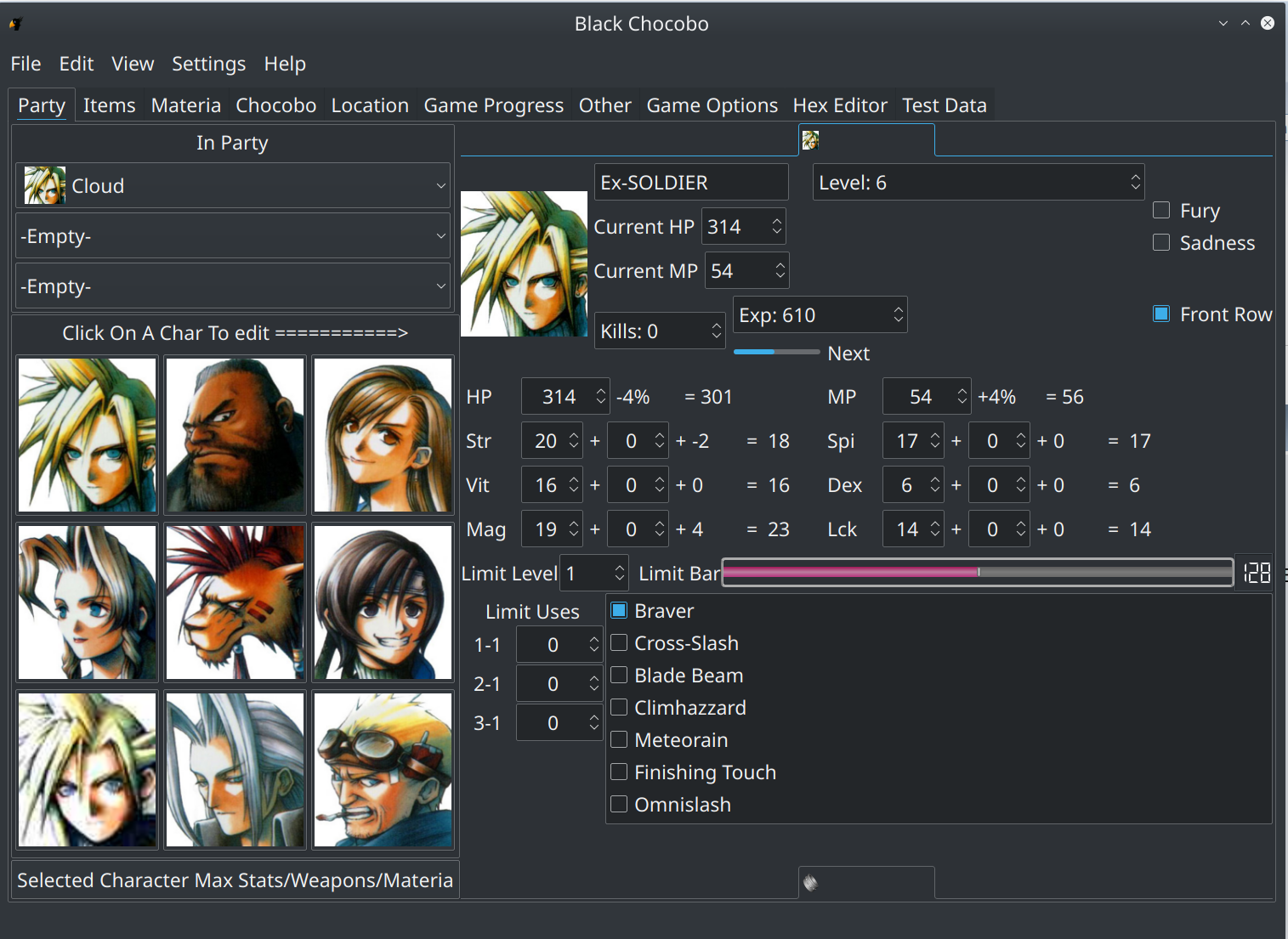
Image source: SourceForge
Managing Materia and Inventory Like a Pro
One of the most common uses for Black Chocobo is managing Materia. In the original game, Materia is stored in a specific list with a cap of 200 slots. If you use an editor to add too many, the game may crash when you open the Materia menu. Black Chocobo prevents this by validating your inventory count before saving.
To add Materia, you simply navigate to the "Materia" tab, select an empty slot, and choose the desired type from a dropdown menu. You can also set the AP levels. For example, setting a "Knights of the Round" Materia to 500,000 AP will instantly grant you the Master version. This is particularly useful for players who have already completed the game multiple times and wish to skip the end-game grind in a new playthrough.
Finding Your Final Fantasy VII Save Files on Steam and PC
Before you can edit anything, you must locate the actual save data. This is often the most confusing step for players, as the location varies significantly between the original 1997 disc version and the modern Steam release.
For the Steam Version (2012/Modern) , navigate to:
Documents > Square Enix > FINAL FANTASY VII Steam > user_[Unique_ID]
Inside this folder, you will find files named
save00.ff7
,
save01.ff7
, and so on. Each of these files represents a "Save Block" containing 15 individual save slots. Additionally, you will see a
metadata.xml
file. This file is critical; it tells Steam which save slots are active and what the timestamps are. If you edit a save but don't update the metadata, Steam may assume the file is corrupt and overwrite it with a version from the cloud.
How to Bypass Steam Cloud Sync to Prevent Edited Save Corruption
A common pitfall when using a Final Fantasy VII save editor is the "Cloud Overwrite." Steam's synchronization service is designed to ensure your saves are consistent across devices, but it often views an edited file as a conflict. To successfully inject your changes, follow this specific workflow:
- Disable Cloud Sync: Right-click FF7 in your Steam Library, go to Properties > General, and toggle off "Steam Cloud."
-
Create a Backup:
Copy your entire
user_[ID]folder to your desktop. Never edit your only copy. - Perform the Edit: Open your save file in Black Chocobo, make your changes, and save the file.
- The Menu Injection: Launch the game and stay on the main "New Game / Load Game" screen. Do not load a save yet.
-
Swap the Files:
While the game is running, Alt-Tab to your save folder and paste your edited
saveXX.ff7file, overwriting the existing one. - Re-sign the Save: Return to the game, load the save you just replaced, and then immediately save the game at a Save Point or on the World Map. This forces the game to "re-sign" the file with a new internal timestamp.
This method is widely considered one of the most reliable ways to ensure your edits stick. Once you have successfully re-saved in-game, you can safely re-enable Steam Cloud sync, and it will treat your edited save as the most recent "official" version.
Modifying Final Fantasy VII Remake and Rebirth Save Files
Editing saves for Final Fantasy VII Remake Intergrade and Rebirth is a more complex task due to modern encryption. Unlike the original game's simple structure, these titles use `.sav` files that are often tied to specific account IDs. However, web-based tools have simplified this process significantly.
The Game-Tools-Collection editor is a popular choice for these modern titles. It functions as a "drag and drop" service where you upload your save, modify parameters in a browser interface, and download the modified file. This is particularly useful for PC players who want to adjust their inventory or Materia levels without learning hex editing.
Adjusting Relationship Levels for the Gold Saucer Date
In FF7 Rebirth , the Chapter 12 Gold Saucer date is determined by hidden relationship values with your party members. Many players reach this point only to find they haven't triggered the date with their preferred character. Save editors allow you to view and modify these hidden scores.
By adjusting the "Relationship" flags, you can ensure that characters like Tifa, Aerith, or Barret have the highest priority. This is a significant advancement for players who want to see all cinematic outcomes without replaying dozens of hours of side content. According to recent community guides, these values typically range from 0 to 100, with specific thresholds required for the "Intimate" version of the date scenes.
Current Limitations for Editing FF7 Rebirth
While stat and item editing is relatively straightforward, FF7 Rebirth presents unique challenges for save editors. World Intel and Protorelic progress are tied to complex quest flags that are not easily toggled. While some tools allow you to mark Intel as "not cleared," actually resetting the world events to a previous state can often lead to game-breaking bugs.
Furthermore, "Hard Mode Manuscripts" are another area of difficulty. These items are granted upon completing specific challenges or bosses on the highest difficulty. Simply adding the manuscript to your inventory via an editor may not always grant the associated Skill Points (SP) if the corresponding quest flag hasn't been triggered. As of late 2026, developers of these tools advise caution when editing quest-related data, as it can permanently stall your progress in the main story.
Running Black Chocobo on Steam Deck and Linux
The Steam Deck has become a primary platform for playing the Final Fantasy VII series. Since the Deck runs on SteamOS (a Linux derivative), running Windows-based editors requires a bit of extra setup. The most efficient way to use Black Chocobo on a Steam Deck is through the Flatpak version available in the "Discover" store in Desktop Mode.
If you prefer the Windows version, you can use
Protontricks
to run the
.exe
within the game's specific prefix. The save path on Steam Deck is hidden deep within the
compatdata
folder:
/home/deck/.local/share/Steam/steamapps/compatdata/39140/pfx/drive_c/users/steamuser/Documents/Square Enix/FINAL FANTASY VII Steam/
Mapping this path in Black Chocobo allows you to edit your saves directly on the handheld without needing to transfer files to a main PC. This setup is highly recommended for users who want a seamless "pick up and play" experience while still having the power to customize their game.
Advanced Editing Techniques for Power Users
For those who want to go beyond simple stat boosts, advanced save editing can unlock features that were never intended by the developers. This includes modifying the "PHS Pool" and creating custom "New Game Plus" scenarios.
The PHS Pool Mechanic for Aerith Revival
The most famous use of a Final Fantasy VII save editor is the "Aerith Revival." While you cannot truly change the story, you can force Aerith back into your active party for Disc 2 and Disc 3. However, simply adding her to a party slot often causes the game to crash during cutscenes where she isn't supposed to exist.
The safer method involves editing the PHS Pool . In Black Chocobo, you can navigate to the "Party" tab and check the box to include Aerith in the PHS list. This allows you to swap her in and out at save points. By using the PHS pool rather than a hard-coded party slot, the game is less likely to conflict with scripted events, as the engine simply checks if a character is "available" rather than "present."
Essential Safety Tips to Avoid Losing Your Progress
Save editing is inherently risky. A single misplaced bit can render a 60-hour save file unreadable. To minimize risk, follow these industry-standard safety protocols:
- The Golden Rule: Always maintain a "Vanilla Backup." This is a copy of your save that has never touched an editor. If your edited file fails, you can always return to this baseline.
- Check for Checksum Errors: If the game shows "Corrupt Data," it usually means the file size or internal checksum doesn't match what the game expects. Tools like Black Chocobo handle this automatically, but manual hex edits often fail this check.
- Achievement Risks: While editing saves generally doesn't result in bans (as FF7 is a single-player game), it can trigger Steam achievements out of order. If you care about the "legitimacy" of your trophy profile, avoid using editors to unlock end-game achievements instantly.
- Incremental Saving: When testing an edit, save it to a new slot (e.g., Slot 15) rather than overwriting your main progress (Slot 1).
Frequently Asked Questions
- Can I use Black Chocobo for Final Fantasy VII Remake?
- No. Black Chocobo is specifically designed for the original game engine (1997 PC, Steam 2012, and console ports). For Remake and Rebirth, you must use tools specifically built for the Unreal Engine save format, such as the Game-Tools-Collection web editor.
- Is save editing considered cheating in FF7?
- Since Final Fantasy VII is a single-player experience, "cheating" is a matter of personal preference. There is no anti-cheat system that will ban you from the game. However, using editors can disable the sense of progression, so many players recommend only using them for post-game exploration or fixing missed items.
- How do I convert my old PSX saves to the Steam version?
- Black Chocobo makes this process remarkably simple. You can open a PlayStation memory card file (.mcr or .mcd), select the specific save slot, and then use the "Save As" function to export it as a .ff7 file compatible with the Steam version. You will also need to update your metadata.xml for Steam to recognize the new file.
- Why does my save file show as 0KB after I edit it?
- This usually happens if the editor was closed unexpectedly or if there was a write-permission error in your Documents folder. This is why backups are essential. If this happens, delete the 0KB file and restore your backup before trying the edit again.
- Can I edit saves on the Android or iOS versions of FF7?
- Yes, but it requires extracting the save file from your device. On Android, this typically requires a rooted device or a file explorer that can access the /data/data/ folder. Once you have the save file on your PC, you can edit it with Black Chocobo just like a standard PC save.
Key Takeaways for FF7 Save Editing
- Choose the right tool based on your game version (Black Chocobo for Original, Web-tools for Remake/Rebirth).
- Always backup your entire save folder before opening any third-party software.
- Disable Steam Cloud to prevent the game from overwriting your modifications.
- Use the PHS Pool mechanic if you intend to experiment with party members like Aerith.
- Locate the metadata.xml file for the Steam version to ensure your changes are recognized.
- Check for tool updates regularly to ensure compatibility with the latest game patches.
Start by creating a backup of your current save folder and testing a simple Gil modification to ensure your workflow is functioning correctly.