Home
How to Edit Antimatter Dimensions Saves for Reality Steam and Mobile
To edit an Antimatter Dimensions save, you must export your save string from the game, paste it into a compatible editor like
Sato-Isolated
or
MaPu
, modify the values, and re-import the new string. Since the Reality Update, saves use
LZ-String compression
, meaning standard Base64 decoders will not work. For cross-platform play, look for the
FormatAA
prefix used by Steam and Mobile versions.
Introduction to Save Editing in the Reality Era
Antimatter Dimensions is a game of immense scale, often requiring months or years of active play to reach the final stages of the Reality Update. For many players, the "wall" becomes a point of frustration rather than a challenge. This is where a save editor becomes a valuable tool for testing end-game builds, recovering lost progress, or bypassing specific progression hurdles.
At the heart of every save is the
player
object. This is a massive Javascript object that tracks every single variable in your game—from your current Antimatter count to the specific configuration of your Automator scripts. In the early days of the game, these objects were simply encoded in Base64, making them relatively easy to read. However, as the game expanded, the save files became too large for simple encoding.
According to technical documentation and community reports, the shift to LZ-String compression was a significant advancement in the game's architecture (Sato-Isolated GitHub) . This compression allows the game to store thousands of variables in a compact string, but it also means that if you try to open your save in a standard text editor, it will appear as a jumble of "weird characters" or symbols. Understanding this compression layer is the first step to successful save manipulation.
Which Save Editor Should You Use?
Not all editors are created equal. Depending on whether you are in the early Infinity stage or deep into the Celestial content of the Reality Update, your choice of tool will vary. Below is a comparison of the top-rated options currently available to the community.
| Editor Name | Reality Compatible | Best For | Ease of Use |
|---|---|---|---|
| Sato-Isolated | Yes (Full Support) | Celestials, Automator, End-game | Moderate (Advanced UI) |
| MaPu (Matter Manipulator) | Partial | Early game (Antimatter, IP, EP) | High (Simple UI) |
| Buck4437 Save Bank | Yes | Skipping walls, Milestone recovery | High (Pre-made saves) |
The Sato-Isolated Save Editor stands out as a top choice for modern players. It is one of the few tools that correctly handles the complex data structures introduced in the Reality Update, including the Automator and the various Celestial mechanics. For those looking for a quick boost to their Antimatter or Infinity Points in the early game, the MaPu Editor (also known as the Matter Manipulator) offers a more streamlined, albeit less powerful, interface (MaPu Editor) .
How to Use the Sato-Isolated Save Editor Step by Step
Using a modern editor requires a specific workflow to ensure you don't corrupt your progress. The Sato-Isolated editor is widely regarded as one of the strongest tools for this purpose due to its ability to toggle between a structured UI and raw JSON editing.
Open Antimatter Dimensions and navigate to the "Options" tab. Click "Export to Clipboard." You should see a long string of characters copied to your system.
Before you touch any editor, paste your raw string into a Notepad or TextEdit file. If the editor fails or you make a mistake, this is your only way to recover your original game.
Navigate to the Sato-Isolated interface. Paste your string into the "Input" box. The editor will automatically detect the compression type and populate the fields.
Use the "Structured" tab for simple changes like currency. Use the "JSON" tab if you need to edit specific arrays or mod-specific variables that the UI doesn't display.
Once finished, click "Save and Copy to Clipboard." Go back to the game, click "Import," and paste the new string.
Image source: GitHub
Why Does My Save String Look Like Gibberish?
A common pitfall for players is attempting to use a standard Base64 decoder on a Reality-era save. When you do this, the output is often a series of non-readable symbols. This happens because the game developers implemented LZ-String compression to handle the massive increase in data points required for the Reality Update.
LZ-String is a compression algorithm designed for Javascript that excels at shrinking large JSON objects. If you want to manually see your data without a dedicated editor, you must first use an LZ-String decompressor, then a Base64 decoder (or vice versa, depending on the specific game version). Most users find this process tedious, which is why tools like the Sato editor are highly recommended—they handle the multi-layer decompression automatically (Reddit Discussion) .
How to Transfer Saves Between Steam Mobile and Web
One of the most frequent questions involves moving progress between the Steam version, the Android/iOS app, and the original Web version. While the core game logic is the same, the "transport envelopes"—the way the save string is wrapped—differ slightly.
Steam and Mobile saves are typically identifiable by the
AntimatterDimensionsSavefileFormatAABeJzt...
prefix. This
FormatAA
header tells the game that the save is coming from a specific platform build. To move a mobile save to the web, you can often use the "Export to Web" button found in the Android version's settings. If that button is missing, the Sato editor acts as a "bridge." By importing a
FormatAA
string and then exporting it, the editor often cleans the envelope, making it compatible with the Web version
(Steam Community)
.
How to Fix a Broken Save Using the JSON Editor
Sometimes, a save isn't just "behind"—it's broken. A common issue is the "Phantom Challenge" bug, where the game believes you are inside an Infinity Challenge or Eternity Challenge, preventing you from progressing or Dilating time, even though no challenge is active.
To fix this, you must dive into the JSON editor and look at the bitmask logic for challenges. In Antimatter Dimensions, challenge completion and active status are often stored as bitfields:
- Normal Challenges: Uses a mask of 8190 to represent all 12 challenges.
- Infinity Challenges: Uses a mask of 510 to represent all 8 challenges.
-
Eternity Challenges:
These are usually stored in an array called
eternityChalls. Setting these values to 5 will mark them as fully completed.
If you are stuck in a challenge, look for the
currentChallenge
or
activeChallenge
keys in the JSON and set their values to an empty string
""
. This "resets" the player state and allows you to resume normal play
(AD Wiki)
.
Advanced Editing for Values Above 1.79e308
Antimatter Dimensions uses a library called
break_infinity.js
to handle numbers that exceed the standard Javascript limit of $1.79 \times 10^{308}$. Once you pass this "Infinity" cap, the game no longer treats numbers as standard integers or floats.
When editing values like Antimatter or Reality Machines in the JSON editor, you cannot simply type
1e500
. Doing so will result in a "NaN" (Not a Number) error or a game crash. Instead, you must use
String-Based Decimals
. The correct syntax in the raw JSON is to wrap the value in a Decimal constructor string:
// RIGHT: "antimatter": "1e500" (The game will parse this as a Decimal object)
This distinction is crucial for players in the late-game Celestials stage, where currencies frequently reach values like $1e100,000$ or higher. Always ensure you are using quotes around large numbers when working in the JSON tab.
Where to Find Pre-Made Saves in the Save Bank
If you have lost your save due to a hardware failure or simply want to skip a particularly slow part of the game (like the first Eternity), the AD Save Bank is an excellent resource. Managed by community members like Buck4437, this repository contains verified save strings for every major milestone in the game.
Key milestones available for download include:
- First Infinity: Skips the initial grind to $1.79e308$ Antimatter.
- First Eternity: Starts you right at the beginning of the Time Study tree.
- Time Dilation Unlock: Bypasses the requirement to reach 13,000 total theorems.
- Reality: A clean save ready for the start of the end-game content.
You can access these saves at the official Save Bank repository . To use them, simply copy the provided string and use the "Import" function in-game. These saves are widely considered safe and are regularly updated to remain compatible with the latest Steam and Web builds (Wiki.gg Save Bank) .
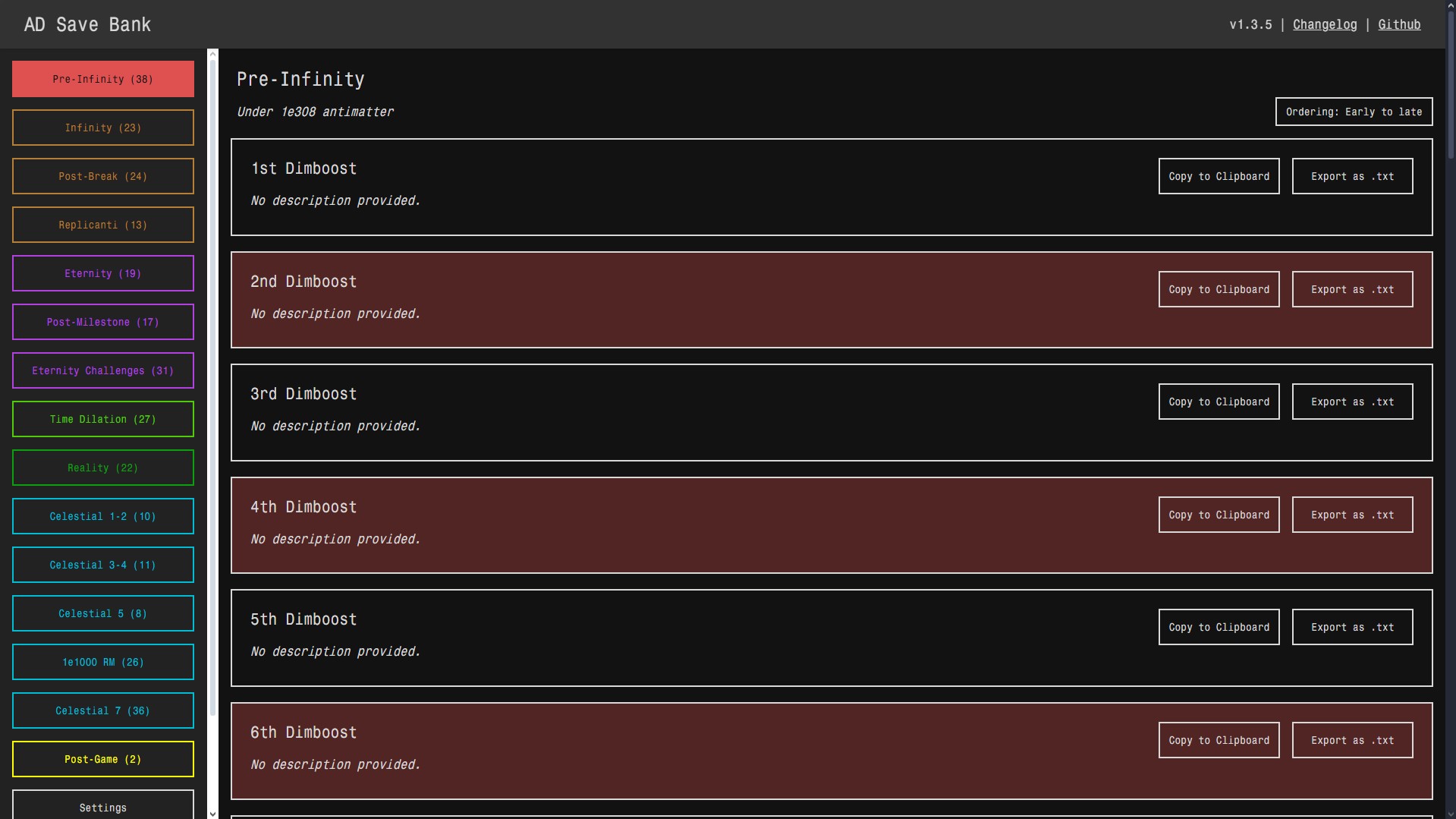
Image source: Antimatter Dimensions Wiki - wiki.gg
Frequently Asked Questions
No, using a save editor does not technically disable achievements in Antimatter Dimensions. However, it can significantly impact your sense of progression. If you edit in an achievement you haven't earned, the game will treat it as valid. Many players use editors specifically to fix "bugged" achievements that failed to trigger during normal play.
Yes, but with a caveat. You must first export your mobile save. If the editor doesn't recognize the
FormatAA
string, you may need to use the "Export to Web" option in the mobile app settings first. Once edited, you can import the string back into the mobile app. Be aware that very large saves may cause performance issues on older phones.
This is usually caused by a copy-paste error. Ensure you haven't missed a single character at the beginning or end of the string. Another common cause is an LZ-String mismatch; if you are using an outdated editor that doesn't support the Reality Update, it will produce a string the modern game cannot read. Always use the Sato-Isolated editor for the most current builds.
Most mods (like NG+++ or AD Redux) use the same basic
player
object structure. You can use the Sato editor's
JSON tab
to edit these. However, the "Structured" UI will not show mod-specific variables (like "Tickspeed Boosts" in some mods). You will need to find the specific key in the JSON code to modify those values.
The Sato-Isolated editor has a dedicated "Automator" tab. This allows you to write, edit, and debug your scripts in a full-screen environment rather than the small in-game window. This is a top-tier feature for players who want to optimize their Reality runs without the constraints of the game's UI.
Key Takeaways for Save Editing
- Always backup your original save string in a separate text file before attempting any edits.
- Use Sato-Isolated for any save that has reached the Reality stage or uses Steam/Mobile formats.
-
Identify the format
by looking for the
FormatAAprefix when moving between platforms. - Fix phantom bugs by checking the bitmask logic for challenges (8190 for Normal, 510 for Infinity).
-
Handle large numbers
by using string-based decimals like
"1e500"instead of raw numbers. - Leverage the Save Bank if you need to recover lost progress or skip repetitive early-game walls.
By following these steps, you can safely modify your Antimatter Dimensions experience to suit your playstyle while avoiding the common pitfalls of save corruption.