Home
How to Use a Savegame Editor to Modify Your Game Files Safely
A
savegame editor
is a software tool or web application designed to modify variables within a game's save file, such as currency, player stats, or inventory items. To use one safely, you must
always backup your original save file
(usually found in
%AppData%
or
Documents
) before uploading it to a tool like
SaveEditOnline
or a specialized engine editor. For modern games using Ren’Py 8.1+, you may also need a
security_keys.txt
file to re-sign the save and prevent corruption errors.
What Is a Savegame Editor and How Does It Work?
At its core, a savegame editor acts as a bridge between the complex, often encrypted data of a video game and a user-friendly interface. When you play a game, your progress—ranging from your character's level to the specific coordinate where you last stood—is recorded in a save file. These files use various formats like
.sav
,
.json
,
.rpgsave
, or
.dat
. Without a specialized tool, opening these files in a standard text editor usually reveals a mess of hexadecimal code or binary data that is impossible for most players to interpret.
The editor functions by parsing this raw data. It identifies specific "offsets" or locations within the file where certain variables are stored. For example, a savegame editor for an RPG might know that the value for "Gold" is always stored at a specific byte address. The tool translates that byte into a readable number, allows you to change it (e.g., from 100 to 99,999), and then writes that change back into the file structure without breaking the rest of the data.
Safety is a primary concern for many users. While most web-based tools are safe, standalone executables should be vetted carefully. Open-source projects hosted on platforms like GitHub are generally considered among the top choices because their source code is transparent. According to community standards, the primary risk isn't usually malware, but rather file corruption . If an editor writes data incorrectly, the game engine may fail to load the save, resulting in a "Save File Corrupted" error. This is why understanding the underlying engine—whether it's Unity, RPG Maker, or Ren'Py—is vital for successful editing.
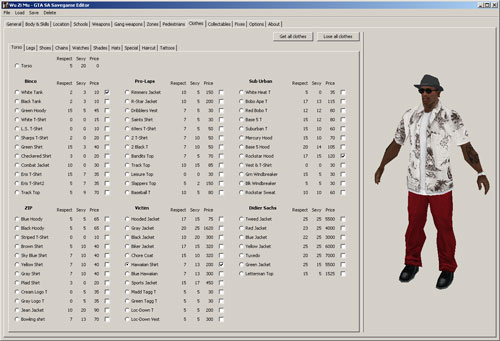
Image source: Paulinternet.nl
Which Savegame Editor Should You Use for Your Game?
Selecting the appropriate tool depends entirely on the game engine and the platform you are using. While universal tools exist, engine-specific specialists often provide a more stable experience and deeper customization options.
Universal Web Tools
For quick edits without the need for software installation,
Save Editor Online
and SaveEditOnline are widely regarded as top-tier options. These tools support a vast array of formats, including
.sqlite
and
.json
. They are particularly effective for games developed in Unity or Godot where variables are stored in plain-text or standard database formats. However, they often have a file size limit, typically capping uploads at 10MB for free users.
Engine-Specific Specialists
-
RPG Maker (MV, MZ, VX):
These games use highly standardized save formats (like
.rpgsave). Specialized editors for RPG Maker are exceptionally strong at identifying item IDs and quest flags that universal tools might miss. - Ren’Py: Visual novels built on Ren’Py require specific handling due to their use of Python "pickling" for data storage. Modern versions also implement digital signatures, which we will discuss in detail later.
- Nintendo Consoles: For titles on the 3DS or Switch, such as Pokémon or Zelda, Marc Robledo’s HTML5 editors stand out as a premier choice, allowing for browser-based editing of console-specific formats.
| Tool Name | Supported Engines | File Size Limit | Best For |
|---|---|---|---|
| SaveEditOnline | Universal (JSON, XML, HEX) | 10MB (Free) | Quick value changes |
| Save Editor Online | RPG Maker, Ren'Py, Unity | 20MB (Premium) | Visual Novels & RPGs |
| Marc Robledo Tools | Nintendo (3DS/Switch) | Varies | Console Save Editing |
| SOTFEdit | Sons of The Forest (Unity) | Unlimited (Local) | Specific Game Depth |
How to Find and Backup Your Save Files Before Editing
Before you even open a savegame editor, you must secure your progress. The "Golden Rule" of game modding is to never edit your only copy of a save file. Locating these files can be tricky, as developers store them in different locations depending on the platform and store (Steam, Epic, or GOG).
Common Windows 10/11 Locations
Most modern games store their data in one of three places. You can access these by pressing
Win + R
and typing the following shortcuts:
- %AppData%: Often used by indie titles and RPG Maker games. Look for a folder named after the developer or the game title.
- %LocalAppData%: Frequently used by Unreal Engine 4 and 5 titles. Check the "Saved" folder within the game's directory here.
- Documents/My Games: A classic location used by major publishers like Bethesda and Ubisoft.
If you edit a local save while Steam Cloud is active, Steam may detect a mismatch and overwrite your edited file with the older version from the cloud. It is often a top-rated practice to disable Steam Cloud for the specific game temporarily while you perform and test your edits.
The Backup Process
To create a safe backup, simply right-click your save file (e.g.,
save01.dat
) and select "Copy," then "Paste" in the same folder. Rename the copy to something like
save01.dat.bak
. If the edited file causes the game to crash, you can simply delete the corrupted file and remove the
.bak
extension from your backup to restore your progress instantly.
How to Fix the Ren’Py Signature Error When Editing Saves
One of the most significant technical barriers in modern save editing involves Ren’Py 8.1 and newer. To prevent cheating or accidental corruption, the engine now applies a digital signature to save files. If you modify a value using a standard savegame editor, the signature no longer matches the data, and the game will refuse to load the file, often displaying a "Signature Verification Failed" error.
The solution involves a process called "re-signing." To do this, you must locate a file named
security_keys.txt
. This file is typically found within the game's base directory, often inside the
/game/
or
/renpy/
subfolders. This key file contains the unique cryptographic information the engine uses to validate saves.
security_keys.txt
in the game folder.
.save
file and the
security_keys.txt
simultaneously.
What to Do When a Savegame Editor Cannot Change a Value
Sometimes, you might successfully edit a value (like movement speed or a specific quest flag), but as soon as you load the game, the value resets to its original state. This is known as an "Engine Overwrite." Some game engines calculate certain values in real-time based on other variables, meaning the static save file is ignored for those specific stats.
In these scenarios, a Hybrid Workflow is highly recommended. This involves using a savegame editor in conjunction with a memory manipulation tool like Cheat Engine . While the save editor handles permanent changes like inventory and currency, Cheat Engine can "freeze" values in the game's active memory (RAM) to prevent the engine from resetting them.
Step-by-Step Hybrid Method
- Load your edited save file where you attempted to change a stubborn value.
- Open Cheat Engine and attach it to the game's process.
- Perform a "First Scan" for the current value of the stat you want to change.
- Change the value in-game (e.g., by moving or spending a small amount) and perform a "Next Scan."
- Once you find the address, change it to your desired value and click the "Active" checkbox to freeze it. This prevents the game engine from overwriting the value during the current session.
How to Move and Edit Save Files Between Android and PC
Mobile gaming has grown significantly, but editing saves on Android is notoriously difficult due to file system restrictions and the lack of robust mobile editing tools. A popular workaround involves migrating saves to a PC, using a GUI-based savegame editor, and then moving the file back to the mobile device.
A classic case study is
GTA: San Andreas
on Android. The mobile version uses
.dat
files that are structurally similar to the PC version but stored in the
/Android/data/com.rockstargames.gtasa/files/
directory. Because Android 11+ restricts access to this folder, you may need to connect your phone to a PC via USB and set the connection mode to "File Transfer."
Once the file is on your PC, you can use a tool like the GTA:SA Savegame Editor on GitHub . Note that many of these standalone tools require specific environments, such as Java 23+ , to run correctly on modern operating systems. After making your changes, you must carefully move the file back to the exact same directory on your Android device. If the file structure is altered, the game will likely fail to recognize the save entirely.
Common Technical Limits and How to Avoid File Corruption
Even the most robust savegame editor has its limits. Understanding these thresholds can save you hours of frustration and lost progress. One common issue is the 7MB "Ceiling." In complex simulation games like Pro Cycling Manager , late-game save files can grow quite large. Many web-based editors struggle to process or re-save files that exceed 7MB to 10MB, leading to truncated data that corrupts the save.
Another risk involves Negative Value Crashes . In titles like Sunless Skies , the game engine expects specific variables (like health or fuel) to be unsigned integers (positive numbers). If an editor allows you to enter a negative value, or a value that exceeds the "Max" defined in the game's code, the game will often crash immediately upon loading the save. Always aim for realistic values rather than "infinite" ones to maintain stability.
/Mods/
folder. This allows the editor to recognize custom item IDs introduced by mods, preventing them from being deleted or turned into "broken" items during the save process.
Using Editors to Convert Saves Between Mod Versions
Savegame editors aren't just for cheating; they are essential tools for maintaining long-term playthroughs when mods update. When a major mod update occurs, it often changes "Variable Mapping"—the internal IDs assigned to items or quest stages. This usually makes old saves incompatible with the new version of the mod.
By using a savegame editor, you can manually update the "Version Header" of your save file. This tells the game engine that the save is compatible with the current version. Furthermore, if an item ID changed from
item_01
to
item_new_01
, you can use the editor's search-and-replace function to update all instances of that ID within your save, effectively "porting" your progress to the new mod version without losing your inventory or quest status.
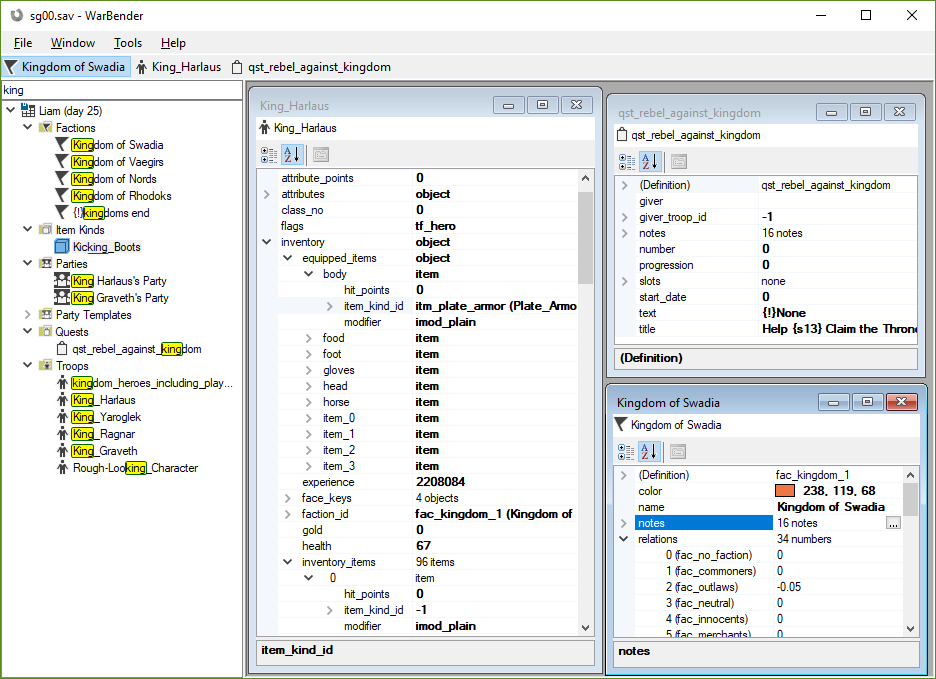
Image source: TaleWorlds Forums
Frequently Asked Questions
In single-player games, editing saves is generally safe and will not result in a ban. However, you should never attempt to use a savegame editor on games with active anti-cheat systems (like Easy Anti-Cheat or BattlEye) or in multiplayer environments. Modifying saves in VAC-secured games while connected to the internet can lead to permanent account restrictions. Always play offline if you are testing an edited save in a game that has online components.
This usually happens for one of three reasons: the file was not re-signed (common in Ren'Py), the editor reached a file size limit and truncated the data, or you entered a value that the game engine considers "out of bounds." To fix this, restore your backup and try making smaller, more conservative changes. If you are playing a Ren'Py game, ensure you are using the
security_keys.txt
file during the editing process.
Most high-quality savegame editors are free and open-source. While some web-based tools offer premium tiers for larger file uploads or cloud storage, you can almost always find a free alternative on GitHub or specialized community forums. Be cautious of any tool that requires a subscription for basic functionality, as there are many community-driven options that provide the same features for free.
A save editor modifies the static data stored on your hard drive while the game is closed. These changes are permanent until you change them again. A game trainer, on the other hand, modifies the game's memory (RAM) while the game is running. Trainers allow for "active" cheats like infinite health or super speed, but these effects usually disappear once you close the game unless they are specifically written into a new save file.
Web-based editors work perfectly on Mac and Linux since they run in the browser. For standalone tools, you may need to install a Java Runtime Environment (JRE). Many modern editors are built using Java to ensure cross-platform compatibility. If a tool is Windows-only (.exe), you can often run it using Wine or a virtual machine, though web-based tools remain the most convenient option for non-Windows users.
Key Takeaways for Safe Save Editing
- Always create a backup of your original save file before using any editor to prevent permanent progress loss.
- Identify the game engine (RPG Maker, Ren'Py, Unity) to choose the most compatible editing tool.
- Use security keys for Ren'Py 8.1+ games to avoid signature verification errors.
- Watch for file size limits , especially with web-based tools that may fail on files larger than 10MB.
- Implement the Hybrid Workflow by using Cheat Engine if a save editor fails to change a specific value.
- Verify values to ensure they stay within the game's logical bounds (no negative numbers for positive stats).
- Disable Steam Cloud temporarily to prevent the game from overwriting your manual edits.
By following these technical steps, you can safely bypass tedious grinds or fix game-breaking bugs without risking your entire playthrough.