Home
How to Use a Diablo 2 Char Editor for Resurrected and Legacy Characters
A
Diablo 2 char editor
allows you to modify offline character files (.d2s) to adjust stats, skills, and gear. For quick changes, web-based tools like
D2Runewizard
or
D2emu
are top choices. For complex modding and bulk item upgrades, the desktop application
D2CE
is highly recommended. Always back up your save files located in
Saved Games\Diablo II Resurrected
before editing, and never use edited characters on Battle.net to avoid account restrictions.
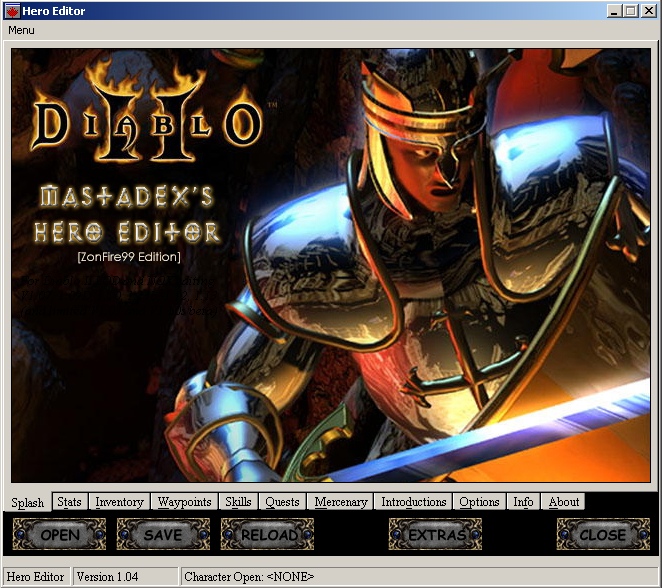
Image source: ModDB
Which Diablo 2 Character Editor Should You Choose?
Selecting the right tool depends entirely on your technical comfort level and the specific goals of your character modification. The landscape of Diablo 2 editing has shifted significantly since the release of Resurrected, moving from clunky desktop applications to streamlined web interfaces.
The Case for Web-Based Editors
Web-based tools like
D2Runewizard
and
D2emu
have become the standard for most players. These platforms allow you to upload your
.d2s
file directly through a browser, make adjustments, and download the modified version instantly. They are particularly effective for stat resets, skill point reallocations, and basic item generation. Many users find these tools to be a top choice because they require no installation and are frequently updated to support the latest D2R patches.
The Case for Desktop Applications
For power users, desktop applications like D2CE (by Walter Couto) offer features that web tools often lack. D2CE stands out for its ability to handle bulk upgrades—such as turning an entire inventory of gems into perfect versions or filling a belt with Full Rejuvenation potions in a single click. It also provides robust support for modded versions of the game, such as BTDiablo, where inventory sizes and item properties may differ from the base game.
| Tool Name | Platform | D2R Support | Legacy Support | Best For |
|---|---|---|---|---|
| D2Runewizard | Web | Yes | Yes | Quick stat/skill tweaks |
| D2emu | Web | Yes | Yes | Item generation |
| D2CE (Walter Couto) | PC (Desktop) | Yes | Yes | Bulk upgrades & Mods |
| Hero Editor (Legacy) | PC (Desktop) | Via Conversion | Yes | Old-school nostalgia |
| IGHE | In-Game Mod | Yes | No | Real-time testing |
How to Find Your Diablo 2 Save Files on PC
Before you can use any editor, you must locate your character files. Diablo 2 stores character data in
.d2s
files, which contain everything from your level and experience to the specific items equipped on your mercenary.
Locating Diablo II: Resurrected Saves
In the modern version of the game, Blizzard has standardized the save location to the Windows user profile. You can typically find your files at the following path:
C:\Users\[YourUsername]\Saved Games\Diablo II Resurrected
Within this folder, you will see several files for each character. While the
.d2s
file is the primary target for editors, you may also see
.key
and
.map
files, which store your hotkey configurations and explored map data, respectively.
Locating Legacy (LoD) Saves
For the original 2000 release, the location depends on your patch version. If you are running version 1.14 or later, the files are usually in the same
Saved Games
folder as D2R. However, for older versions (1.13 and earlier), the files are often located within the game's installation directory (e.g.,
C:\Program Files (x86)\Diablo II\Save
). If you cannot find them there, check the Windows
VirtualStore
, as modern Windows security often redirects older application saves to hidden user folders.
- .d2s File
- The core character file containing stats, skills, and inventory.
- .d2i File
- A shared stash file used to transfer items between characters.
- .map File
- Stores the revealed areas of the map for a specific difficulty.
How to Edit Your D2R Character Using Web-Based Tools
Using a web-based editor is a straightforward process, but it requires precision to avoid file corruption. These tools work by parsing the binary data of your save file and presenting it in a user-friendly interface.
-
Create a Backup:
Before doing anything else, copy your
.d2sfile to a separate folder. If the editor encounters an error, you could lose dozens of hours of progress. -
Upload the File:
Navigate to a site like D2Runewizard and drag your
.d2sfile into the upload box. The site will load your character's current state. - Modify Stats and Skills: You can now manually enter values for Strength, Dexterity, or specific skill levels. Most editors allow you to set these well beyond the natural caps for testing purposes.
- Unlock Waypoints and Quests: If you want to skip the tedious Act 3 jungle or jump straight to Hell difficulty, look for the "Quests" or "Waypoints" tab. You can toggle specific flags to mark quests as completed.
-
Download and Replace:
Once finished, click "Save" or "Download." Move the new file back into your
Saved Gamesfolder, overwriting the original (after ensuring your backup is safe).
Advanced Item Creation and Bulk Upgrades with D2CE
While web tools are excellent for basic changes, D2CE provides a level of depth that ranks among the top for power users. This desktop application allows for granular control over item affixes and suffixes.
Creating Custom Gear
D2CE allows you to "craft" items by selecting a base item (like a Berserker Axe) and manually adding magical properties. You can choose specific rolls for "Enhanced Damage" or "Increased Attack Speed," ensuring you get the exact stats you need for a specific build test. This is a significant advancement over older editors that often struggled with the complex item bit-streams of D2R.
The Bulk Upgrade Hack
One of the most impactful features of D2CE is the bulk upgrade system. Instead of manually creating 40 individual charms, you can use the editor to fill your inventory with specific items instantly. Many players use this to generate "Perfect" gems or high runes without the repetitive clicking required by web-based alternatives. According to community feedback, this feature alone makes D2CE a top-tier option for players testing end-game builds.
How to Use the Legacy Conversion Loop for D2R Characters
Some veteran players still prefer the interface of the original "Jamella" or "Hero Editor" tools from the early 2000s. While these tools cannot read modern D2R files directly, a "Legacy Conversion Loop" allows you to bridge the gap.
The process involves using a file converter to downgrade your D2R
.d2s
file to a version compatible with Legacy 1.14. Once converted, you can open the file in the classic Hero Editor, make your changes, and then use the same converter to upgrade the file back to the D2R format. While this method is notably innovative, be aware that D2R features a larger stash size than the original game. Items placed in the "extended" areas of the D2R stash may be lost or cause errors during the conversion back to Legacy format.
Editing Characters for D2R Mods Like BTDiablo and Rebirth
Modding communities like BTDiablo and Rebirth have introduced new items, stackable runes, and expanded inventories. Standard editors often fail when encountering these modified files because the file structure no longer matches the base game.
To edit these characters, you must ensure your editor supports custom inventory sizes. D2CE is widely regarded as one of the best options for this, as it allows users to define custom grid dimensions. Furthermore, you must look for your save files in the mod-specific subfolder, typically located at
\Saved Games\Diablo II Resurrected\mods\[ModName]\
. If you try to load a modded character into a standard web editor, you will likely receive a "Bad Header" or "Invalid File" error.
Why Your Character Disappeared and How to Fix It
It is common to encounter issues where a character no longer appears on the selection screen after an edit. This is usually not a sign of a deleted file, but rather a data mismatch that the game client cannot resolve.
The "Bad Header" Error
Every Diablo 2 save file must begin with a specific hex code:
55AA55AA
. If an editor saves the file incorrectly, this header might be corrupted. You can verify this using a free hex editor; if the first four bytes are anything else, the game will treat the file as corrupt. Manually fixing the header can often restore a "ghost" character.
Version Mismatches and Zero-Byte Files
If you use an editor designed for version 1.13 on a 1.14d save file, the internal offsets will be wrong. This often results in the editor saving a "Zero-Byte" file—a file that contains no data at all. This is why backups are essential. If you encounter a "Failed to Join Game" error after editing, it is likely that you have added an item with invalid properties or exceeded the game's internal limits, such as the gold cap.
Safety Rules to Avoid Battle.net Bans and Lost Progress
The most important rule of character editing is that it is strictly for Offline/Single Player use. Blizzard's modern Battle.net infrastructure is designed to detect modified data packets. While the game client itself usually prevents you from even attempting to take an edited character online, any successful attempt would likely result in an immediate and permanent account ban.
Furthermore, editing characters while the game is running is a primary cause of file corruption. The game periodically writes to the
.d2s
file while you are in the menus. If an editor tries to write to the same file simultaneously, the data will become garbled. Always exit to the desktop before opening your save file in any modification tool. By following these safety protocols, you can enjoy the creative freedom of character editing without risking your standing in the online community.
Key Takeaways for Successful Character Editing
-
Always backup
your
.d2sfiles before using any editing tool to prevent permanent data loss. - Use web-based tools like D2Runewizard for simple stat resets and skill point adjustments.
- Choose D2CE for advanced tasks like bulk item upgrades or modded playthroughs (e.g., BTDiablo).
-
Verify file headers
(
55AA55AA) if your character disappears from the selection screen. - Stay offline and never attempt to bring modified characters onto the Battle.net servers.
- Respect gold caps and level limits to avoid triggering "Failed to Join Game" errors.
Start by creating a copy of your favorite character and testing a few minor stat changes to ensure your chosen editor is compatible with your current game version.
Frequently Asked Questions
Is it safe to use a character editor in Diablo 2 Resurrected?
Saved Games
folder is a critical safety measure.
Will using a hero editor get my Battle.net account banned?
How do I backup my Diablo 2 save files before editing?
C:\Users\[YourUsername]\Saved Games\Diablo II Resurrected
. Select all files associated with your character (e.g.,
HeroName.d2s
,
HeroName.key
, etc.), right-click, and select "Copy." Paste these files into a new folder on your desktop or a cloud drive before opening the original files in an editor.
Can you transfer edited PC characters to Nintendo Switch or PS5?
Why does my character say "Failed to Join Game" after editing?